Knowledge Box Configuration
Overview
The ai12z Knowledge Box is a versatile web control that delivers AI-generated answers and content directly on your web pages. It supports multiple configurations per agent, allowing you to customize the appearance, behavior, and functionality for different use cases.
Primary Use Case: AI Overview for Search
The Knowledge Box is primarily used as an AI Overview on search pages — supplementing your existing search with AI-generated summaries that appear above traditional search results. When a user submits a search query, your page passes that text to the Knowledge Box, which provides an instant, contextual answer while your regular results load below.
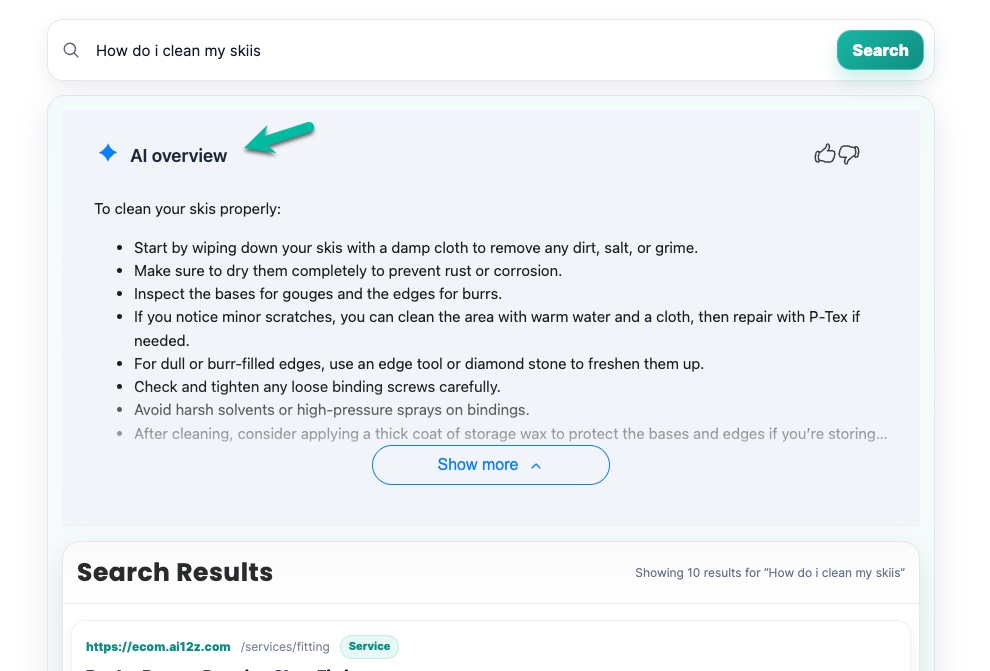
Example: A user searches for "how to clean ski boots" — the Knowledge Box displays a concise AI-generated answer at the top, followed by your standard search results.
Each configuration can be independently managed and applied to specific Knowledge Box instances using a unique Config ID.
Managing Configurations
List of Configuration
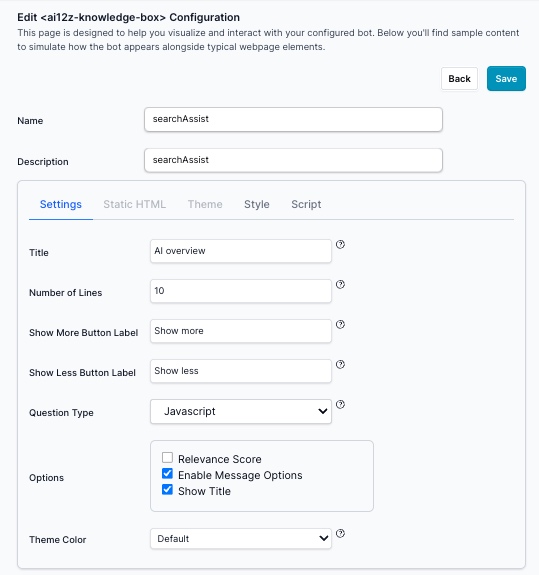
Navigate to your agent's Knowledge Box configuration page where you can view and manage all available configurations. Each configuration includes:
- Name: A descriptive identifier for the configuration
- Config ID: A unique identifier used to reference this configuration - used with
config-idin the tag - Description: A brief explanation of the configuration's purpose
- Modified Date: When the configuration was last updated
- Default Status: One configuration can be marked as the default
- Action: Edit or Preview
Using a Configuration
When you have multiple configurations, specify which one to use by adding the config-id attribute to the Knowledge Box tag. If no config-id is specified, the default configuration will be used.
<!-- Using a specific configuration -->
<ai12z-knowledge-box data-key="<API_KEY>" config-id="69403a0b13dce28e2e1f84f2">
</ai12z-knowledge-box>

<!-- Using the default configuration -->
<ai12z-knowledge-box data-key="<API_KEY>"></ai12z-knowledge-box>
Configuration Tabs
Each configuration consists of four main tabs: Settings, Static HTML, Style, and Script. These tabs allow you to control different aspects of the Knowledge Box behavior and appearance.
Settings Tab
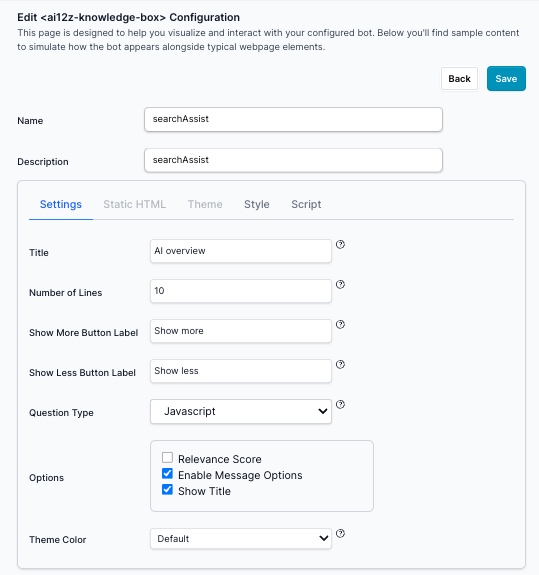
The Settings tab controls the core functionality and appearance of your Knowledge Box.
Basic Settings
| Setting | Description | Example |
|---|---|---|
| Title | The heading displayed above the Knowledge Box content | "AI overview", "Smart Answers", etc. |
| Number of Lines | Controls how many lines of content are visible before the "Show More" button appears | Default: 10 |
| Show More Button Label | Text displayed on the button to expand content | "Show more", "Read more", "See full answer" |
| Show Less Button Label | Text displayed on the button to collapse content | "Show less", "Collapse", "Hide details" |
Question Type
The Question Type setting determines how questions are passed to the Knowledge Box. There are three options:
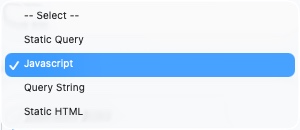
1. JavaScript
JavaScript mode requires you to programmatically set the question using JavaScript. The Knowledge Box will not display content until a question is provided via code. (Most - popular)
2. Static Query
With Static mode, you can define a default question that loads automatically when the page loads. Users can still submit new questions via JavaScript or by interacting with the Knowledge Box.

Use Case: Pre-populate a common question or show a default answer when the page loads. The first user the LLM will generate the answer, after that the answer will come from cache, so it will render quickly.
Use Case: Integrate with your existing search functionality or trigger questions based on user interactions.
const knowledgeBox = document.querySelector("ai12z-knowledge-box")
knowledgeBox.setAttribute("question", "What are the best ski boots?")
3. Query String
Query String mode automatically reads the question from the URL parameter kbquery. This is useful for deep linking or sharing specific Knowledge Box queries.
Use Case: Enable bookmarkable or shareable Knowledge Box results.
Example URL: https://yoursite.com/search?kbquery=what+are+ski+boot+sizes
The Knowledge Box will automatically detect and load the question from the URL.
4. Static HTML
Static HTML mode provides a visual coding experience to create custom multi-panel layouts. With this mode:
- The Knowledge Box displays pre-designed content immediately on page load
- Content can be updated dynamically via JavaScript
- All assets (HTML, CSS, and scripts) are delivered from the CDN for optimal performance
- Has its own dedicated Static HTML, Style, and Script tabs for complete customization
Use Case: Create rich, multi-panel experiences like featured content sections, interactive guides, or branded landing page elements.
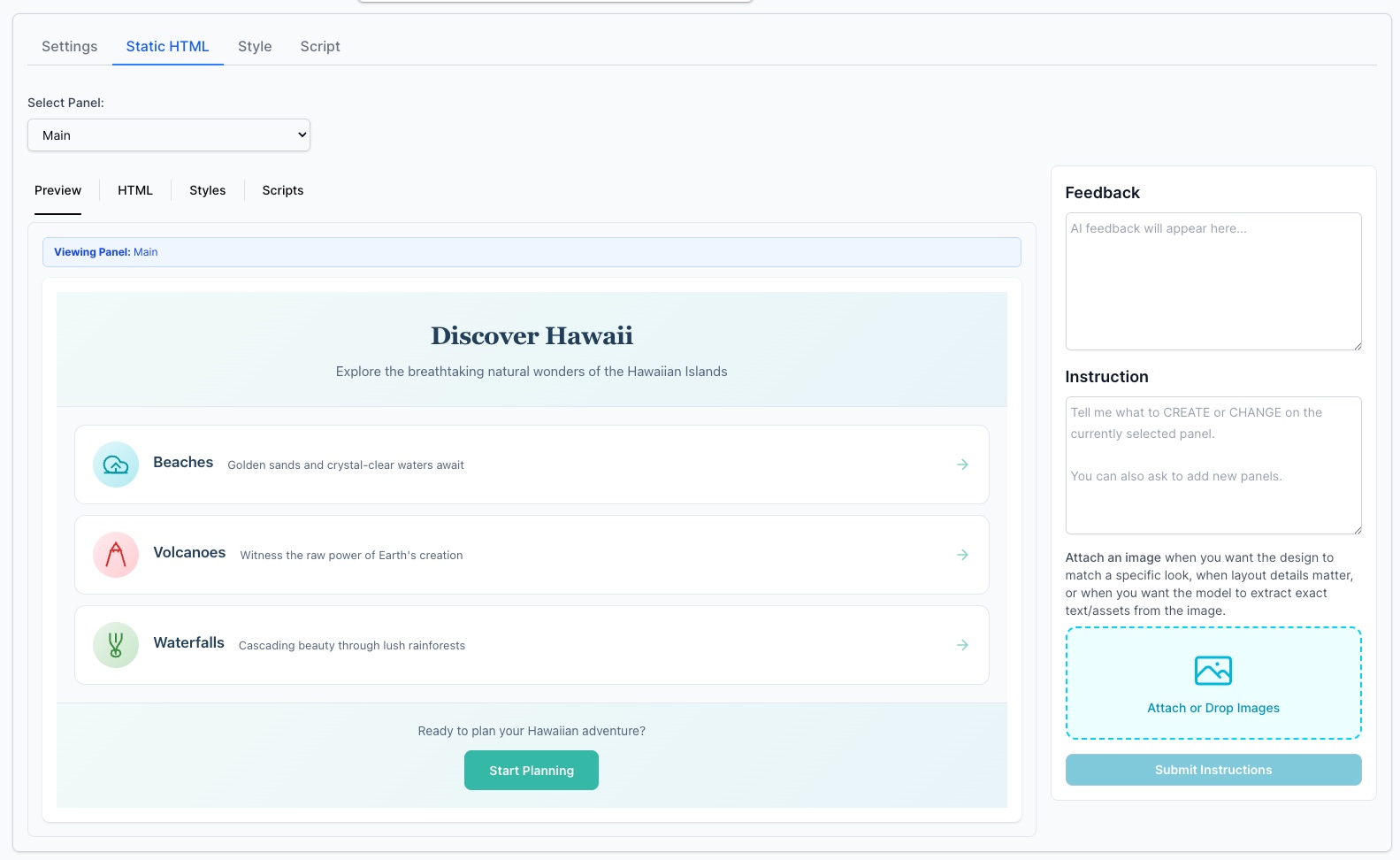
Example: The "Discover Hawaii" panel shown above demonstrates how Static HTML can create an engaging, visually appealing interface with multiple interactive elements.
Options

The Options section provides checkboxes to control the display of additional features:
- Relevance Score: When enabled, displays confidence scores or relevance indicators with the AI-generated answers
- Enable Message Options: When enabled, provides additional interaction options alongside messages or answer sections
- Show Title: When enabled, displays the title above the answer content
AI Overview
The Knowledge Box can be configured as an AI overview feature for your search experience. This is ideal for organizations that want to enhance their existing search functionality with AI-generated summaries.
How it works:
- Users see the AI overview as the first result when they perform a search
- The search query is passed to the Knowledge Box via JavaScript
- The Number of Lines setting controls the initial content height
- When content exceeds the line limit, the Show More Button appears automatically
This provides users with quick AI-generated answers while preserving access to traditional search results below.
Theme Color
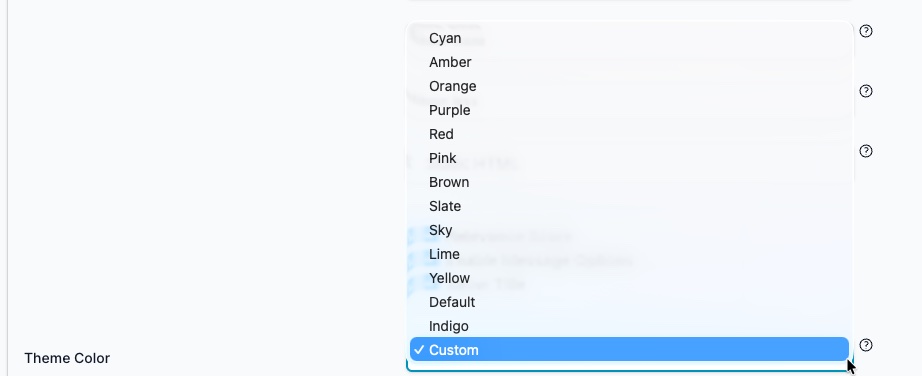
The Theme Color setting allows you to choose a color scheme for your Knowledge Box:
- Preset Themes: Select from pre-configured color schemes including Cyan, Amber, Orange, Purple, Red, Pink, Brown, Slate, Sky, Lime, Yellow, Default, and Indigo
- Custom: Create a custom theme with your brand colors using CSS variables (see Custom Theme section below)
Create Custom Theme
When you select "Custom" from the Theme Color dropdown, you can define specific CSS variables to match your brand identity:
:root {
  --ai12z-knowledge-box-font-family: ui-sans-serif, system-ui, sans-serif,
    "Apple Color Emoji", "Segoe UI Emoji", "Segoe UI Symbol", "Noto Color Emoji";
  --ai12z-knowledge-box-font-size: 1rem;
  --ai12z-knowledge-box-bg-color: rgb(
    241 245 249
  ); /* background color of the ai response container */
  --ai12z-knowledge-box-button-bgcolor: #007bff; /* ai response button background color  */
  --ai12z-knowledge-box-button-color: #fff; /* ai response button text color */
  --ai12z-knowledge-box-privacy-color: #64748b; /* ai response privacy text color */
  --ai12z-knowledge-box-privacy-font-size: 0.875rem; /* ai response privacy font size */
}
Style Tab
The Style tab allows you to add custom CSS to further customize the appearance of your Knowledge Box beyond the theme settings.
Note: When using Static HTML question type, it has its own dedicated Styles tab separate from this one.
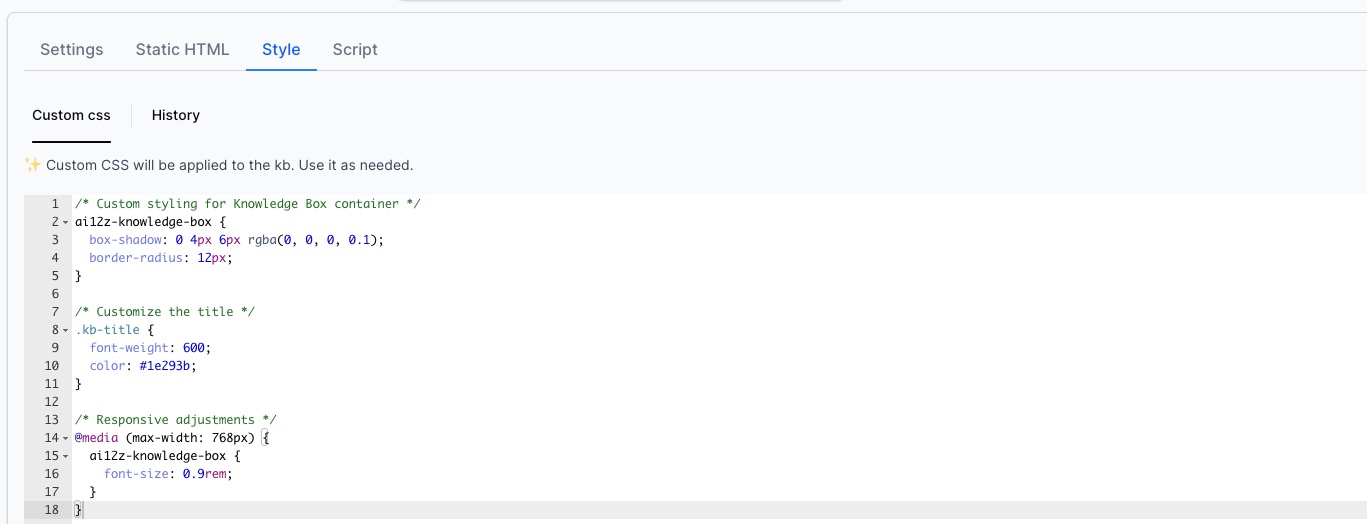
Custom CSS
Use the Custom CSS editor to:
- Override default styles
- Add responsive design rules
- Customize specific elements within the Knowledge Box
- Match your site's design system
Example Custom CSS:
/* Custom styling for Knowledge Box container */
ai12z-knowledge-box {
  box-shadow: 0 4px 6px rgba(0, 0, 0, 0.1);
  border-radius: 12px;
}

/* Customize the title */
.kb-title {
  font-weight: 600;
  color: #1e293b;
}

/* Responsive adjustments */
@media (max-width: 768px) {
  ai12z-knowledge-box {
    font-size: 0.9rem;
  }
}
History
The History tab within the Style section tracks all previous versions of your custom CSS, allowing you to:
- Review past changes
- Revert to previous versions if needed
- Compare different styling approaches
Script Tab
The Script tab enables you to add custom JavaScript to enhance or modify the Knowledge Box behavior.
Note: When using Static HTML question type, it has its own dedicated Scripts tab separate from this one.
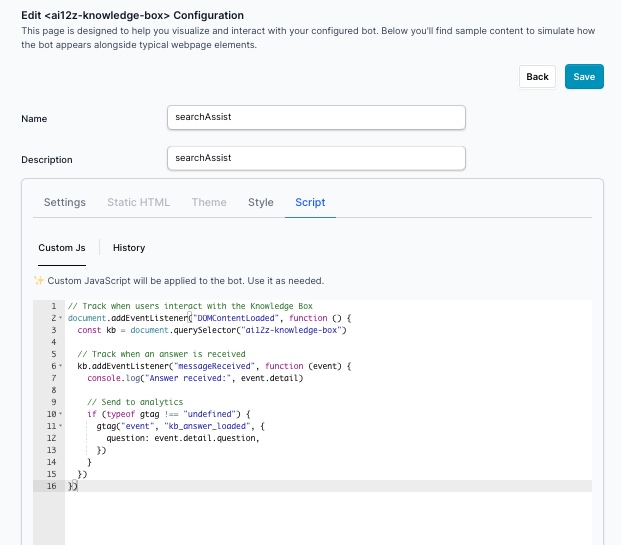
Custom JavaScript
Use the Custom JS editor to:
- Add event listeners to Knowledge Box interactions
- Integrate with analytics or tracking tools
- Implement custom business logic
- Extend functionality beyond default capabilities
Example Custom JavaScript:
// Track when users interact with the Knowledge Box
document.addEventListener("DOMContentLoaded", function () {
  const kb = document.querySelector("ai12z-knowledge-box")

  // Track when an answer is received
  kb.addEventListener("messageReceived", function (event) {
    console.log("Answer received:", event.detail)

    // Send to analytics
    if (typeof gtag !== "undefined") {
      gtag("event", "kb_answer_loaded", {
        question: event.detail.question,
      })
    }
  })
})
History
The History tab within the Script section tracks all previous versions of your custom JavaScript, providing version control and the ability to restore earlier implementations.
Best Practices
Configuration Management
-
Use Descriptive Names: Give each configuration a clear, descriptive name that indicates its purpose (e.g., "Homepage FAQ", "Product Support", "Search Integration")
-
Set a Default: Always designate one configuration as the default to ensure the Knowledge Box works even without a specified
config-id -
Test Before Deploying: Use the configuration preview to test your settings before deploying to production
Question Type Selection
- Use Static when you want to showcase a specific answer on page load
- Use JavaScript for dynamic integration with search or user interactions
- Use Query String when you need shareable or bookmarkable answers
Styling Guidelines
- Start with Theme Colors: Use the built-in theme options before adding custom CSS
- Maintain Consistency: Ensure your Knowledge Box styling matches your site's overall design
- Test Responsiveness: Always verify your custom styles work across different screen sizes
- Use CSS Variables: Leverage the provided CSS variables for easier maintenance
Script Safety
- Test Thoroughly: Always test custom JavaScript in a development environment first
- Avoid Conflicts: Be careful not to override core Knowledge Box functionality
- Performance: Keep custom scripts lightweight to maintain fast load times
- Error Handling: Include proper error handling in your custom code
Examples
Example 1: Search Integration with AI Overview
Here's a complete example showing how to set up a Knowledge Box with a custom configuration for a search results page:
<!doctype html>
<html lang="en">
  <head>
    <meta charset="utf-8" />
    <meta name="viewport" content="width=device-width, initial-scale=1" />
    <title>Search with AI Knowledge Box</title>

    <!-- ai12z web components -->
    <script
      type="module"
      src="https://cdn.ai12z.net/pkg/ai12z@latest/dist/esm/library.js"
    ></script>
    <link
      rel="stylesheet"
      href="https://cdn.ai12z.net/pkg/ai12z@latest/dist/library/library.css"
    />
  </head>

  <body>
    <div class="search-container">
      <input id="searchInput" type="search" placeholder="Ask a question..." />
      <button id="searchBtn">Search</button>

      <!-- Knowledge Box with specific configuration -->
      <ai12z-knowledge-box
        id="kb"
        data-key="YOUR_API_KEY"
        config-id="69403a0b13dce28e2e1f84f2"
      ></ai12z-knowledge-box>

      <!-- Your existing search results go here -->
      <div id="searchResults"></div>
    </div>

    <script>
      const searchInput = document.getElementById("searchInput")
      const searchBtn = document.getElementById("searchBtn")
      const kb = document.getElementById("kb")

      function handleSearch() {
        const query = searchInput.value.trim()
        if (!query) return

        // Update Knowledge Box with the query
        kb.setAttribute("question", query)

        // Your existing search logic here
        // fetchSearchResults(query);
      }

      searchBtn.addEventListener("click", handleSearch)
      searchInput.addEventListener("keydown", (e) => {
        if (e.key === "Enter") handleSearch()
      })
    </script>
  </body>
</html>
Example 2: Contextual Q&A Links
This example demonstrates how to embed Knowledge Box triggers throughout your content for contextual help.
<!doctype html>
<html lang="en">
  <head>
    <meta charset="utf-8" />
    <meta name="viewport" content="width=device-width, initial-scale=1" />
    <title>Product Page with Contextual Help</title>

    <!-- ai12z web components -->
    <script
      type="module"
      src="https://cdn.ai12z.net/pkg/ai12z@latest/dist/esm/library.js"
    ></script>
    <link
      rel="stylesheet"
      href="https://cdn.ai12z.net/pkg/ai12z@latest/dist/library/library.css"
    />

    <style>
      .help-link {
        color: #3b82f6;
        text-decoration: underline;
        cursor: pointer;
        font-weight: 500;
      }
      .help-link:hover {
        color: #2563eb;
      }
      #helpKB {
        margin-top: 20px;
        display: none;
      }
      #helpKB.visible {
        display: block;
      }
    </style>
  </head>

  <body>
    <h1>Atomic Hawx Ultra 120 S</h1>

    <div class="product-details">
      <p>
        <strong>Flex Rating:</strong> 120
        <span
          class="help-link"
          data-question="What does flex rating mean for ski boots?"
        >
          What does this mean?
        </span>
      </p>

      <p>
        <strong>Last Width:</strong> 100mm
        <span
          class="help-link"
          data-question="How do I determine my ski boot last width?"
        >
          How do I choose?
        </span>
      </p>

      <p>
        <strong>Recommended Use:</strong> All-mountain
        <span
          class="help-link"
          data-question="What's the difference between all-mountain and powder ski boots?"
        >
          See terrain guide
        </span>
      </p>
    </div>

    <!-- Knowledge Box for contextual answers -->
    <ai12z-knowledge-box
      id="helpKB"
      data-key="YOUR_API_KEY"
      config-id="YOUR_CONFIG_ID"
    ></ai12z-knowledge-box>

    <script>
      const helpLinks = document.querySelectorAll(".help-link")
      const helpKB = document.getElementById("helpKB")

      helpLinks.forEach((link) => {
        link.addEventListener("click", (e) => {
          const question = e.target.dataset.question

          // Update Knowledge Box with the question
          helpKB.setAttribute("question", question)

          // Show the Knowledge Box
          helpKB.classList.add("visible")

          // Scroll to the answer
          helpKB.scrollIntoView({ behavior: "smooth", block: "start" })
        })
      })
    </script>
  </body>
</html>
Troubleshooting
Configuration Not Loading
Problem: The Knowledge Box doesn't reflect your configuration changes.
Solutions:
- Verify the
config-idmatches exactly (case-sensitive) - Clear your browser cache and reload
- Check that the configuration is saved (not in draft mode)
- Verify your API key is correct
Custom Styles Not Applied
Problem: Custom CSS doesn't appear to work.
Solutions:
- Check for CSS specificity issues - you may need to use
!importantor more specific selectors - Verify there are no syntax errors in your CSS
- Remember that Knowledge Box uses Shadow DOM - some styles may need to use CSS variables
- Test with browser developer tools to see which styles are being applied
JavaScript Errors
Problem: Custom JavaScript causes errors or breaks functionality.
Solutions:
- Check browser console for specific error messages
- Ensure all event listeners are properly attached
- Verify that DOM elements exist before accessing them
- Use
try-catchblocks for error handling
Related Documentation
- Knowledge Box Integration - Setup and integration guide
- Agent Settings - Managing your agent and API keys
- AI Brand Creation - Customizing AI responses