AI Brand Creation
The Brand Guidelines page lets you define your brand identity so ai12z can match your look and tone. You can paste Figma Design Tokens JSON, or use the Vibe Coding experience to have the AI analyze screenshots, or plain text brand guidelines added as instructions, of your website or brand materials and generate guidelines for you.
Where Brand Guidelines Are Used
Once saved, your brand guidelines are automatically applied across the platform to ensure consistent branding everywhere ai12z generates or customizes content:
- Control Custom Themes — When you create or customize a theme for any ai12z web control (such as
ai12z-botorai12z-cta), the brand guidelines are used to generate colors, typography, spacing, and visual style. - Control Welcome Screen — The welcome screen for your AI assistant is styled using your brand guidelines to match your look and feel out of the box.
- Integrations — Whenever you set up an integration (CRM, CMS, third-party platform, etc.), ai12z references your brand guidelines to maintain brand standards in any generated content, messaging, or UI elements.
The more complete and accurate your brand guidelines are, the more consistently ai12z will reflect your brand across all these surfaces.
How ai12z Uses Your Brand Guidelines
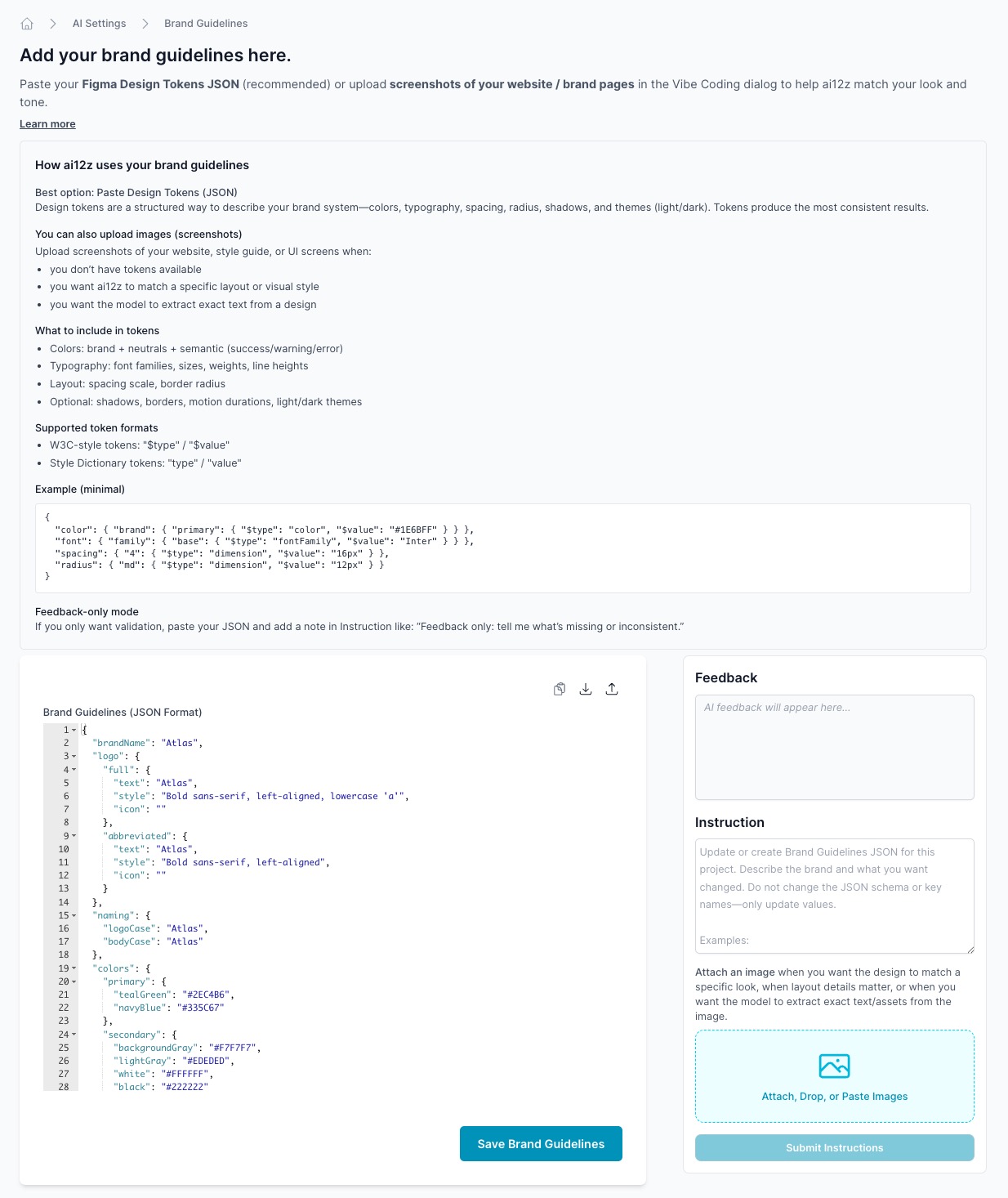
Expand the Learn more toggle at the top of the page to see a full explanation of how ai12z applies your brand guidelines.
Best option: Paste Design Tokens JSON
Design tokens are a structured way to describe your brand system — colors, typography, spacing, radius, shadows, and themes (light/dark). Tokens produce the most consistent results.
You can also upload images (screenshots)
Upload screenshots of your website, style guide, or UI screens when:
- You don't have tokens available
- You want ai12z to match a specific layout or visual style
- You want the model to extract exact text/assets from the design
What to Include in Tokens
- Colors — brand + neutrals + semantic (success/warning/error)
- Typography — font families, sizes, weights, line heights
- Layout — spacing scale, border radius
- Optional — shadows, borders, motion durations, light/dark themes
Supported Token Formats
- W3C-style tokens:
"$type"/"$value" - Style Dictionary tokens:
"type"/"value"
Example (Minimal)
{
  "color": {
    "brand": { "primary": { "$type": "color", "$value": "#1E58FF" } }
  },
  "font": {
    "family": { "base": { "$type": "fontFamily", "$value": "Inter" } }
  },
  "spacing": { "4": { "$type": "dimension", "$value": "16px" } },
  "radius": { "md": { "$type": "dimension", "$value": "12px" } }
}
Feedback-Only Mode
If you only want validation, paste your JSON and add a note in the Instruction box: "Feedback only; tell me what's missing or inconsistent."
The Brand Guidelines Interface
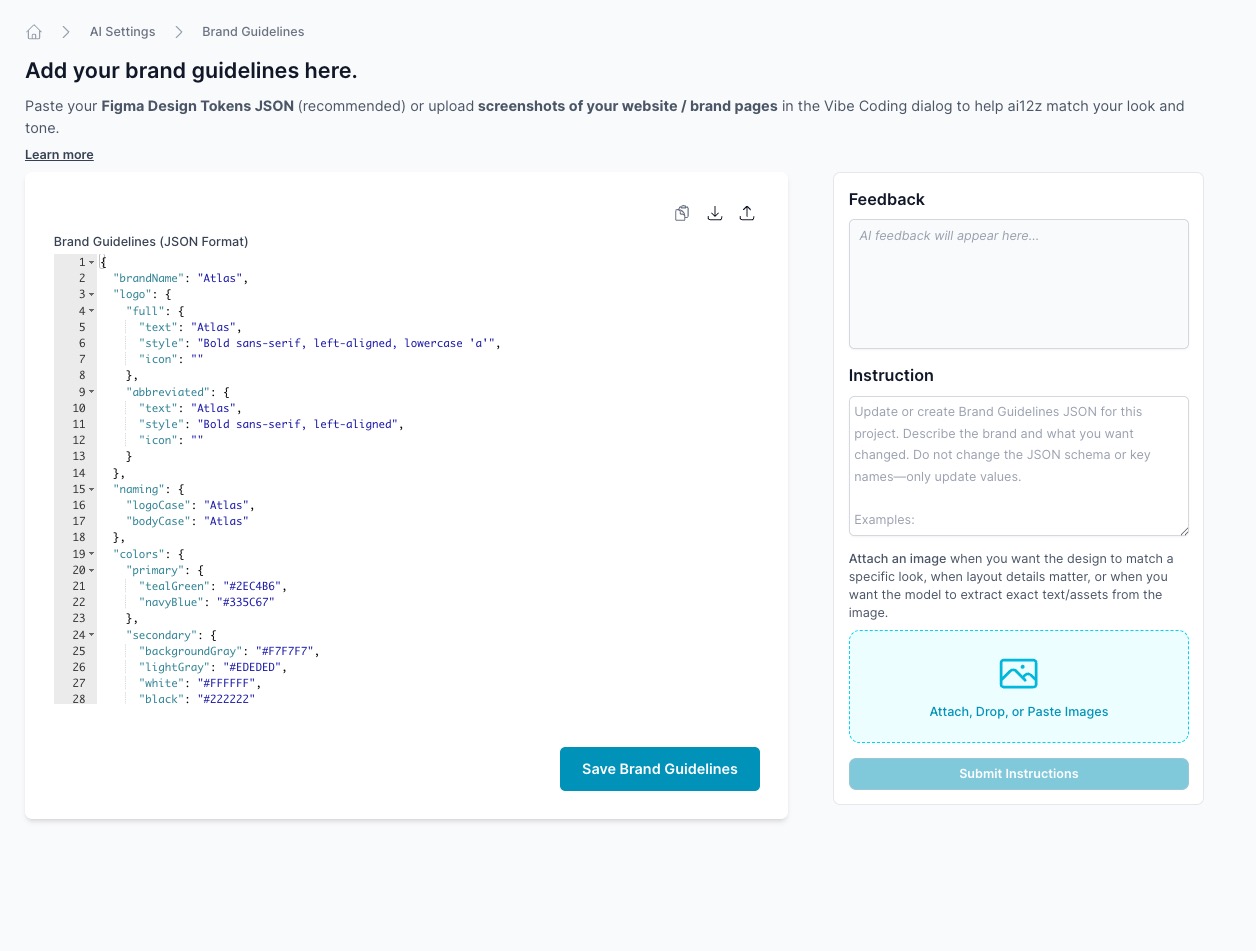
The page is divided into two panels:
- Left panel — Brand Guidelines editor where you paste or edit your brand definition. This accepts Figma Design Tokens JSON, any valid JSON structure, or plain text — if your existing brand guidelines are in a document or style guide, you can paste that text directly.
- Right panel — Vibe Coding panel with Feedback and Instruction sections
Using Vibe Coding to Generate Brand Guidelines
The Vibe Coding experience lets you describe what you want changed and optionally attach images. The AI updates your Brand Guidelines JSON based on your instructions.
Tip: If you have brand content in a PDF or any text document, copy and paste that text directly into the Instruction box. The AI will read the content and generate the Brand Guidelines JSON for you — no need to manually structure the JSON yourself.
Step 1: Open Brand Guidelines
Navigate to AI Settings → Brand Guidelines.
Step 2: Add Your Instructions
In the Instruction box on the right panel:
- Describe your brand and what you want created or updated. For example:
- "Update or create Brand Guidelines JSON for this project. Describe the brand and what you want changed. Do not change the JSON schema or key names—only update values."
- Have brand text from a PDF or document? Paste it directly into the Instruction box. The AI will parse the content and generate the Brand Guidelines JSON automatically.
- Optionally attach screenshots of your website or brand pages using the Attach, Drop, or Paste Images area below the instruction box.
Step 3: Attach Images (Optional)
Use the image attachment area when you want the AI to:
- Match a specific design layout or visual style
- Extract exact colors, fonts, or text/assets from a screenshot
- Reference a UI screen you don't have tokens for
Supported formats: JPG, PNG — under 3MB per image
Step 4: Submit Instructions
Click Submit Instructions. The AI analyzes your input and the Feedback section at the top of the right panel will display results and suggestions.
Step 5: Review Feedback and Update JSON
- Review the AI feedback in the Feedback panel
- The Brand Guidelines JSON in the left editor is updated based on your instructions
- Make any manual adjustments directly in the JSON editor
Step 6: Save Brand Guidelines
Click Save Brand Guidelines to persist your changes.
Pasting Brand Guidelines Directly
The Brand Guidelines editor accepts multiple formats — use whatever you have available:
Figma Design Tokens JSON:
- Copy your token JSON from Figma (or your style dictionary output)
- Paste it into the Brand Guidelines editor on the left
- Click Save Brand Guidelines
Plain text brand guidelines: If your brand standards are documented in a style guide, PDF, or document, you can copy and paste the relevant text directly into the editor. ai12z will use the text content to inform brand decisions across themes, welcome screens, and integrations.
Generate JSON from PDF or text using Vibe Coding: If you have brand content in a PDF or document, copy the text and paste it into the Instruction box in the Vibe Coding panel. The AI will generate the Brand Guidelines JSON for you based on the content — no manual JSON formatting required.
Tip: Paste your content (JSON or text) and use the Instruction box to refine it: "Feedback only; tell me what's missing or inconsistent."
What the Brand Guidelines Editor Contains
The editor stores your full brand definition. When using JSON, a typical structure includes:
| Field | Description |
|---|---|
brandName | Your brand's display name |
logo.full | Full logo text and style |
logo.abbreviated | Short logo text and style |
naming | Logo and body copy class names |
colors.primary | Primary brand colors (hex) |
colors.secondary | Secondary/background colors (hex) |
typography | Font families, sizes, weights |
spacing | Spacing scale values |
radius | Border radius values |
shadows | Shadow definitions |
themes | Light/dark theme overrides |
Best Practices
- Use Figma Design Tokens JSON when available — it produces the most consistent and complete results
- Plain text works too — if you have a brand style guide in document form, paste the relevant text directly into the editor
- Provide 2–4 high-quality screenshots when you don't have tokens or text guidelines
- Avoid heavy text overlays in screenshots that obscure design elements
- Use Feedback-only mode to validate your content before applying it
- Iterate with instructions — submit multiple rounds of instructions to refine your guidelines
- Keep guidelines up to date — your brand guidelines are referenced every time a theme, welcome screen, or integration is created, so accurate guidelines mean consistent results across the platform