Knowledge Box Integration
Overview
The <ai12z-knowledge-box> is a web component that delivers AI-generated answers directly on your web pages — similar to Google's AI Overview. It is primarily used on search pages where the user's search query is passed to the Knowledge Box, which displays an instant AI-generated answer above your traditional results.
See Agent Settings API Key to get your API key.
Setup
Include the following in the <head> section of your HTML:
<script
  type="module"
  src="https://cdn.ai12z.net/pkg/ai12z@latest/dist/esm/library.js"
></script>
<link
  rel="stylesheet"
  href="https://cdn.ai12z.net/pkg/ai12z@latest/dist/library/library.css"
/>
Default Template
<ai12z-knowledge-box data-key="<API_KEY>"></ai12z-knowledge-box>
Example HTML Page
<html>
  <head>
    <script
      type="module"
      src="https://cdn.ai12z.net/pkg/ai12z@latest/dist/esm/library.js"
    ></script>
    <link
      rel="stylesheet"
      href="https://cdn.ai12z.net/pkg/ai12z@latest/dist/library/library.css"
    />
  </head>
  <body>
    <ai12z-knowledge-box
      data-key="your_api_key_here"
      data-mode="dev"
    ></ai12z-knowledge-box>
    <script>
      document.addEventListener("DOMContentLoaded", function () {
        const knowledgeBox = document.querySelector("ai12z-knowledge-box")
        knowledgeBox.setAttribute("question", "what is an Agent")
      })
    </script>
  </body>
</html>
data-key
Locate the data-key in agent -> agent settings. It's the API key.
Add config-id if you have more than one configuration for ai12z-knowledge-box under agent -> controls -> ai12z-knowledge-box. If no config-id is specified, the default configuration will load.
Control Attributes
| Property | Description | Example | Default |
|---|---|---|---|
| data-key (Required) | API key from your ai12z Agent settings | data-key="Add your Key here" | |
| data-mode (Optional) | Server to use: dev or prod | data-mode="dev" | prod |
| question (Optional) | Sets a pre-loaded question when the component loads | question="what does ai12z do" | |
| config-id (Optional) | Loads a specific configuration; uses the default configuration if not provided | config-id="123455" |
Privacy Link (Optional)
To include a privacy policy link, use the custom-privacy slot inside the <ai12z-knowledge-box> element:
<ai12z-knowledge-box data-key="your_api_key_here">
  <div slot="custom-privacy">
    Privacy Statement
    <a href="https://ai12z.com/privacy-policy/" target="_blank">Click to view</a>
  </div>
</ai12z-knowledge-box>
Configure via JavaScript
<script>
  document.addEventListener("DOMContentLoaded", function () {
    const kb = document.querySelector("ai12z-knowledge-box")
    kb.setAttribute("data-key", "XYZ")
    kb.setAttribute("data-mode", "dev")
    kb.setAttribute("config-id", "1234")
  })
</script>
Passing a Question via JavaScript
const knowledgeBox = document.querySelector("ai12z-knowledge-box")
knowledgeBox.setAttribute("question", "What are the best ski boots?")
Using the Knowledge Box with Search Results
The most common integration is placing the Knowledge Box between a search input and traditional search results. The user's search text is passed to the Knowledge Box via JavaScript, and the AI-generated answer appears above the existing results.
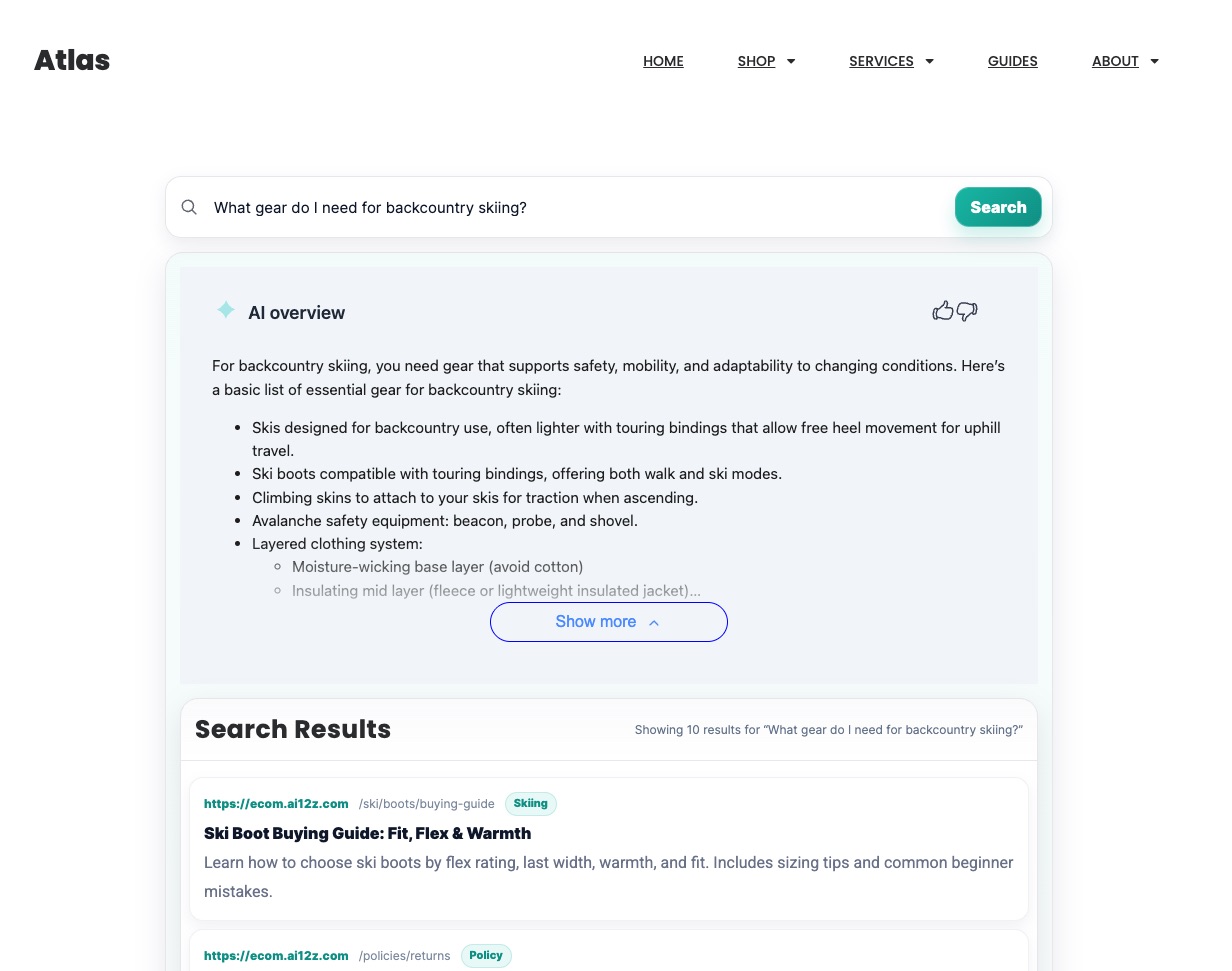
<!doctype html>
<html lang="en">
  <head>
    <meta charset="utf-8" />
    <meta name="viewport" content="width=device-width, initial-scale=1" />
    <title>ai12z Knowledge Box — Search Integration</title>

    <script
      type="module"
      src="https://cdn.ai12z.net/pkg/ai12z@latest/dist/esm/library.js"
    ></script>
    <link
      rel="stylesheet"
      href="https://cdn.ai12z.net/pkg/ai12z@latest/dist/library/library.css"
    />

    <style>
      .ai12z-search {
        max-width: 920px;
        margin: 24px auto;
        padding: 0 16px;
        font-family: system-ui, -apple-system, Segoe UI, Roboto, Arial, sans-serif;
      }
      .ai12z-row {
        display: flex;
        gap: 10px;
        align-items: center;
      }
      .ai12z-input {
        flex: 1;
        padding: 10px 12px;
        font-size: 15px;
        border: 1px solid #d0d5dd;
        border-radius: 10px;
      }
      .ai12z-btn {
        padding: 10px 14px;
        border: 0;
        border-radius: 10px;
        cursor: pointer;
      }
      .ai12z-kb {
        margin-top: 12px;
      }
    </style>
  </head>

  <body>
    <div class="ai12z-search">
      <div class="ai12z-row">
        <input
          id="kbQuery"
          class="ai12z-input"
          type="search"
          placeholder="Ask a question…"
          autocomplete="off"
        />
        <button id="kbSubmit" class="ai12z-btn" type="button">Search</button>
      </div>

      <div class="ai12z-kb">
        <ai12z-knowledge-box
          id="kb"
          data-key="YOUR_DATA_KEY_HERE"
        ></ai12z-knowledge-box>
      </div>

      <!-- Your existing search results go here -->
      <div id="searchResults"></div>
    </div>

    <script>
      ;(function () {
        const input = document.getElementById("kbQuery")
        const btn = document.getElementById("kbSubmit")
        const kb = document.getElementById("kb")

        function runSearch() {
          const q = (input.value || "").trim()
          if (!q) return

          // Pass the search query to the Knowledge Box
          kb.setAttribute("question", q)

          // Your existing search logic here
          // fetchSearchResults(q)
        }

        btn.addEventListener("click", runSearch)
        input.addEventListener("keydown", (e) => {
          if (e.key === "Enter") runSearch()
        })
      })()
    </script>
  </body>
</html>
Custom Events
| Event Name | Description | How to use it |
|---|---|---|
| messageSent | Fires when the user sends a question to the server | See example below. |
| messageReceived | Fires when the Knowledge Box receives a response from the server | See example below. |
Use messageReceived to react when an AI answer has loaded — for example, to trigger analytics or update surrounding UI.
Custom Events Examples
Listen for message sent event
const kbElement = document.querySelector("ai12z-knowledge-box")
kbElement.addEventListener("messageSent", async (event) => {
  console.log(event.detail)
})
Listen for message received event
const kbElement = document.querySelector("ai12z-knowledge-box")
kbElement.addEventListener("messageReceived", async (event) => {
  console.log(event.detail)

  // Example: send to analytics when an answer loads
  if (typeof gtag !== "undefined") {
    gtag("event", "kb_answer_loaded", {
      question: event.detail.question,
    })
  }
})
Related Documentation
- Knowledge Box Configuration - Configure appearance, question type, and behavior
- Agent Settings - Managing your agent and API keys