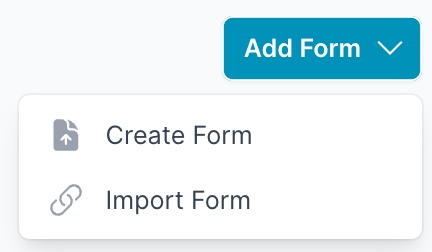
Add Form -> Create Form
From the Add Form button click the `Create Form
🛠️ Step 1: Create Form Properties
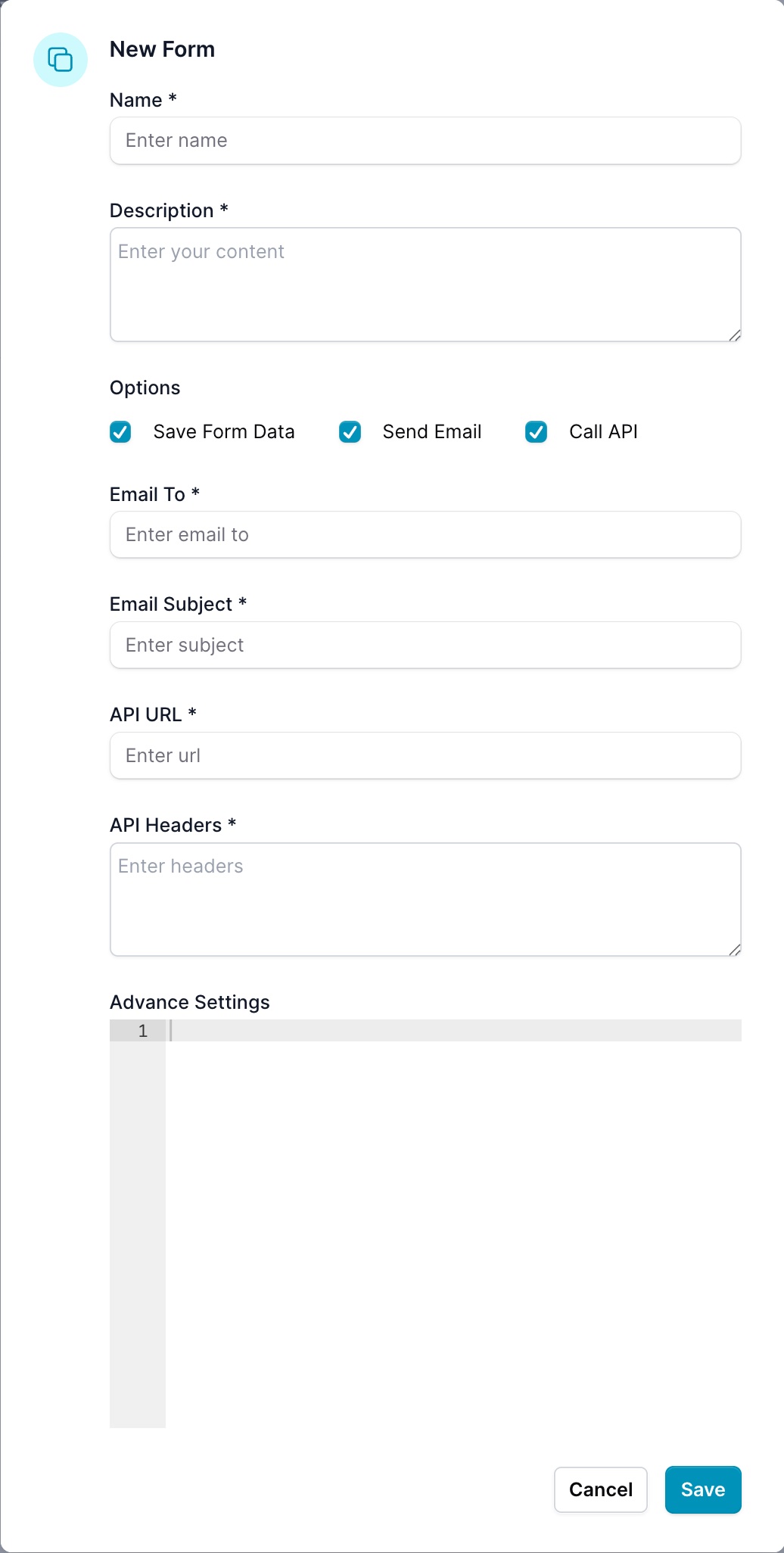
Fill out the form property dialog with the required information:
Required Fields
- Name: Enter a descriptive name for your form (e.g., "Contact Us", "Newsletter Signup")
- Description: This is one of the most important fields for the AI assistant to understand when to trigger this form
Description Field - Critical for AI Understanding
The Description field tells the AI assistant when and how to use this form. Write clear, natural language descriptions that include:
- The purpose of the form
- Common phrases users might say to trigger it
- Use cases and scenarios
Example:
Call this form function whenever the user wants to contact the hotel
or sign up for the hotel newsletter or uses phrases like:

"Contact the hotel"
"Sign up for the hotel newsletter"
"How can I get in touch with the hotel?"
"I want to receive updates and offers"
"Subscribe me to the hotel's mailing list"
Options
Configure the form's behavior by selecting the appropriate options:
- Save Form Data: Store form submissions in the ai12z platform
- Send Email: Send an email notification when the form is submitted
- Call API: Trigger an external API endpoint with the form data
Generate Description Button
After you create your form and it appears in the form list, you can edit the properties by selecting Actions → Edit Properties. In the edit dialog, you'll find a Generate Description button that uses AI to enhance and expand your existing description based on the form name and current description.
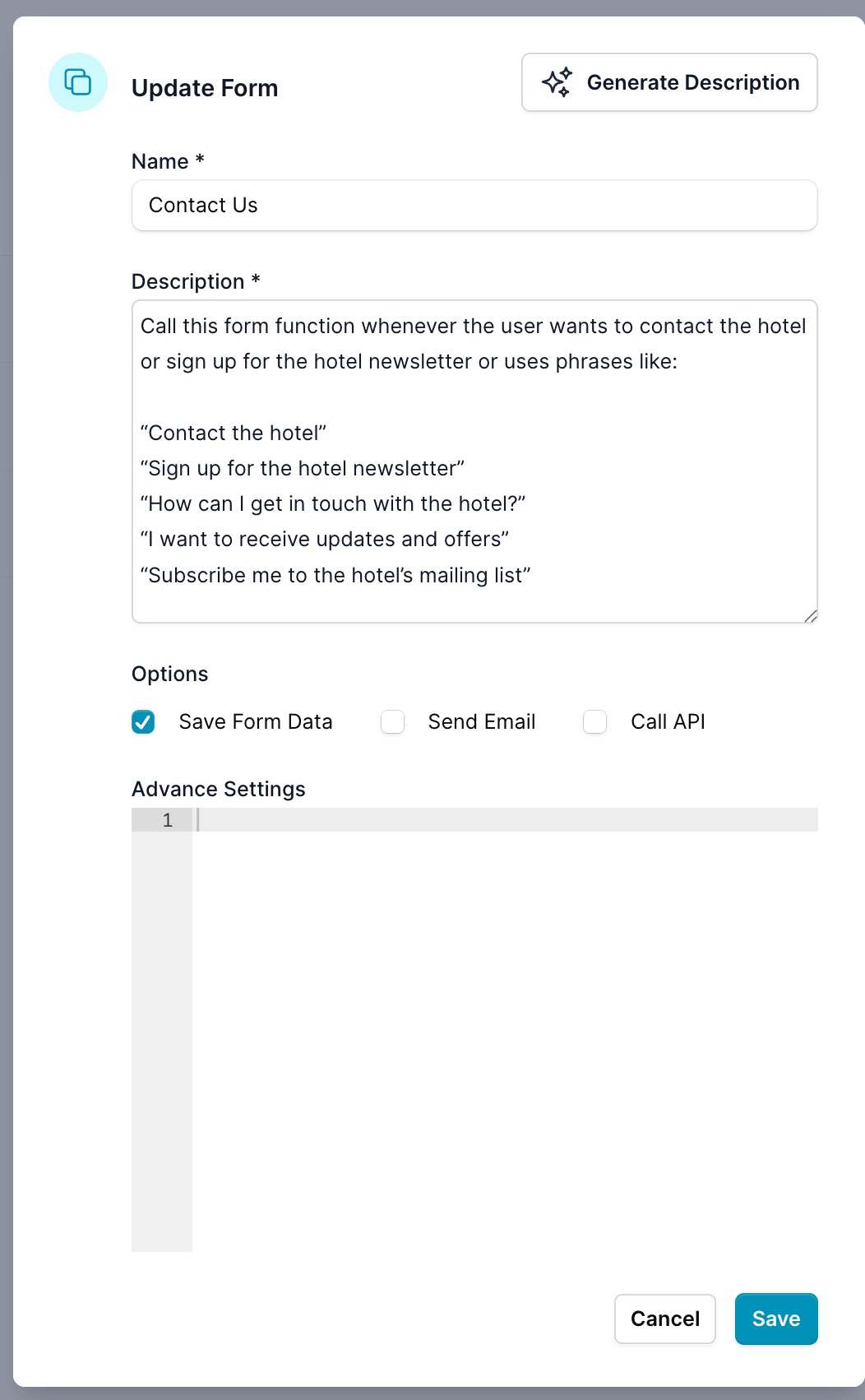
This AI-powered feature helps you create more comprehensive descriptions that improve the assistant's ability to understand when to present the form to users.
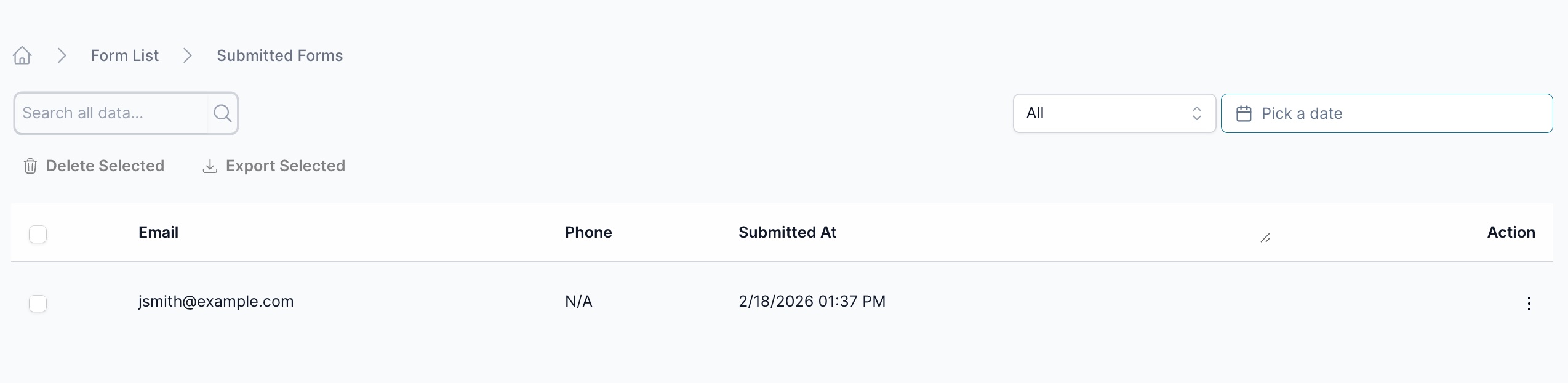
List of submissions
List of submissions