SharePoint Web Part
Overview
The ai12z Bot Web Part integrates the powerful ai12z chatbot platform directly into your SharePoint sites. This web part allows users to interact with an AI-powered assistant that can answer questions, provide information, and guide users through various tasks.
Prerequisites
Before installing the ai12z Bot Web Part, ensure you have:
- SharePoint Administrator privileges or App Catalog access
- ai12z Account with an active subscription
- API Key from your ai12z dashboard
Getting Your ai12z API Key
- Log into your ai12z Dashboard
- Navigate to Agent → Agent Settings
- Locate your API Key in the settings panel
- Copy the API key for use during web part configuration

Installation Process
Step 1: Upload the Solution Package
-
Access SharePoint Admin Center
- Go to https://[yourtenant]-admin.sharepoint.com
- Sign in with your administrator credentials
-
Navigate to App Catalog
- Go to Sharepoint admin page https://[yourtenant]-admin.sharepoint.com/_layouts/15/online/AdminHome.aspx
- In the left navigation, click More features
- Under Apps, click Open next to "App Catalog"
- If you don't have an App Catalog, create one first
-
Upload the Web Part Package
- Download the web part click here
- Click Apps for SharePoint in the left navigation
- Click Upload or drag and drop the
ai12z-bot-spfx.sppkgfile - Click Deploy when prompted
- Check "Make this solution available to all sites in the organization" if you want it available everywhere
- Click Deploy to confirm
Step 2: Add Web Part to a SharePoint Site
-
Navigate to your SharePoint site
- Go to the site where you want to add the ai12z bot
-
Edit a page
- Click Edit on any page or create a new page
- Click the + button to add a new web part
-
Add the ai12z Bot Web Part
- Search for "ai12z" or "Ai12zBot" in the web part gallery
- Click on the ai12z Bot web part to add it to your page
Step 3: Configure the Web Part
-
Access Web Part Properties
- Click the edit (pencil) icon on the web part
- The property pane will open on the right side
-
Configure ai12z Settings
- Description: Enter a description for your bot (optional)
- API Key: Enter your ai12z API key (required)
- Config ID: Enter a specific configuration ID if you have multiple bot configs (optional)
-
Save Configuration
- Click Republish or Save to apply your changes
- The bot should now appear on your page
Configuration Options
Required Settings
- API Key: Your unique ai12z API key from the agent settings
Optional Settings
- Description: A custom description for the web part instance
- Config ID: If you have multiple bot configurations in ai12z, specify which one to use
Finding Your Config ID
If you have multiple bot configurations:
- Log into your ai12z dashboard
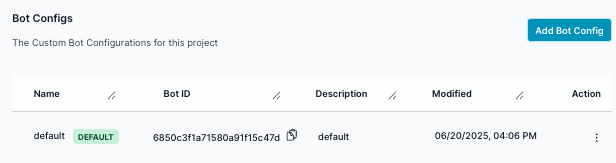
- Go to Agent → Controls → ai12z Bot
- Note the Config ID for the specific configuration you want to use
Troubleshooting
Common Issues
-
Web Part shows "Configuration Required"
- Ensure you've entered a valid API key
- Verify your ai12z account is active
-
Bot doesn't appear after configuration
- Check browser console for errors
- Verify API key is correct
- Ensure your ai12z account has an active subscription
-
Permission denied when uploading
- Ensure you have SharePoint Administrator or App Catalog permissions
- Contact your IT administrator for assistance
Verification Steps
-
Check API Key
- Verify the API key is copied correctly without extra spaces
- Ensure your ai12z subscription is active
-
Browser Console
- Open browser developer tools (F12)
- Check the Console tab for any errors
- Look for ai12z-related error messages
-
Network Connectivity
- Ensure your SharePoint environment can access external resources
- Verify that ai12z.net and cdn.ai12z.net are not blocked
Support and Documentation
SharePoint Resources
Getting Help
- Technical Issues: Contact your IT administrator
- ai12z Configuration: Check ai12z documentation or contact ai12z support
- Web Part Issues: Review browser console logs for error details
Version Information
- Web Part Version: 1.0.0
- SharePoint Framework Version: 1.21.1
- Compatible with: SharePoint Online, SharePoint 2019, Microsoft Teams
- Node.js Version Required: 22.14.0 (for development)
This web part was built using the SharePoint Framework and integrates with the ai12z platform to provide intelligent chatbot functionality within SharePoint environments.