Vibe Coding
Welcome Tab
The Welcome tab features a powerful AI-powered visual design experience that allows you to create and customize the content users see when they first interact with your bot—all through natural language instructions.
🤖 Vibe Coding: AI-Powered Design Assistant
Vibe Coding is an intelligent design assistant that understands your intent and automatically generates the HTML, styles, and scripts needed for your welcome screen. Simply describe what you want, and the AI creates it for you.
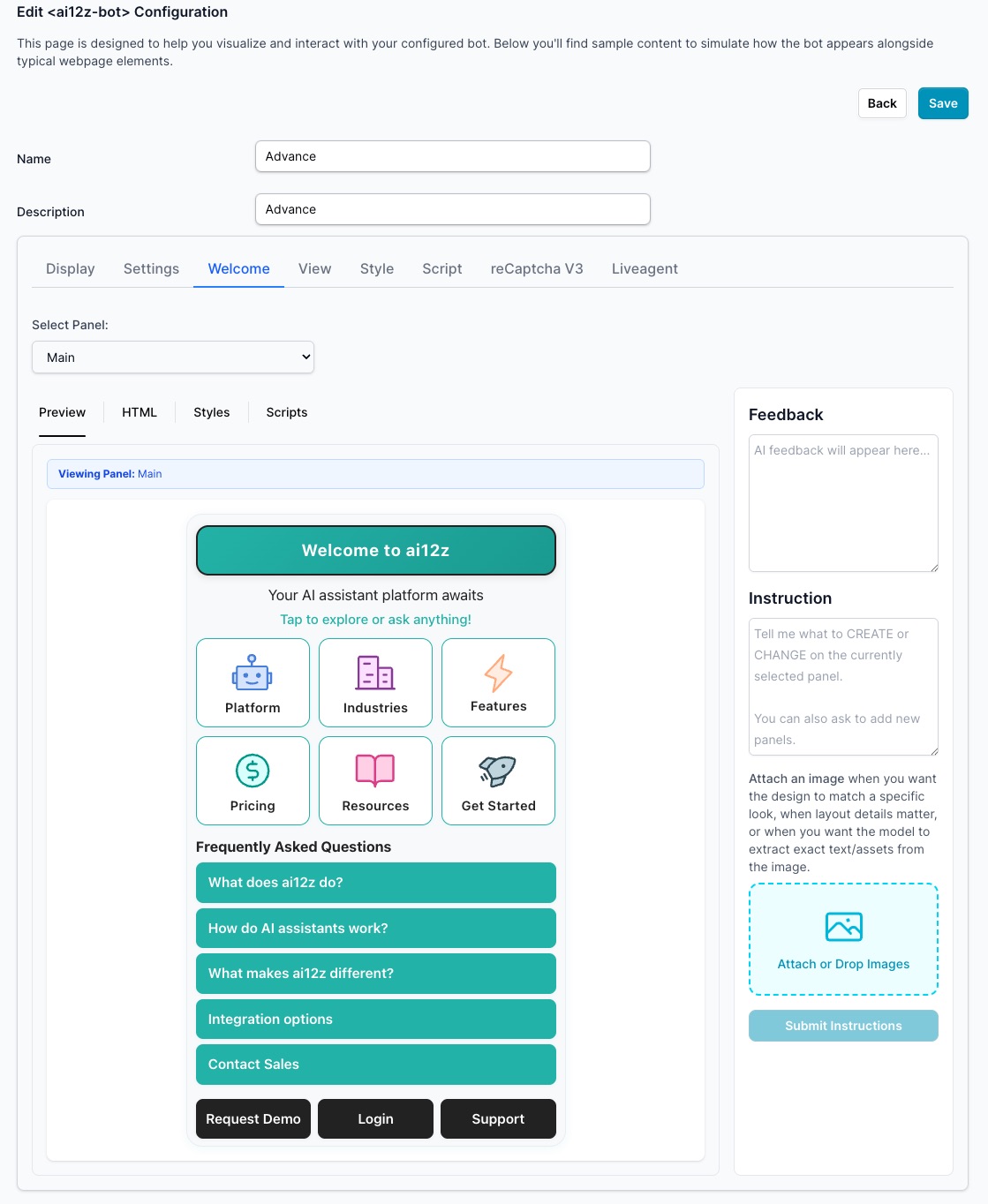
What Vibe Coding Knows:
- Your Theme Context: Automatically applies your selected theme colors, fonts, and brand guidelines
- Style Guidelines: Follows design best practices and maintains visual consistency
- Current Panel State: Understands which panel is selected and its existing content
- Component Structure: Knows how to create buttons, icons, grids, cards, and interactive elements
What You Can Do With Natural Language:
-
Create Panels: "Add a new panel with 6 icon buttons in a grid layout for Platform, Industries, Features, Pricing, Resources, and Get Started"
-
Add Interactive Elements: "Insert a button that says 'Contact Sales' with the primary theme color"
-
Modify Styles: "Make the welcome message text larger and center it"
-
Update Scripts: "Add a click handler to the Get Started button that sends a message to the AI"
-
Add Media: "Insert the company logo at the top of the welcome panel"
-
Delete/Reorganize: "Remove the FAQ section and move the Get Started button to the bottom"
-
Ask for feedback: If you ask for feedback, in your instructions, telling it not to change any code, it will give you feedback on your question
HTML and Media Interface Features
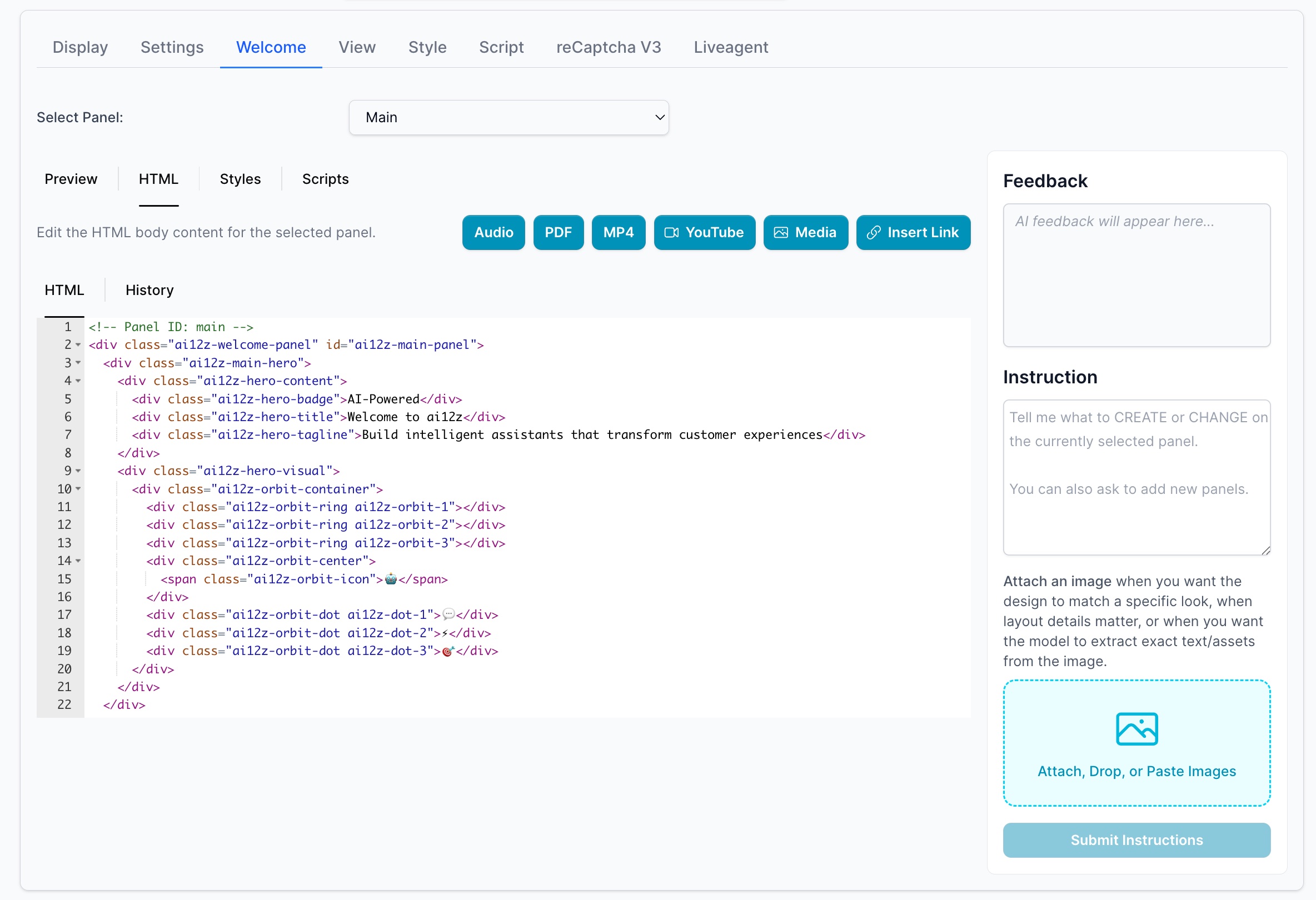
The Welcome tab interface includes:
- Preview: See your changes in real-time as the AI builds them
- HTML Editor: View and manually edit the generated HTML if needed
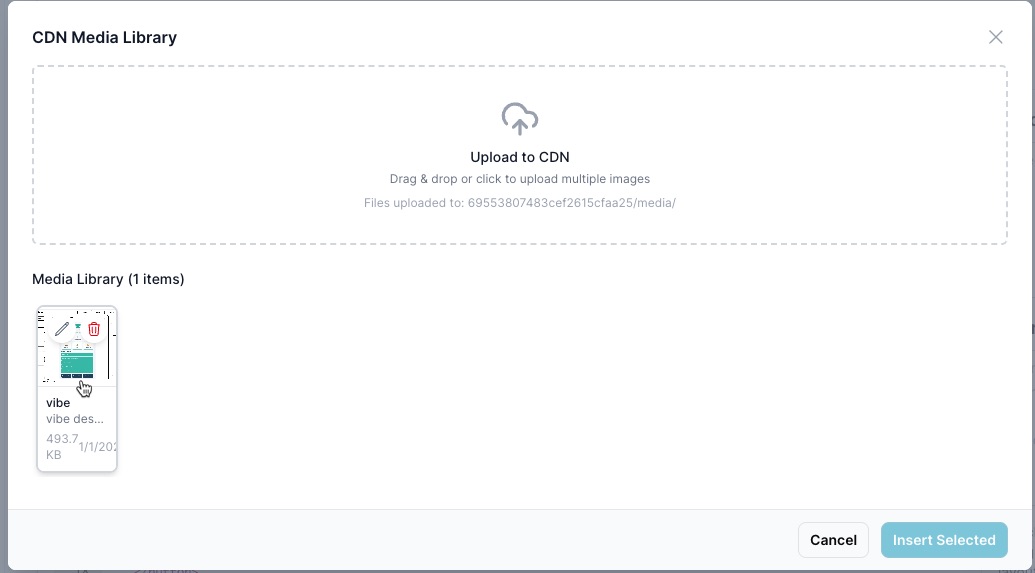
- Media Library: Upload and manage images for use in your welcome screen
- Insert Link/Button Tool: Quick UI for adding hyperlinks, panel navigation, or AI message triggers
Insert Link/Button Tool
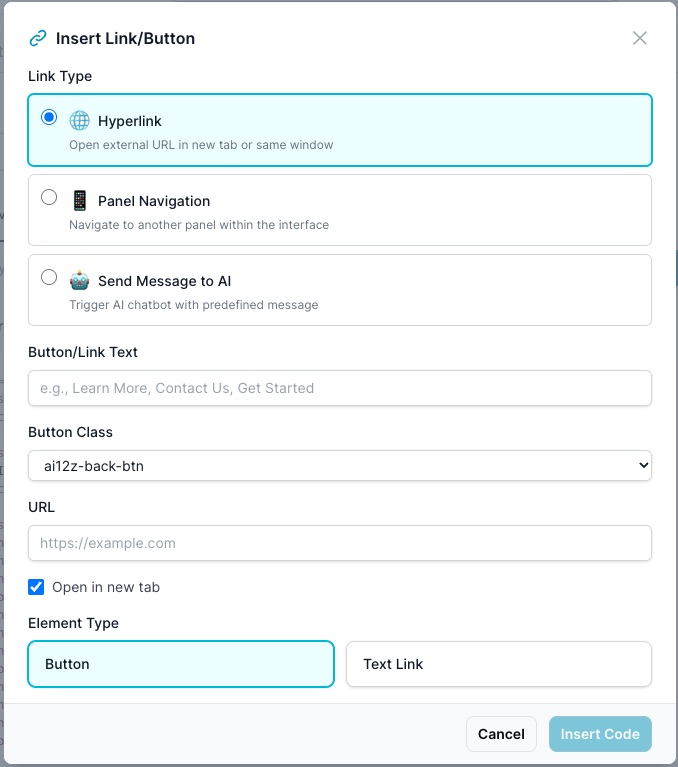
Create interactive elements with three types of actions:
- Hyperlink: Open external URLs in new tab or same window
- Panel Navigation: Navigate between different panels in your bot interface
- Send Message to AI: Trigger predefined messages to start conversations
How It Works
The AI assistant receives context about your bot configuration including:
- Selected theme and brand colors
- Existing HTML structure and panels
- Available media assets
- Style guidelines and spacing rules
This contextual awareness allows the AI to generate code that seamlessly integrates with your existing design, maintaining consistency across all elements.