CTA Popup from Search Bar
Overview
The ai12z CTA (Call-to-Action) component with toolbar search integration provides a seamless way to combine traditional search UI patterns with AI-powered conversational interfaces. This implementation places a search bar directly on your page that, when submitted, opens a modal dialog containing the ai12z chat assistant with the user's question automatically sent.
This pattern is ideal for:
- Maintaining familiar search UI while adding AI capabilities
- Creating hero sections with contextual AI assistance
- Providing non-intrusive access to AI help throughout your site
- Enhancing user experience without replacing existing navigation
Visual Example
Search Toolbar
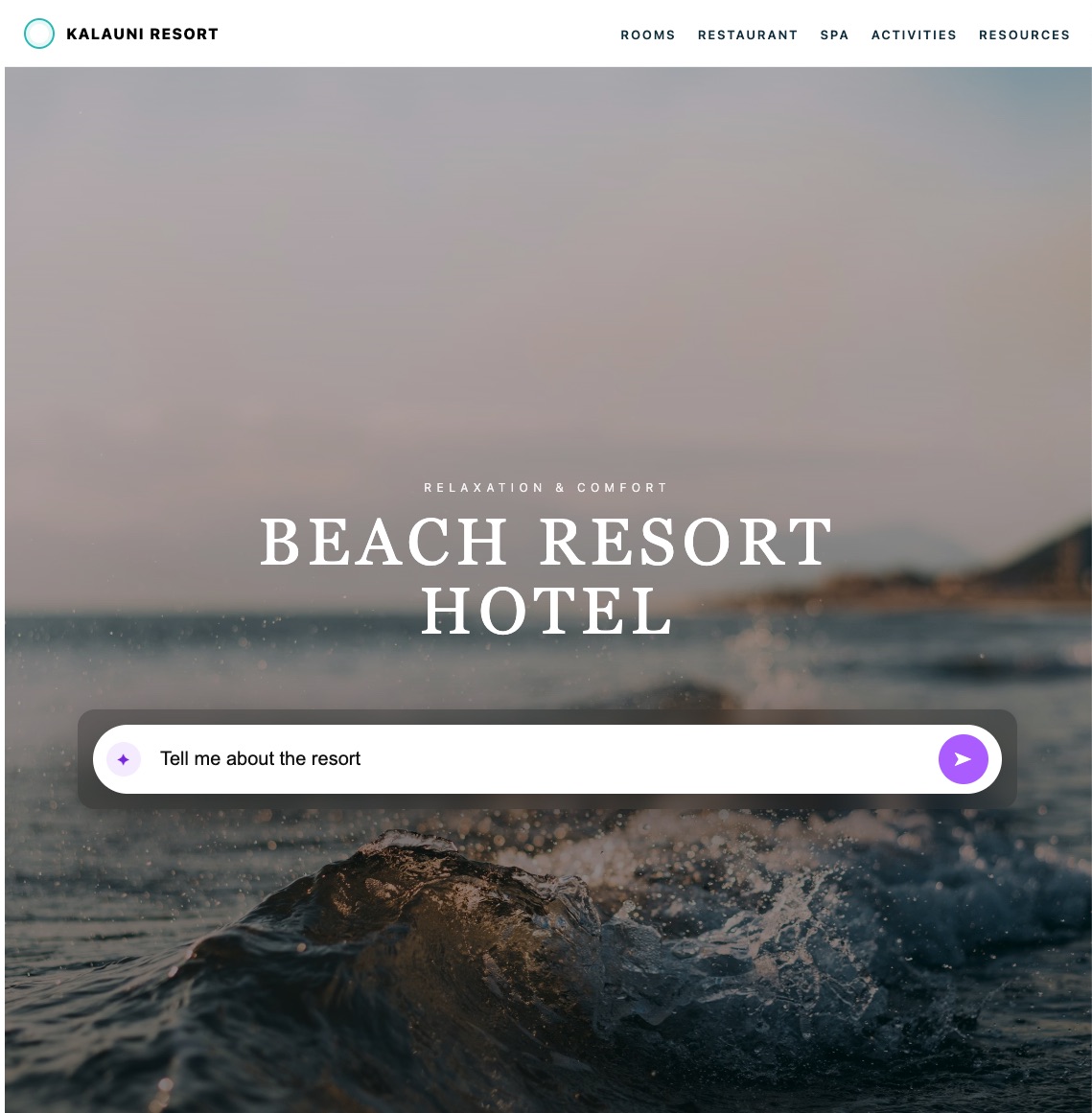
The search bar appears in-context on your page, often positioned over hero images or in prominent locations:
Modal Dialog Results
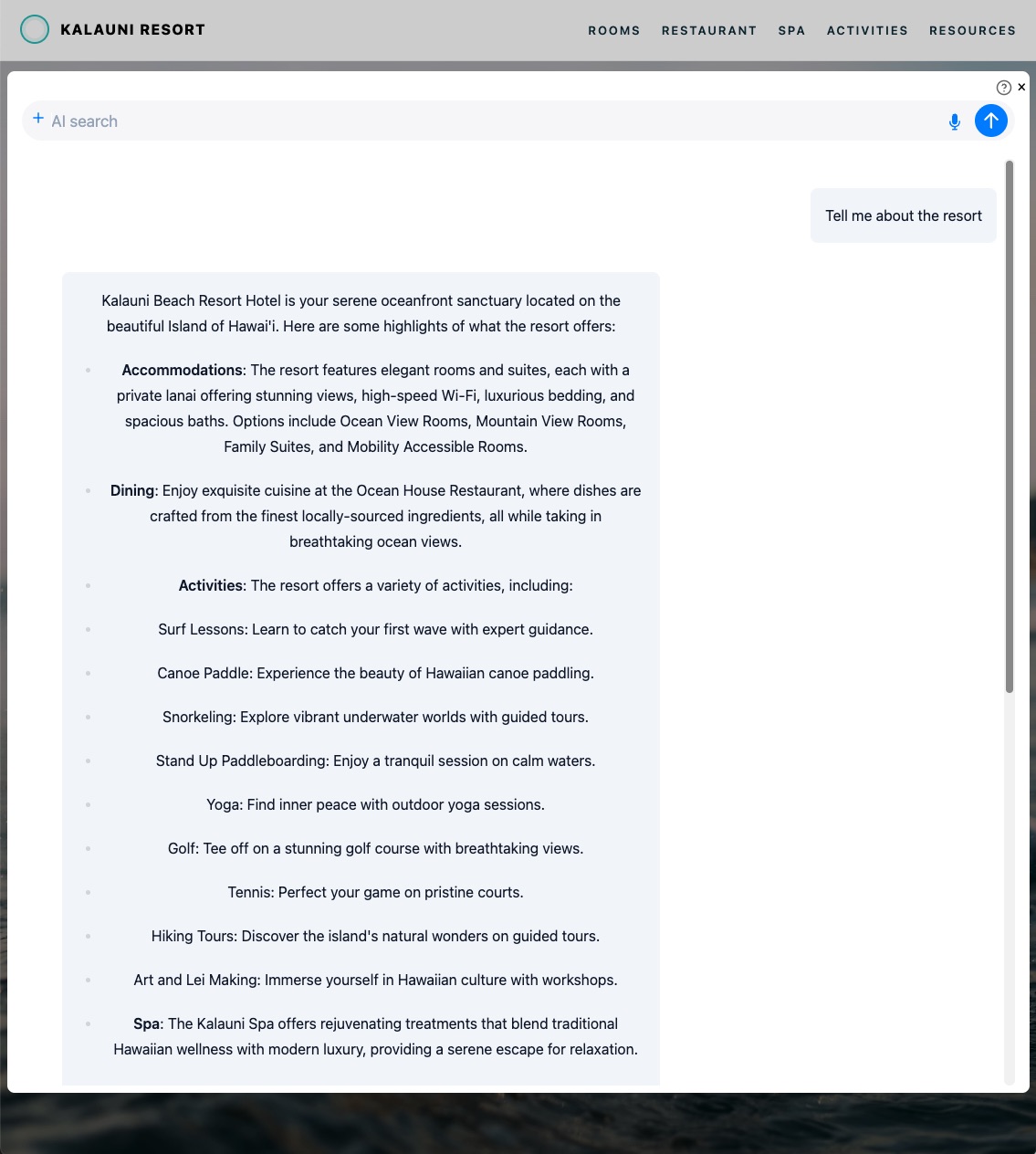
When users submit a query, it opens a modal dialog with AI-generated responses:
Configuration
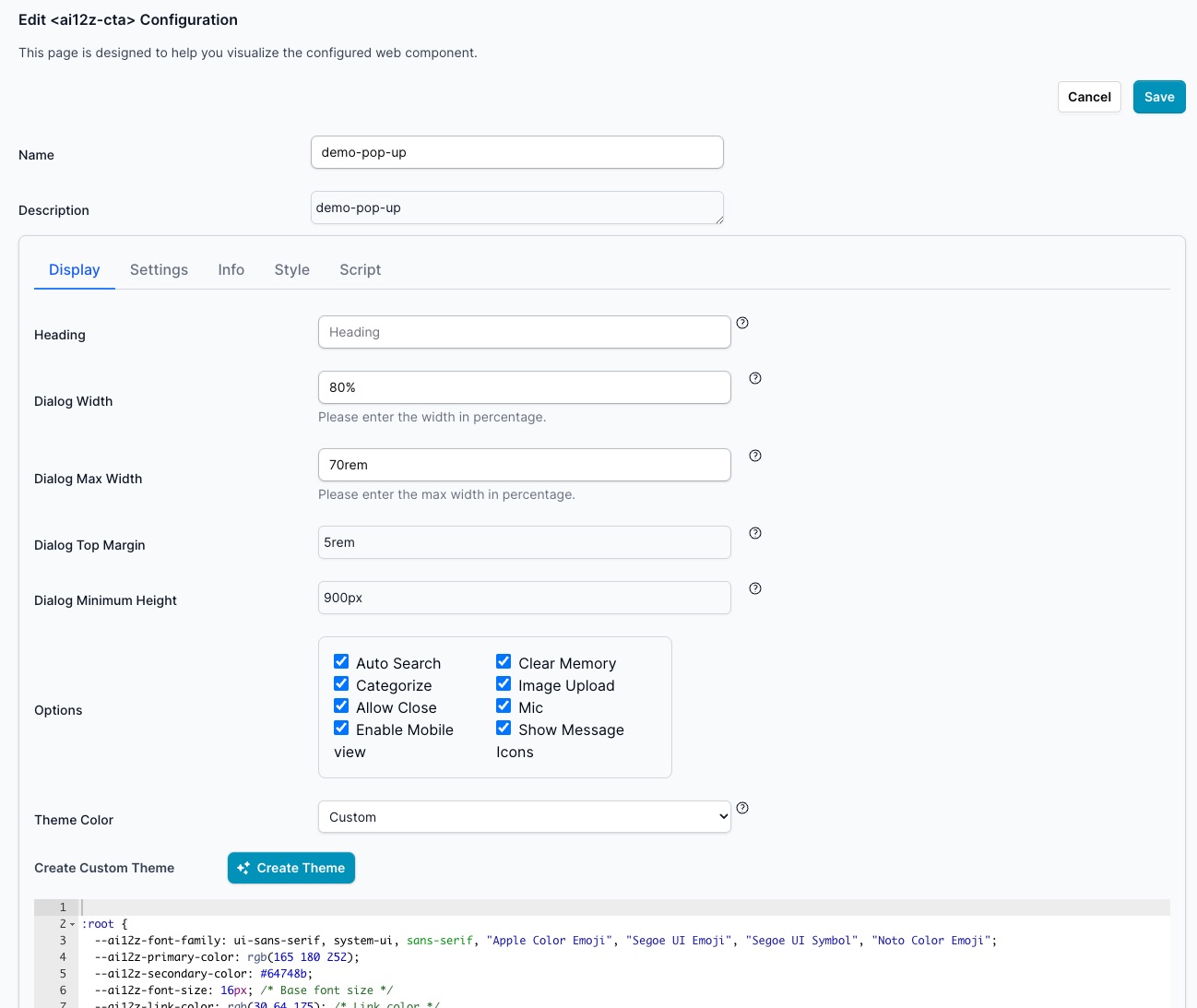
The CTA popup behavior is controlled through the configuration interface in your ai12z dashboard:
Display Settings
The Display tab controls the modal dialog appearance and behavior:
| Setting | Description | Default | Example |
|---|---|---|---|
| Heading | Title displayed at the top of the modal | - | "Ask AI Assistant", "Search Help" |
| Dialog Width | Width of the modal as a percentage of viewport | 80% | "70%", "90%" |
| Dialog Max Width | Maximum width constraint | 70rem | "60rem", "900px" |
| Dialog Top Margin | Space from top of viewport | 5rem | "3rem", "80px" |
| Dialog Minimum Height | Minimum height of the dialog | 900px | "700px", "80vh" |
Options
Control various features of the modal dialog:
- Auto Search: Automatically processes the search query when dialog opens
- Categorize: Enables categorization of responses
- Allow Close: Displays close button (X) in the modal header
- Enable Mobile View: Optimizes layout for mobile devices
- Clear Memory: Clears conversation history when dialog reopens
- Image Upload: Allows users to upload images in the conversation
- Mic: Enables voice input functionality
- Show Message Icons: Displays icons alongside messages
Theme Color
Choose from predefined themes or create a custom theme to match your brand:
- Default: Standard ai12z styling
- Custom: Define your own color scheme using CSS variables
See the Style tab for advanced customization options.
Implementation
Basic Setup
First, include the ai12z web components in your HTML:
<head>
  <!-- ai12z web components (CDN) -->
  <script
    type="module"
    src="https://cdn.ai12z.net/pkg/ai12z@latest/dist/esm/library.js"
  ></script>
  <link
    rel="stylesheet"
    href="https://cdn.ai12z.net/pkg/ai12z@latest/dist/library/library.css"
  />
</head>
Component Structure
The <ai12z-cta> component uses slots to customize the trigger element. Replace the default button with a search bar:
<ai12z-cta id="searchCta" data-key="YOUR_API_KEY">
  <!-- Custom search bar trigger (slot="cta") -->
  <div slot="cta" class="search-wrapper">
    <form id="searchForm" class="search-form">
      <input
        id="searchInput"
        class="search-input"
        type="search"
        placeholder="Tell me about the resort"
        aria-label="Search"
      />
      <button class="search-button" type="submit" aria-label="Submit">➤</button>
    </form>
  </div>

  <!-- Optional custom privacy notice -->
  <div slot="custom-privacy" class="privacy-note">
    Privacy Statement:
    <a href="/privacy" target="_blank">Click to view</a>
  </div>
</ai12z-cta>
JavaScript Integration
The JavaScript handles opening the modal and sending the search query:
document.addEventListener("DOMContentLoaded", () => {
  const cta = document.getElementById("searchCta")
  const form = document.getElementById("searchForm")
  const input = document.getElementById("searchInput")

  // Configure CTA options
  cta.options = {
    allowClose: true,
    autoSearch: true,
  }

  // Add contextual data
  cta.dataAttributes = {
    origin: window.location.href,
    path: window.location.pathname,
    title: document.title,
  }

  // Handle form submission
  form.addEventListener("submit", async (e) => {
    e.preventDefault()

    const query = input.value.trim()
    if (!query) return

    // Open the modal
    await openCta(cta)

    // Send the question
    await sendToCta(cta, query)

    // Clear input
    input.value = ""
  })
})

// Helper function to open CTA modal
async function openCta(cta) {
  await customElements.whenDefined("ai12z-cta")

  return new Promise((resolve) => {
    cta.addEventListener("open", () => resolve(true), { once: true })

    if (typeof cta.action === "function") {
      cta.action("open", { expanded: false })
    }
  })
}

// Helper function to send message
async function sendToCta(cta, text) {
  if (typeof cta.sendMessage === "function") {
    await cta.sendMessage(text)
    return
  }

  // Fallback: find chat component in shadow DOM
  const chat = cta.shadowRoot?.querySelector("ai12z-chat")
  if (chat && typeof chat.sendMessage === "function") {
    await chat.sendMessage(text)
  }
}
Complete Example: Resort Website
This example demonstrates a complete implementation for a beach resort website with a hero section and search bar:
<!doctype html>
<html lang="en">
<head>
<meta charset="utf-8" />
<meta name="viewport" content="width=device-width,initial-scale=1" />
<title>Kalauni Resort — Search Bar → Open CTA + Send</title>
<!-- ai12z web components (CDN) -->
<script
type="module"
src="https://cdn.ai12z.net/pkg/ai12z@next/dist/esm/library.js"
></script>
<link
rel="stylesheet"
href="https://cdn.ai12z.net/pkg/ai12z@next/dist/library/library.css"
/>
<style>
:root {
color-scheme: light;
}
body {
margin: 0;
font-family:
ui-sans-serif,
system-ui,
-apple-system,
Segoe UI,
Roboto,
Arial,
sans-serif;
}
.topbar {
position: sticky;
top: 0;
z-index: 20;
display: flex;
align-items: center;
justify-content: space-between;
padding: 18px 22px;
background: rgba(255, 255, 255, 0.92);
backdrop-filter: blur(10px);
border-bottom: 1px solid rgba(0, 0, 0, 0.06);
}
.brand {
display: flex;
align-items: center;
gap: 12px;
font-weight: 800;
letter-spacing: 0.08em;
}
.brandMark {
width: 28px;
height: 28px;
border-radius: 999px;
border: 2px solid #2bb8b4;
box-shadow: 0 0 0 4px rgba(43, 184, 180, 0.12) inset;
}
nav a {
color: #0f2d3a;
text-decoration: none;
font-weight: 600;
margin-left: 18px;
font-size: 13px;
letter-spacing: 0.14em;
}
.hero {
min-height: calc(100vh - 64px);
display: grid;
place-items: center;
position: relative;
background: linear-gradient(
to bottom,
rgba(0, 0, 0, 0.22),
rgba(0, 0, 0, 0.55)
),
url("https://images.unsplash.com/photo-1500375592092-40eb2168fd21?auto=format&fit=crop&w=2400&q=80");
background-size: cover;
background-position: center;
}
.heroInner {
text-align: center;
padding: 48px 18px;
max-width: 980px;
color: #fff;
}
.eyebrow {
font-size: 12px;
letter-spacing: 0.45em;
text-transform: uppercase;
opacity: 0.9;
}
h1 {
margin: 14px 0 22px;
font-family: ui-serif, Georgia, "Times New Roman", Times, serif;
font-weight: 500;
font-size: clamp(42px, 6vw, 84px);
letter-spacing: 0.1em;
line-height: 1.05;
text-transform: uppercase;
}
/* ---------- Search bar (replaces "ASK AI" button) ---------- */
.askWrap {
width: min(980px, calc(100vw - 36px));
margin: 20px auto 0;
display: flex;
justify-content: center;
}
.askBar {
width: min(980px, calc(100vw - 36px));
background: rgba(0, 0, 0, 0.26);
padding: 16px;
border-radius: 18px;
backdrop-filter: blur(10px);
box-shadow: 0 18px 70px rgba(0, 0, 0, 0.3);
}
.askForm {
display: flex;
align-items: center;
gap: 14px;
background: #fff;
border-radius: 999px;
padding: 10px 14px;
box-shadow: 0 14px 40px rgba(0, 0, 0, 0.22);
}
.askIconLeft {
width: 36px;
height: 36px;
display: grid;
place-items: center;
border-radius: 999px;
background: rgba(170, 92, 255, 0.12);
color: rgba(120, 40, 220, 1);
font-weight: 900;
user-select: none;
}
.askInput {
flex: 1;
border: none;
outline: none;
font-size: 20px;
padding: 12px 6px;
color: #111;
min-width: 0;
}
.askInput::placeholder {
color: #8a8a8a;
}
.askSend {
width: 52px;
height: 52px;
border: none;
border-radius: 999px;
background: rgba(170, 92, 255, 1);
color: #fff;
cursor: pointer;
display: grid;
place-items: center;
font-size: 20px;
}
.askSend:hover {
filter: brightness(1.05);
}
.askSend:disabled {
opacity: 0.65;
cursor: not-allowed;
}
.privacyNote {
font-size: 12px;
color: rgba(255, 255, 255, 0.85);
}
.privacyNote a {
color: #ffffff;
text-decoration: underline;
}
</style>
</head>
<body>
<header class="topbar">
<div class="brand">
<span class="brandMark" aria-hidden="true"></span>
<span>KALAUNI RESORT</span>
</div>
<nav aria-label="Primary">
<a href="#rooms">ROOMS</a>
<a href="#restaurant">RESTAURANT</a>
<a href="#spa">SPA</a>
<a href="#activities">ACTIVITIES</a>
<a href="#resources">RESOURCES</a>
</nav>
</header>
<main class="hero">
<div class="heroInner">
<div class="eyebrow">RELAXATION & COMFORT</div>
<h1>BEACH RESORT<br />HOTEL</h1>
<!-- ai12z-cta is still the thing that opens the modal -->
<ai12z-cta id="kalauniAsk" data-key="Enter your key">
<!-- Replace CTA button with a SEARCH BAR (slot="cta") -->
<div slot="cta" class="askWrap">
<div class="askBar">
<form id="kalauniAskForm" class="askForm" autocomplete="off">
<div class="askIconLeft" aria-hidden="true">✦</div>
<input
id="kalauniAskInput"
class="askInput"
type="search"
placeholder="Ask something…"
aria-label="Ask Kalauni"
/>
<button
id="kalauniAskSend"
class="askSend"
type="submit"
aria-label="Send"
>
➤
</button>
</form>
</div>
<!-- Hidden opener (more reliable than cta.action in some builds) -->
<button
id="kalauniHiddenOpen"
type="button"
style="position:fixed; left:-9999px; top:-9999px; width:1px; height:1px; opacity:0;"
aria-hidden="true"
tabindex="-1"
>
open
</button>
</div>
<div slot="custom-privacy" class="privacyNote">
Privacy Statement:
<a href="/privacy" target="_blank" rel="noopener">Click to view</a>
</div>
</ai12z-cta>
</div>
</main>
<script>
const sleep = (ms) => new Promise((r) => setTimeout(r, ms))
async function waitForSelector(root, selector, timeoutMs = 8000) {
const start = Date.now()
while (Date.now() - start < timeoutMs) {
const el = root?.querySelector?.(selector)
if (el) return el
await sleep(120)
}
return null
}
async function openCta(cta) {
await customElements.whenDefined("ai12z-cta")
// wait for "open" event (or time out)
const opened = new Promise((resolve) => {
const t = setTimeout(() => resolve(false), 4500)
cta.addEventListener(
"open",
() => {
clearTimeout(t)
resolve(true)
},
{ once: true }
)
})
// best effort: use API if present, otherwise click hidden opener
if (typeof cta.action === "function") {
try {
await cta.action("open", { expanded: false })
const ok = await opened
if (ok) return true
} catch (e) {
// fall through
}
}
document.getElementById("kalauniHiddenOpen")?.click()
return await opened
}
async function sendToCta(cta, text) {
const msg = (text || "").trim()
if (!msg) return
// If the component exposes sendMessage, use it
if (typeof cta.sendMessage === "function") {
await cta.sendMessage(msg)
return
}
// Otherwise try ai12z-chat inside the CTA shadow DOM
const chat = await waitForSelector(cta.shadowRoot, "ai12z-chat", 8000)
if (chat && typeof chat.sendMessage === "function") {
await chat.sendMessage(msg)
return
}
// Last resort: set input + click send inside chat shadow root
if (chat?.shadowRoot) {
const input = chat.shadowRoot.querySelector("textarea, input")
if (input) {
input.focus()
input.value = msg
input.dispatchEvent(new Event("input", { bubbles: true }))
}
const sendBtn =
chat.shadowRoot.querySelector('button[type="submit"]') ||
chat.shadowRoot.querySelector("button.send") ||
chat.shadowRoot.querySelector("button")
sendBtn?.click()
}
}
document.addEventListener("DOMContentLoaded", () => {
const cta = document.getElementById("kalauniAsk")
const form = document.getElementById("kalauniAskForm")
const input = document.getElementById("kalauniAskInput")
const sendBtn = document.getElementById("kalauniAskSend")
if (!cta || !form || !input || !sendBtn) return
// Close button in ai12z modal
cta.options = { allowClose: true }
// Context you can use via {attributes} / {origin}
cta.dataAttributes = {
origin: window.location.href,
path: window.location.pathname,
title: document.title,
section: "home",
lang: document.documentElement.lang || "en",
}
// Prevent clicking/focusing in the search bar from auto-opening the modal.
// We only open on submit (Enter or arrow button).
form.addEventListener("click", (e) => e.stopPropagation())
input.addEventListener("click", (e) => e.stopPropagation())
input.addEventListener("focus", (e) => e.stopPropagation())
form.addEventListener("submit", async (e) => {
e.preventDefault()
const q = (input.value || "").trim()
if (!q) return
sendBtn.disabled = true
// Open ai12z modal (reliable)
const ok = await openCta(cta)
if (!ok) {
console.error("ai12z-cta did not open (no 'open' event).")
sendBtn.disabled = false
return
}
// Give the modal a beat to render the chat input
await sleep(150)
// Send the question so it answers immediately
await sendToCta(cta, q)
// Clear field for next question
input.value = ""
sendBtn.disabled = false
})
})
</script>
</body>
</html>
This creates a fully functional search bar that opens an AI-powered modal dialog.
Styling Guidelines
Search Bar Styling
Create an attractive search bar that fits your design:
.search-wrapper {
  width: min(980px, calc(100vw - 36px));
  margin: 20px auto 0;
}

.search-form {
  display: flex;
  align-items: center;
  gap: 14px;
  background: #fff;
  border-radius: 999px;
  padding: 10px 14px;
  box-shadow: 0 14px 40px rgba(0, 0, 0, 0.22);
}

.search-input {
  flex: 1;
  border: none;
  outline: none;
  font-size: 20px;
  padding: 12px 6px;
  color: #111;
}

.search-input::placeholder {
  color: #8a8a8a;
}

.search-button {
  width: 52px;
  height: 52px;
  border: none;
  border-radius: 999px;
  background: rgba(170, 92, 255, 1);
  color: #fff;
  cursor: pointer;
  font-size: 20px;
}

.search-button:hover {
  filter: brightness(1.05);
}
Modal Dialog Customization
Control the modal appearance through the Style tab in your configuration or using CSS:
/* Custom theme variables */
:root {
  --ai12z-cta-dialog-width: 80%;
  --ai12z-cta-dialog-max-width: 70rem;
  --ai12z-cta-dialog-bg: #ffffff;
  --ai12z-cta-overlay-bg: rgba(0, 0, 0, 0.5);
}

/* Responsive adjustments */
@media (max-width: 768px) {
  :root {
    --ai12z-cta-dialog-width: 95%;
    --ai12z-cta-dialog-max-width: 100%;
  }
}
Advanced Features
Preventing Auto-Open on Focus
By default, you may want to prevent the modal from opening when users click on the search bar (only opening on submit):
// Prevent clicking/focusing in the search bar from auto-opening the modal
form.addEventListener("click", (e) => e.stopPropagation())
input.addEventListener("click", (e) => e.stopPropagation())
input.addEventListener("focus", (e) => e.stopPropagation())
Adding Context Data
Pass contextual information to the AI for more relevant responses:
cta.dataAttributes = {
  origin: window.location.href,
  path: window.location.pathname,
  title: document.title,
  section: "home",
  lang: document.documentElement.lang || "en",
  userType: "guest", // or detect from your auth system
}
This data can be referenced in your AI prompts using template variables like {origin}, {title}, etc.
Voice Input Integration
If the "Mic" option is enabled in your configuration, users can use voice input in the modal dialog. No additional code is required—it's automatically available.
Image Upload Support
Enable the "Image Upload" option in configuration to allow users to include images in their questions. This is useful for:
- Visual search queries
- Product identification
- Troubleshooting with screenshots
- Accessibility needs
Use Cases
1. Hero Section Search
Place the search bar prominently in your hero section to immediately offer AI assistance:
<section class="hero">
  <h1>BEACH RESORT HOTEL</h1>
  <p>RELAXATION & COMFORT</p>

  <ai12z-cta data-key="YOUR_KEY" config-id="hero-search">
    <div slot="cta">
      <input type="search" placeholder="Tell me about the resort" />
    </div>
  </ai12z-cta>
</section>
2. Help Center Integration
Add contextual help without disrupting the user's flow:
cta.dataAttributes = {
  page: "checkout",
  step: "payment",
  category: "support",
}
3. Product Search Enhancement
Combine traditional product search with AI-powered recommendations:
form.addEventListener("submit", async (e) => {
  e.preventDefault()

  // Show traditional results
  loadTraditionalResults(query)

  // Also open AI assistant for conversational help
  await openCta(cta)
  await sendToCta(cta, `Help me find: ${query}`)
})
4. Navigation Assistant
Help users find content or navigate complex sites:
<ai12z-cta data-key="YOUR_KEY">
  <div slot="cta">
    <input type="search" placeholder="How can I help you today?" />
  </div>
</ai12z-cta>
Best Practices
User Experience
- Clear Placeholder Text: Use descriptive placeholders that indicate what users can ask
- Visual Feedback: Provide loading states when opening the modal
- Keyboard Support: Ensure Enter key works for submission
- Mobile Optimization: Enable "Enable Mobile View" in configuration for responsive design
- Accessibility: Include proper ARIA labels and keyboard navigation
Performance
- Lazy Loading: Consider loading the ai12z component only when needed
- Debouncing: If implementing auto-suggest, debounce input events
- Caching: Enable "Clear Memory" option if you don't need conversation persistence
- Image Optimization: If using background images, optimize for web
Content Strategy
- Context Awareness: Pass relevant page context to improve AI responses
- Predefined Queries: Consider showing suggested questions below the search bar
- Conversation Design: Configure your agent to handle common search patterns
- Fallback Options: Provide links to traditional search if AI doesn't meet needs
Troubleshooting
Modal Doesn't Open
Problem: The modal dialog doesn't appear when submitting the search.
Solutions:
- Verify your API key is correct
- Check browser console for errors
- Ensure the
ai12z-ctacomponent is fully loaded before callingaction() - Use the
customElements.whenDefined()promise to wait for component registration
await customElements.whenDefined("ai12z-cta")
Search Query Not Sent
Problem: The modal opens but the question isn't automatically sent.
Solutions:
- Verify "Auto Search" is enabled in configuration
- Check that the
sendMessage()method is available - Add a small delay (100-200ms) after opening before sending
- Use the fallback method to find the chat component in shadow DOM
Styling Not Applied
Problem: Custom styles don't appear to work.
Solutions:
- Remember that ai12z components use Shadow DOM
- Use CSS custom properties (variables) for theming
- Apply styles through the Style tab in configuration
- Check CSS specificity and selector syntax
Mobile Layout Issues
Problem: Dialog doesn't display properly on mobile devices.
Solutions:
- Enable "Enable Mobile View" in configuration options
- Adjust Dialog Width to 95% or higher for mobile
- Set Dialog Max Width appropriately
- Test on actual devices, not just browser DevTools
Configuration Reference
CTA Component Attributes
| Attribute | Type | Description | Required |
|---|---|---|---|
data-key | String | Your ai12z API key | Yes |
config-id | String | Specific configuration ID to use | No |
data-mode | String | Server mode: dev or prod | No (default: prod) |
JavaScript API
| Method | Parameters | Description |
|---|---|---|
cta.action() | 'open', { expanded: boolean } | Opens the modal dialog |
cta.sendMessage() | string | Sends a message to the chat |
cta.options | object | Set component options |
cta.dataAttributes | object | Pass contextual data to AI |
Events
| Event Name | Description | Event Detail |
|---|---|---|
open | Fired when modal opens | - |
close | Fired when modal closes | - |
message-sent | Fired when message is sent | { message: string } |
answer-received | Fired when AI responds | { response: string } |
Related Documentation
- CTA Buttons Guide - Working with CTA buttons
- Agent Configuration - Setting up your agent and API keys
- Chatbot Integration - Understanding the bot component
Example Repository
For more examples and starter templates, visit our GitHub examples repository.