YouTube Videos
Your agent can answer questions from a YouTube video and play the video right in its response. To set this up, add the video's description and transcript to the Knowledge Base as an article, with the video's URL as the link back. Then add an instruction to the Answer AI system prompt that turns YouTube citation links into an embedded player.
How the pieces fit together:
- The transcript gives the agent the video's content to answer from.
- The Link back to webpage is the YouTube URL, so when Answer AI cites the article, the citation link points to the video.
- The system prompt instruction tells Answer AI to show a YouTube citation as an embedded video player instead of a plain link.
Why You Copy the Transcript by Hand
YouTube doesn't make transcripts available to code. Its API only lets a video's owner download captions, and YouTube blocks scripts and crawlers that try to read the transcript from the video page. Because of this, ai12z can't ingest a video from its URL the way it ingests a web page, and adding a YouTube link with Add URL won't capture what's said in the video.
The transcript is still visible to anyone watching in a browser, so copying it from the page is the reliable way to get it into ai12z.
Step 1: Copy the Description and Transcript
- Open the video on YouTube, for example https://www.youtube.com/watch?v=RLNmxqpxz-k.
- Below the video, click ...more to expand the description, then copy the description text.
- Scroll to the bottom of the description and click Show transcript. The transcript opens in a panel next to the video.
- Copy the transcript text from the panel.
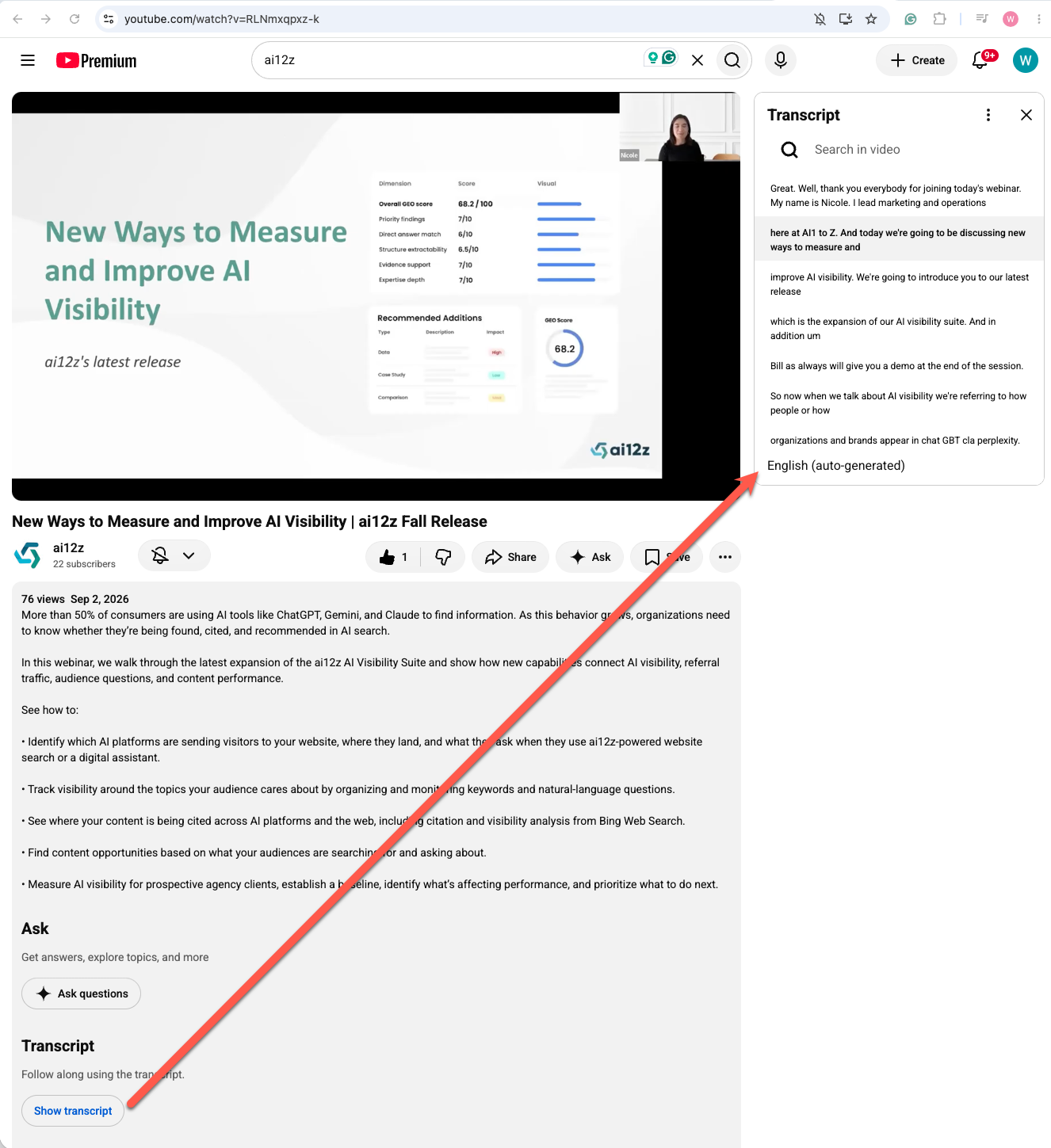
Auto-generated transcripts often get names wrong. In this example, "ai12z" comes out as "AI1 to Z" and "ChatGPT" as "chat GBT". Fix brand and product names after you paste, since those are the words people ask about.
Step 2: Create a Knowledge Base Article
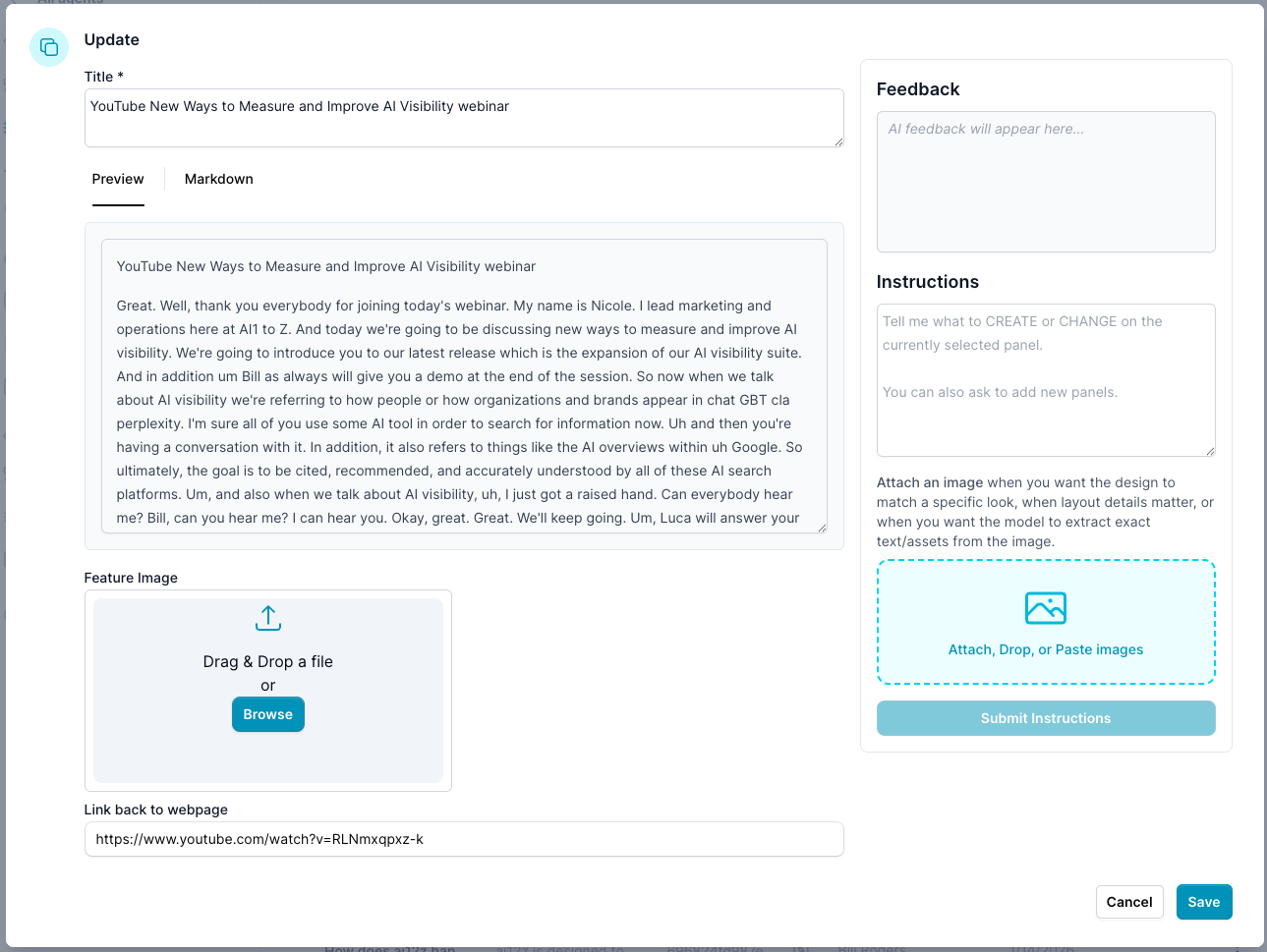
- In the ai12z portal, select Knowledge Base from the left navigation, then click Add Article.
- Fill in the article:
- Title: the video's title.
- Markdown: paste the description, then the transcript.
- Feature Image (optional): a thumbnail for the video.
- Link back to webpage: the YouTube video URL, for example
https://www.youtube.com/watch?v=RLNmxqpxz-k. Answer AI uses this as the citation link, which the instruction in Step 3 turns into a video player.
- Click Save.
Step 3: Add the Embed Instruction to Answer AI
-
Go to AI Settings > Answer AI.
-
Add this instruction to the system prompt:
If a citation link is a YouTube video, embed the video in your response using the iframe below. Build the src from the video ID in the citation link: for https://www.youtube.com/watch?v=VIDEO_ID or https://youtu.be/VIDEO_ID, use https://www.youtube.com/embed/VIDEO_ID.

<iframe width="400" height="300" src="https://www.youtube.com/embed/VIDEO_ID" title="YouTube video player" frameborder="0" allow="accelerometer; autoplay; clipboard-write; encrypted-media; gyroscope; picture-in-picture; web-share" referrerpolicy="strict-origin-when-cross-origin" allowfullscreen></iframe> -
Click Save.
YouTube doesn't let its watch pages (youtube.com/watch?v=...) load inside an iframe, which is why the instruction converts the citation link to the youtube.com/embed/ form.
Step 4: Test It
Ask your agent a question the video answers, for example "What's new in the AI Visibility Suite?" The response should answer from the transcript and include the embedded video.
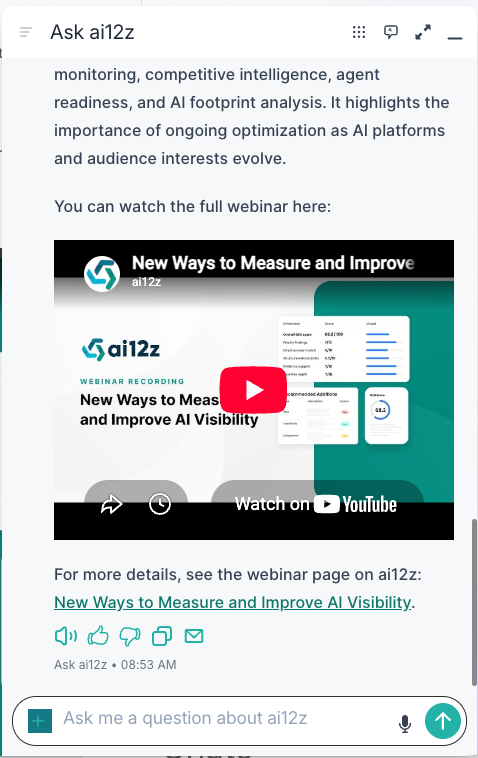
If you see a plain link instead of a player, check that:
- The article's Link back to webpage is the YouTube URL.
- The embed instruction is saved in the Answer AI system prompt.