Test Drive
Overview
-
Why This Matters: The Test Drive feature allows you to experience your agent exactly as your users will, enabling you to validate responses and fine-tune performance before deployment.
-
Detailed Steps:
-
Access Test Drive
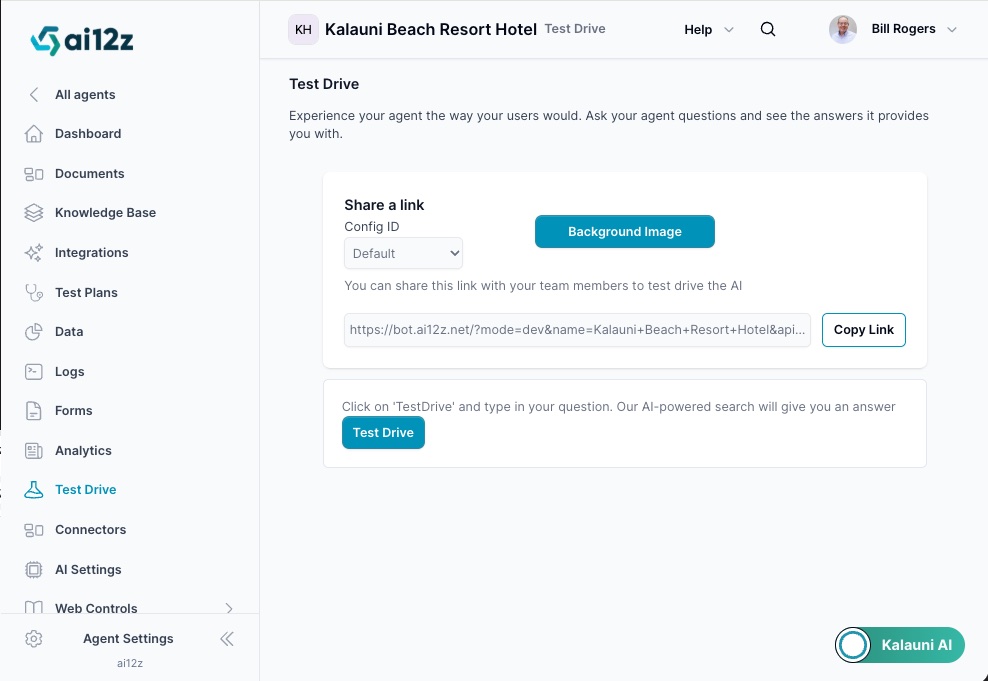
- Once you receive the email notification confirming your website has been ingested, navigate to the Test Drive section from the left-hand navigation menu.
-
Launch Your Agent
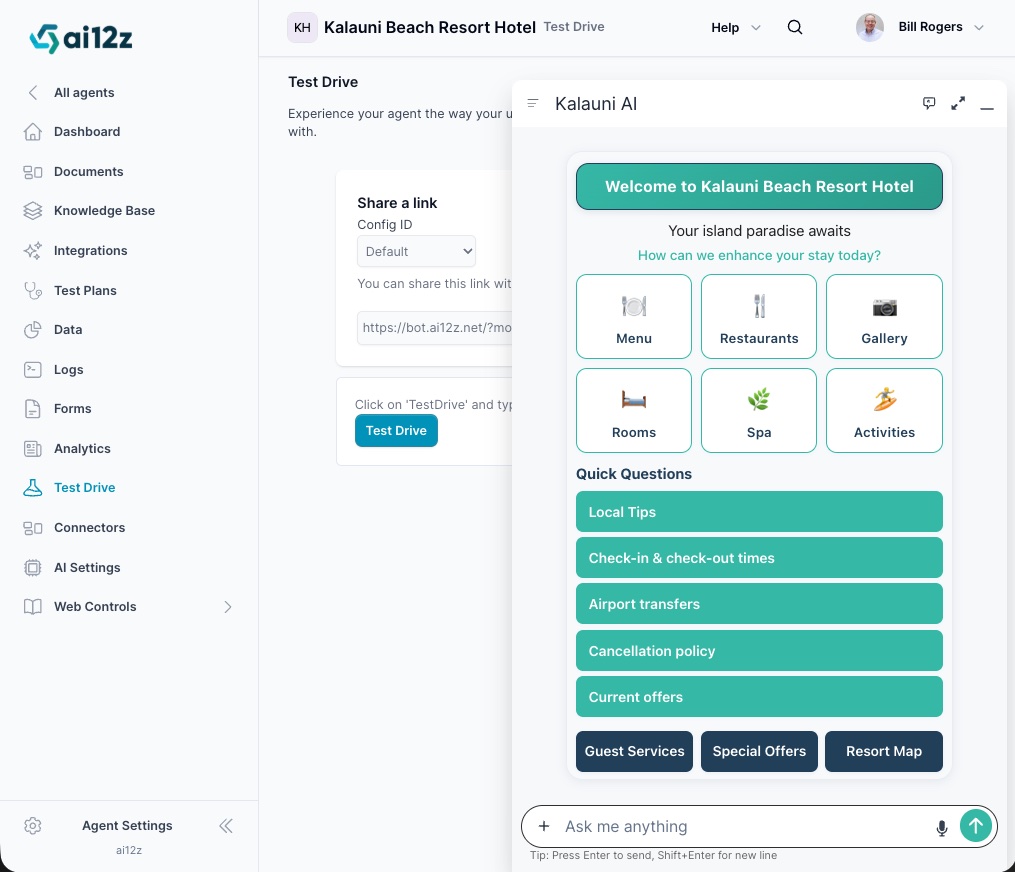
- Click the Bot at bottom right to open your agent.
- The agent will open with its default configuration, ready for testing.
-
Share Your Agent (Optional)
- To share your agent with team members for collaborative testing, use the Copy Link feature.
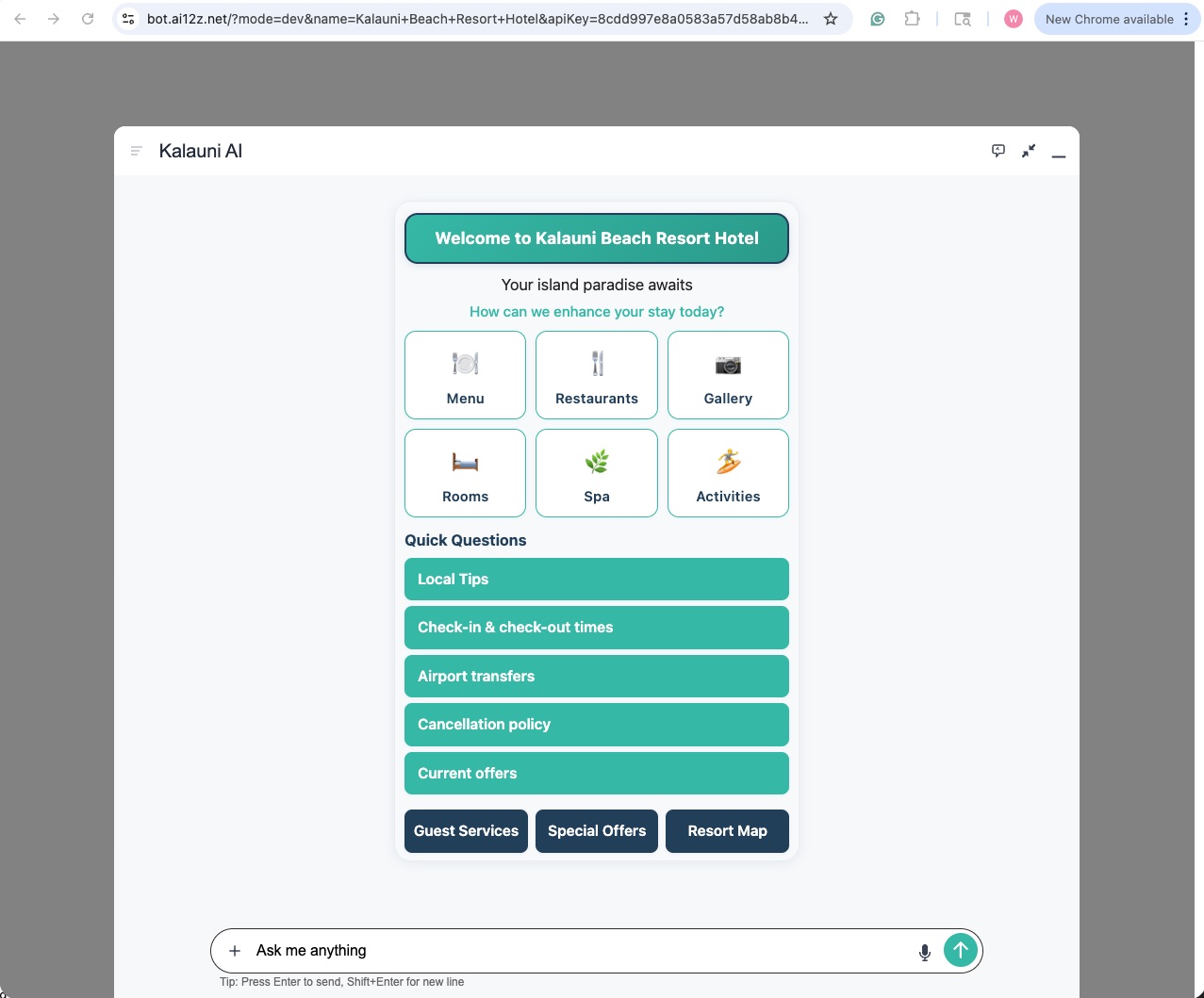
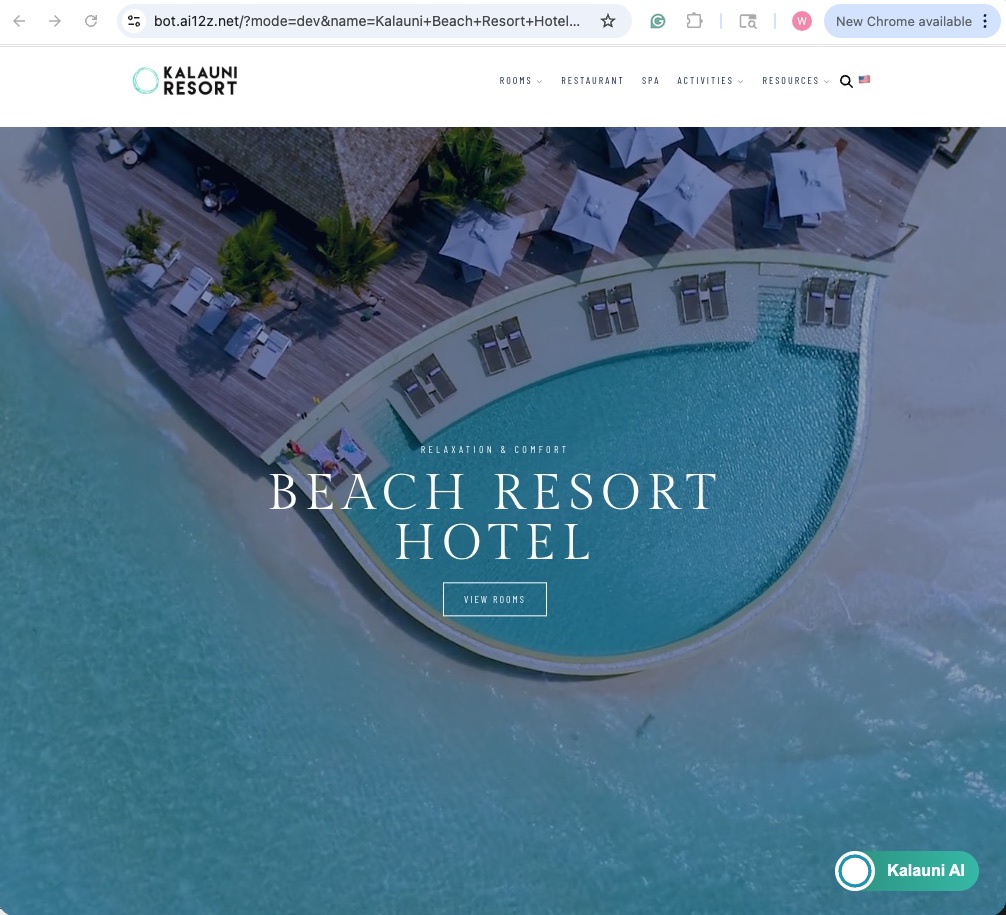
- For a more professional presentation, add a background image before sharing.
Before Background Image:
-
Add a Background Image (Recommended)
- Click the Background Image button in the Test Drive interface.
- Upload a JPEG file of your website's homepage (recommended size: 1200 x 1200 pixels).
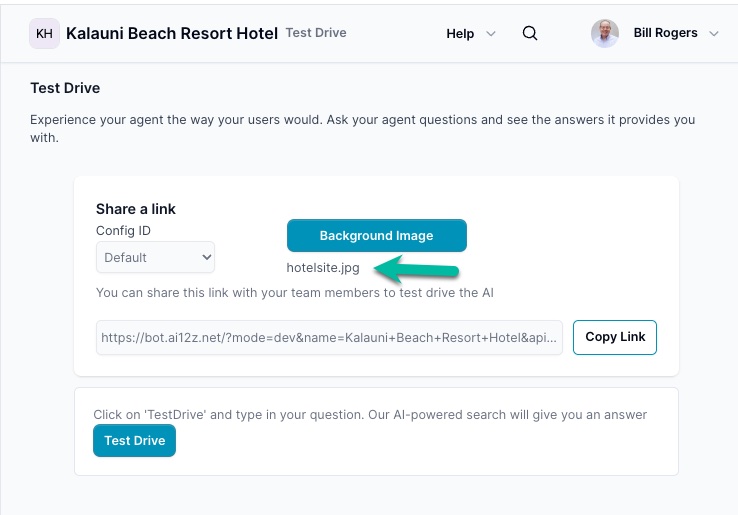
After Backgrounnd Image:
-
Copy and Share the Link
- Click Copy Link to generate a shareable URL.
- Share this link with stakeholders to demonstrate your agent's capabilities in a realistic environment.
-
Testing ai12z-cta Search Modal
The ai12z-cta Search component is a modal dialog that provides quick-access AI search functionality. Here's how to test and configure it:
Creating Your CTA Search Configuration
-
Create a New Web Configuration
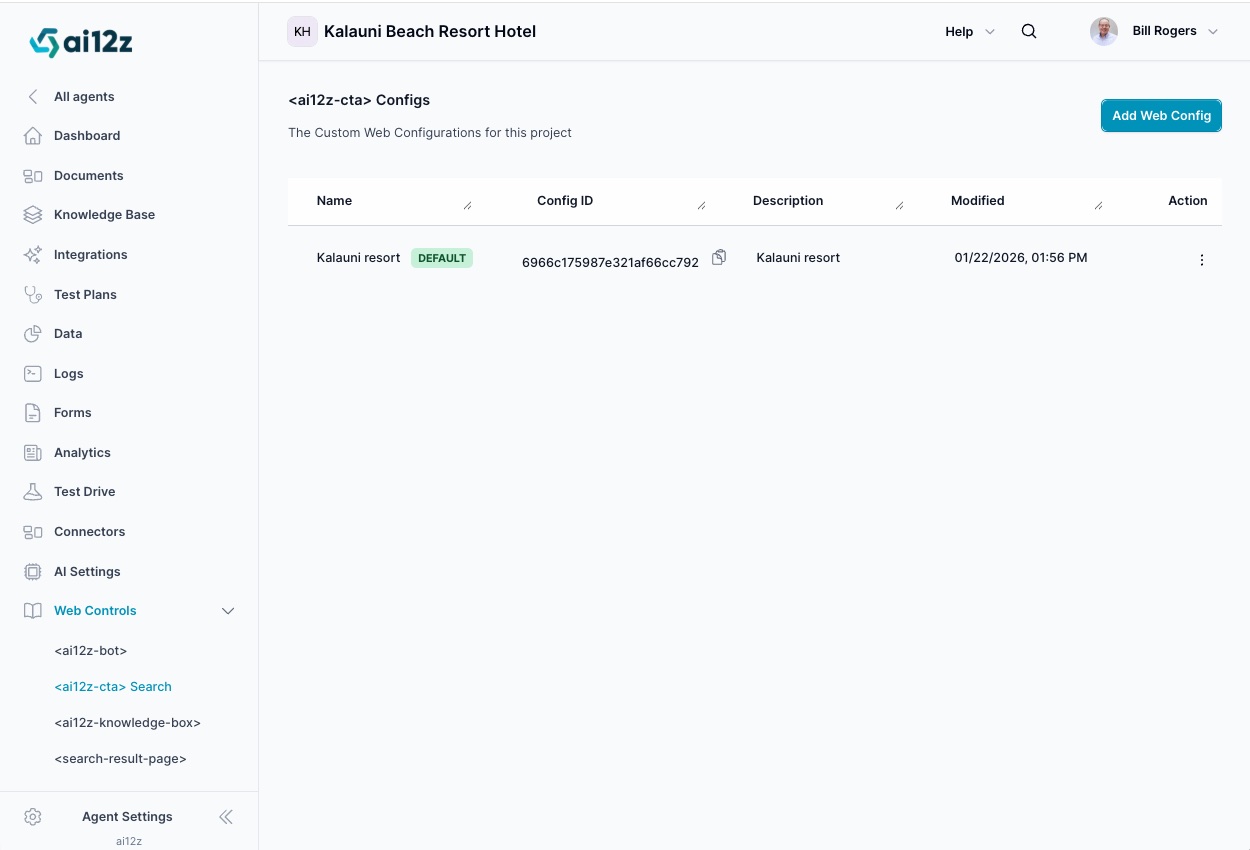
- Navigate to the Web Controls section in the left sidebar.
- Click ai12z-cta Search to view existing configurations.
- Click Add Web Config to create a new CTA search modal.
-
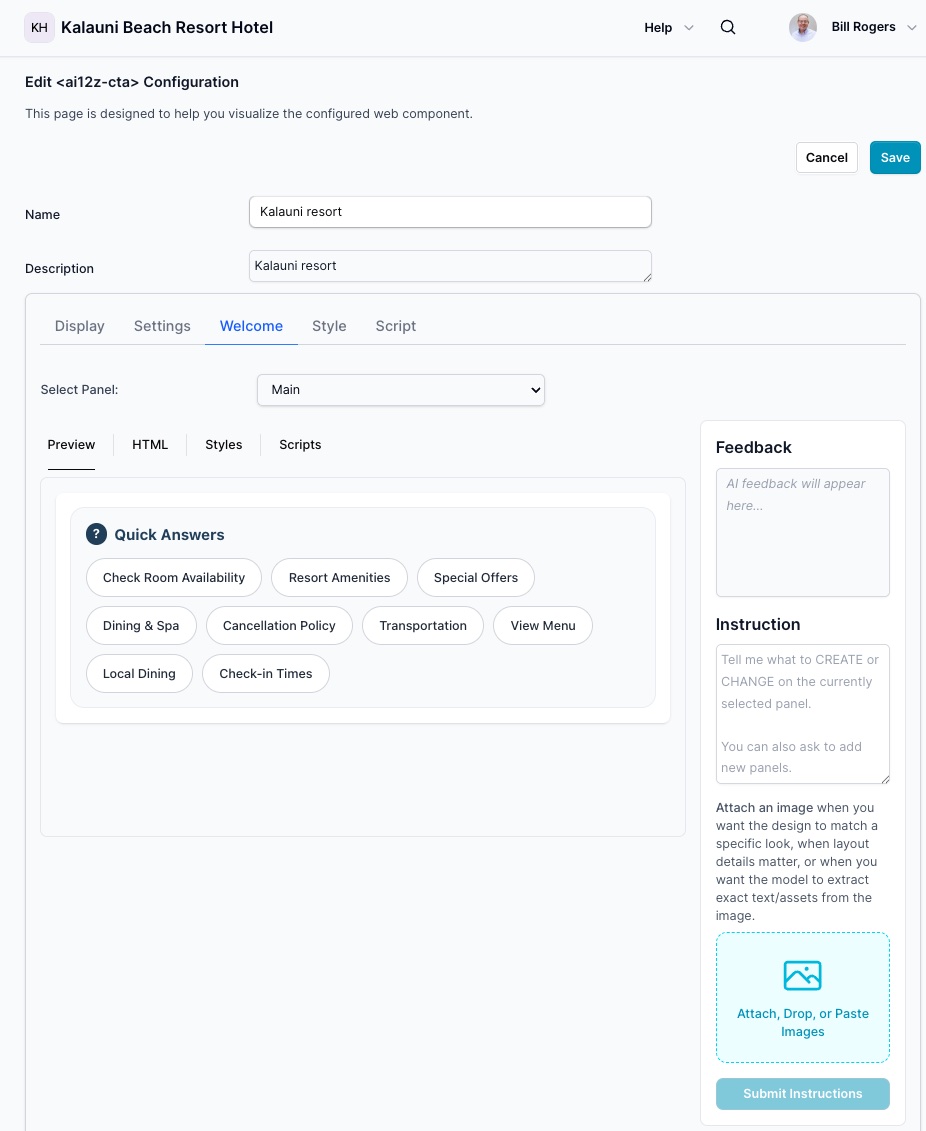
Configure the Welcome Screen
- Design your welcome panel with Quick Answer buttons for common queries.
- Use Vibe Coding to customize the welcome message and button layout.
- This provides immediate value by surfacing frequent questions users ask.
Testing the CTA Search Modal
-
Access Test Drive
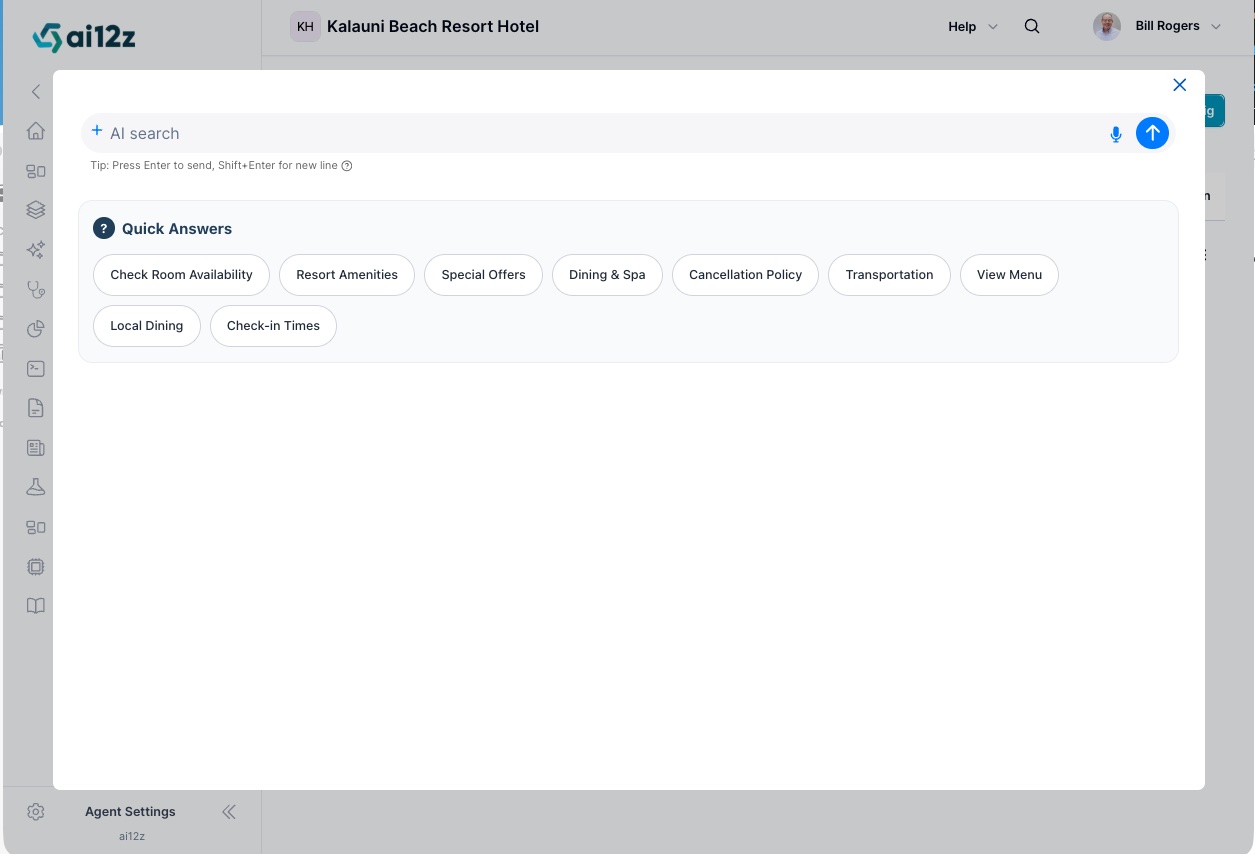
- Click the Test Drive button to open the modal dialog in test mode.
- This allows you to experience the search functionality as users will see it.

-
Interact with the Modal
- Test the Quick Answer buttons to ensure they trigger appropriate responses.
- Try searching for various queries to validate AI search accuracy.
- Verify the modal's appearance, behavior, and branding.
-
Refine and Deploy
- Make adjustments to welcome messages, quick answers, or styling as needed.
- Once satisfied, deploy the CTA search modal to your website using the provided embed code.