Sharepoint
Sharepoint Connector Setup Guide
The connector enables ai12z to securely access and ingest content directly from your SharePoint environment. Once connected, ai12z can automatically read, process, and integrate documents, lists, libraries, or other content stored within SharePoint. This allows ai12z to stay synchronized with any new, updated, or published items in your SharePoint site.
With this integration, your organization can achieve seamless content flow and real-time updates between SharePoint and the Ai12z platform, ensuring that your data remains current, centralized, and ready for downstream processing or automation.
Enable Connector
- Log in to the Ai12z portal using admin credentials.
- Select or create an agent.
- From left nav select conectors.
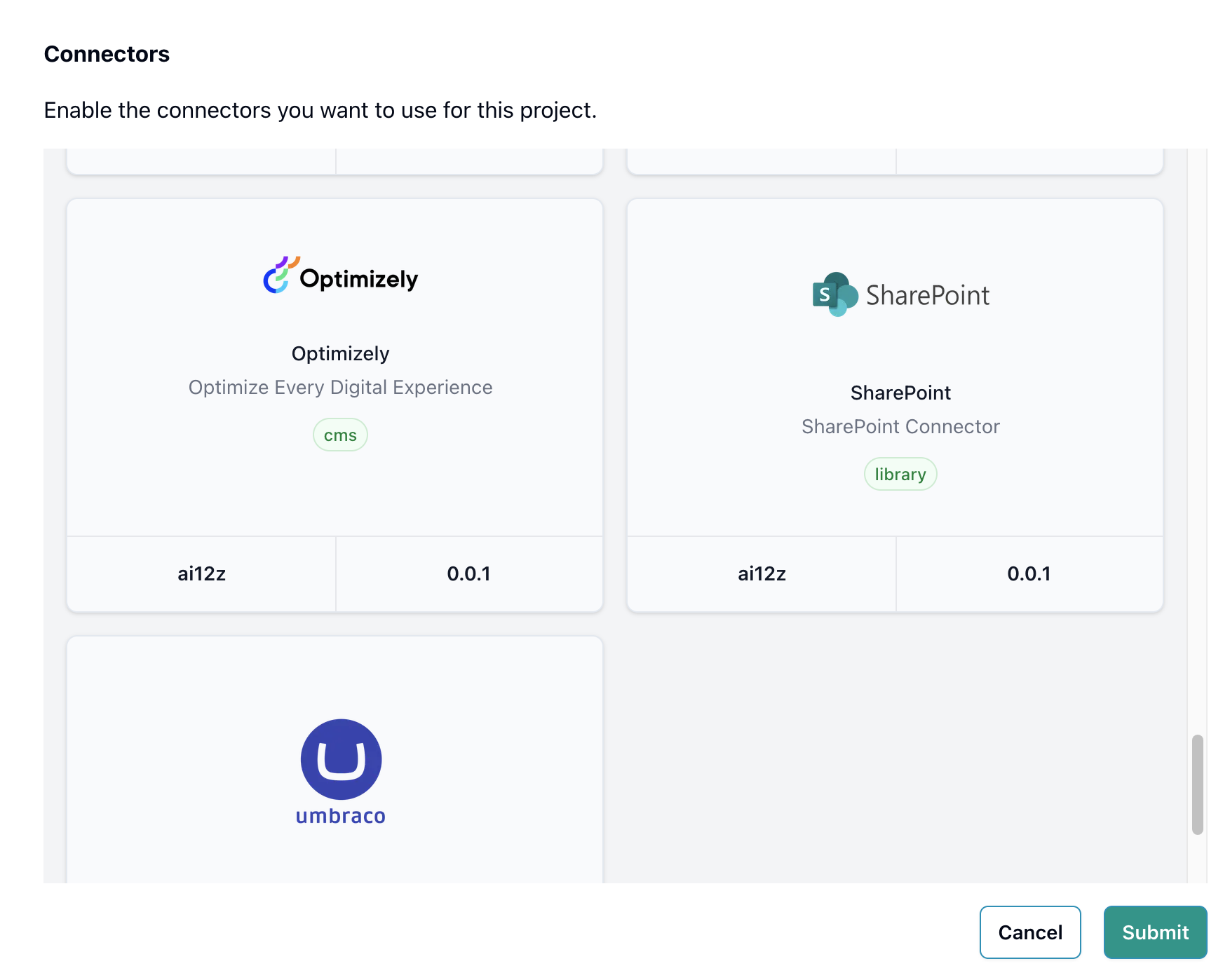
- Click on Add Connectors button from the connector store configuration screen.
- Select the Sitecore connector from the list.
Step 1: Set up GraphQL IDE on Azure Portal
Enable the GraphQL IDE
- To use the Microsoft Graph API, ensure the following prerequisites and steps are met:
Prerequisites
- You must be a admin of the sharepoint.
- Go to portal.azure.com and click on "App registeration"
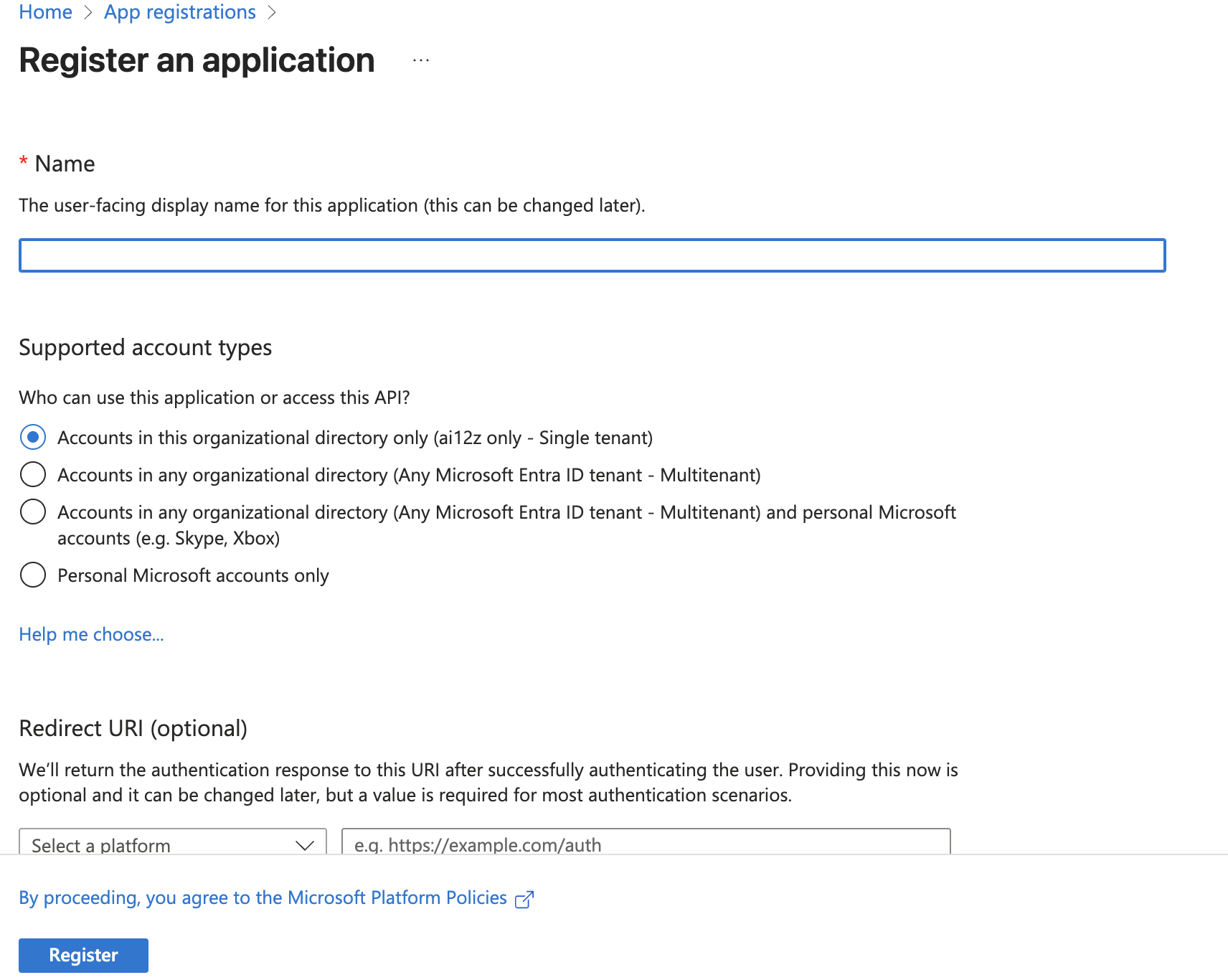
- Once done, save the tenantId, client Id and client secret.
- Login to https://app.ai12z.net/ > agents > connectors > sharepoint and feed in the details
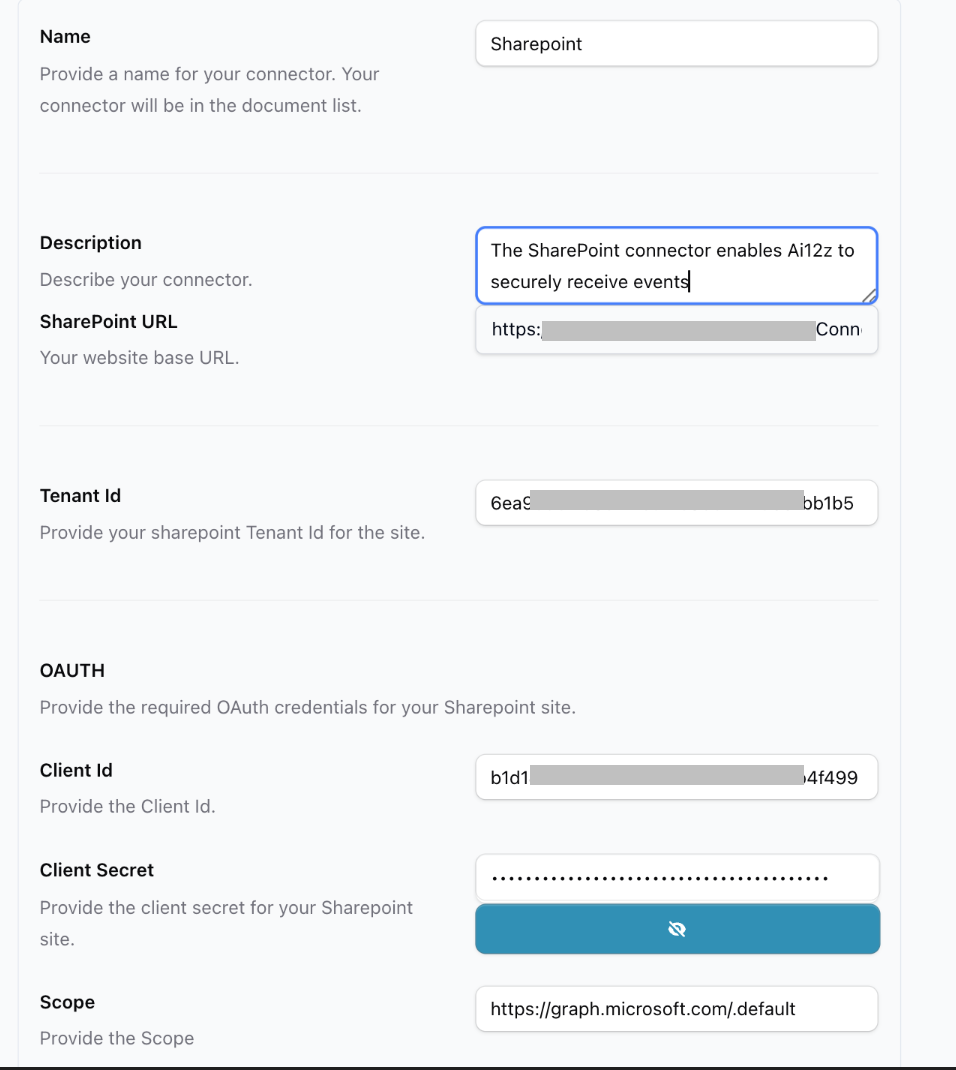
- Power-Automate Cloud Flow SetUp
-
Login to https://app.ai12z.net/ > agents > connectors > sharepoint
-
You will see two webhook flows available for download, each provided as an individual ZIP file.
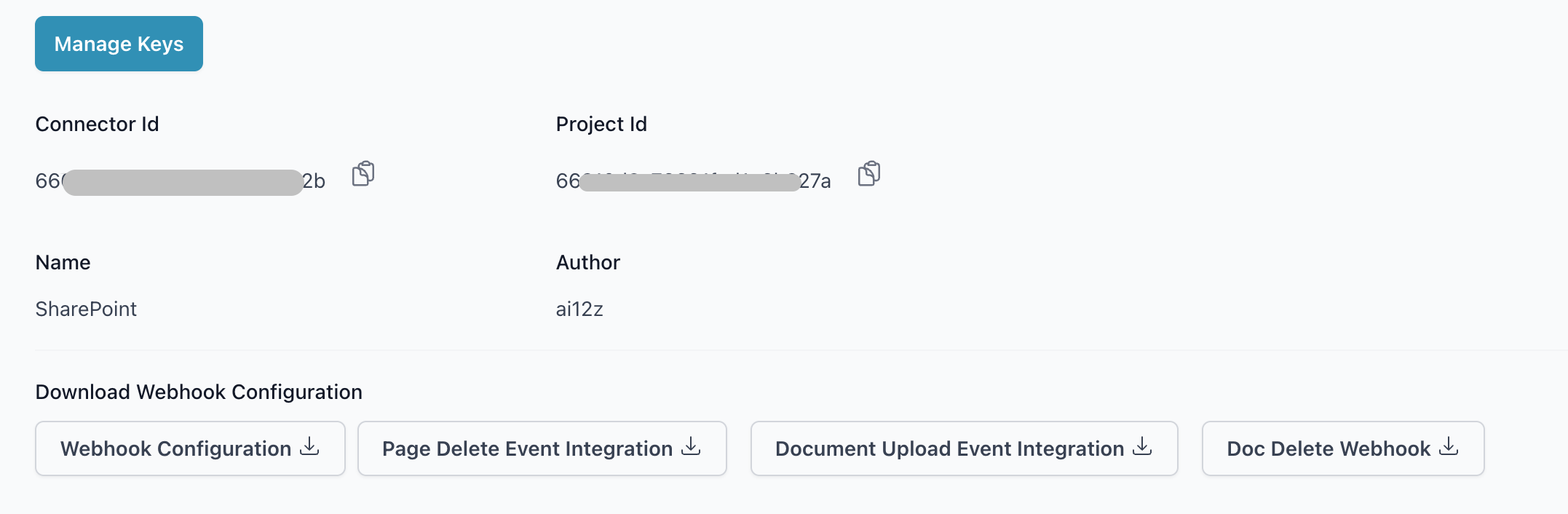
- Webhook Configuration - Create a Power Automate cloud flow using the trigger “When an item is created or modified.” This flow sends an HTTP event to Ai12z whenever a SharePoint item changes. Ai12z will process only published items.
- Page Delete Event Integration - Create a second flow using the trigger “When an item is deleted.” When a page is removed in SharePoint, this flow sends a delete event to Ai12z, allowing the corresponding page to be removed from the platform.
-
Import the flow on power app portal which you downloaded from above step
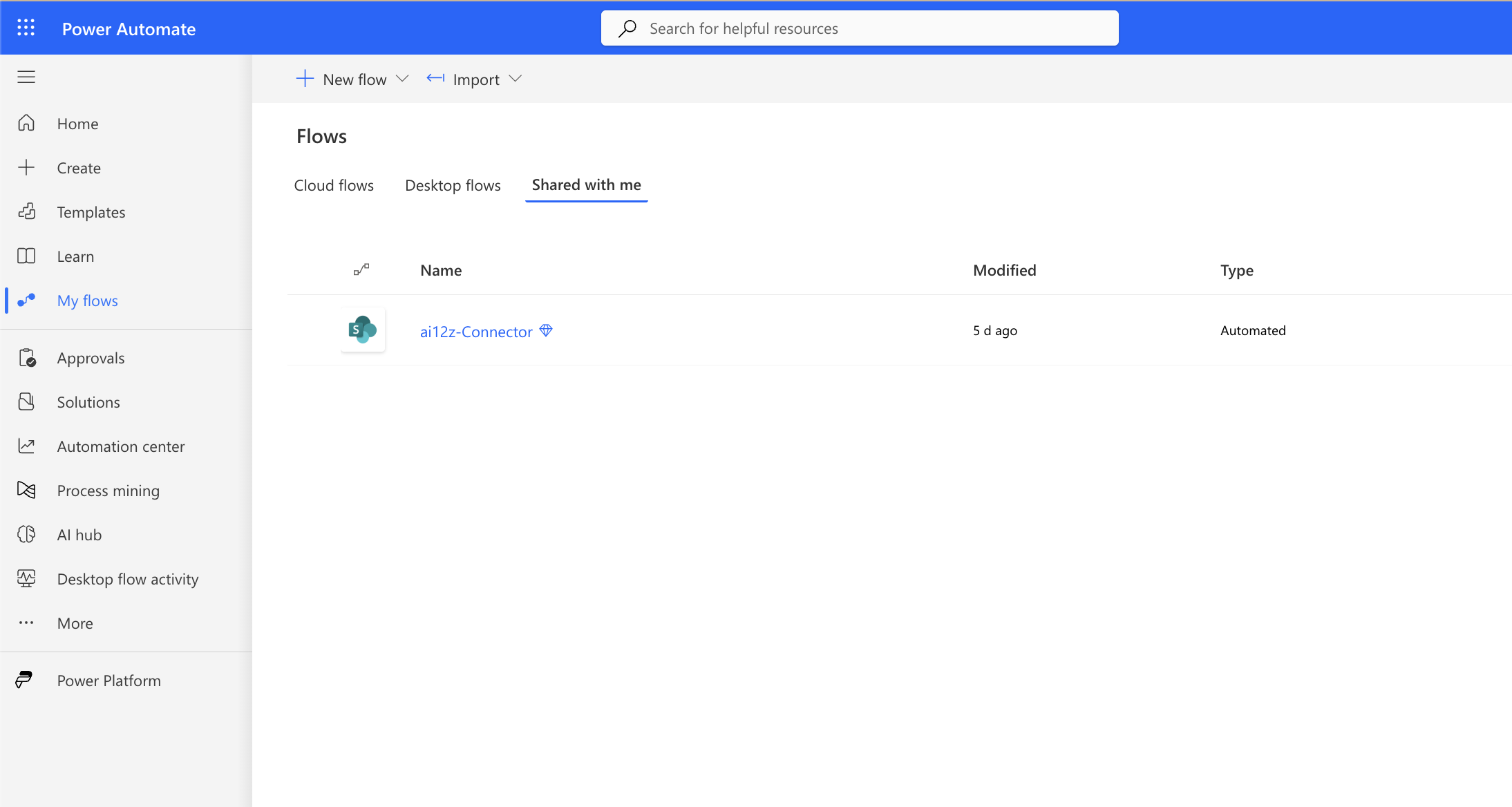
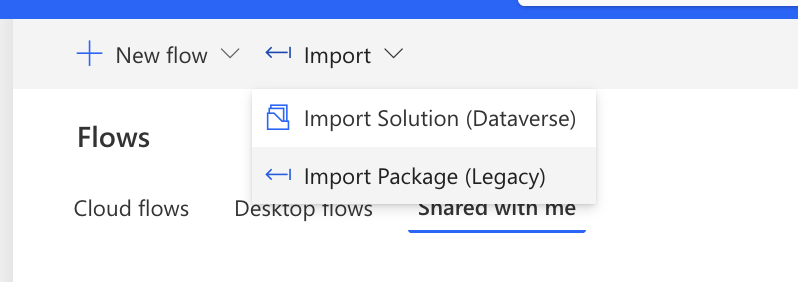
-
Click on Edit flow, once import is done successfully.
-
Select the website for which you want to register the event
-
Select list name as "List Pages" (custom value)
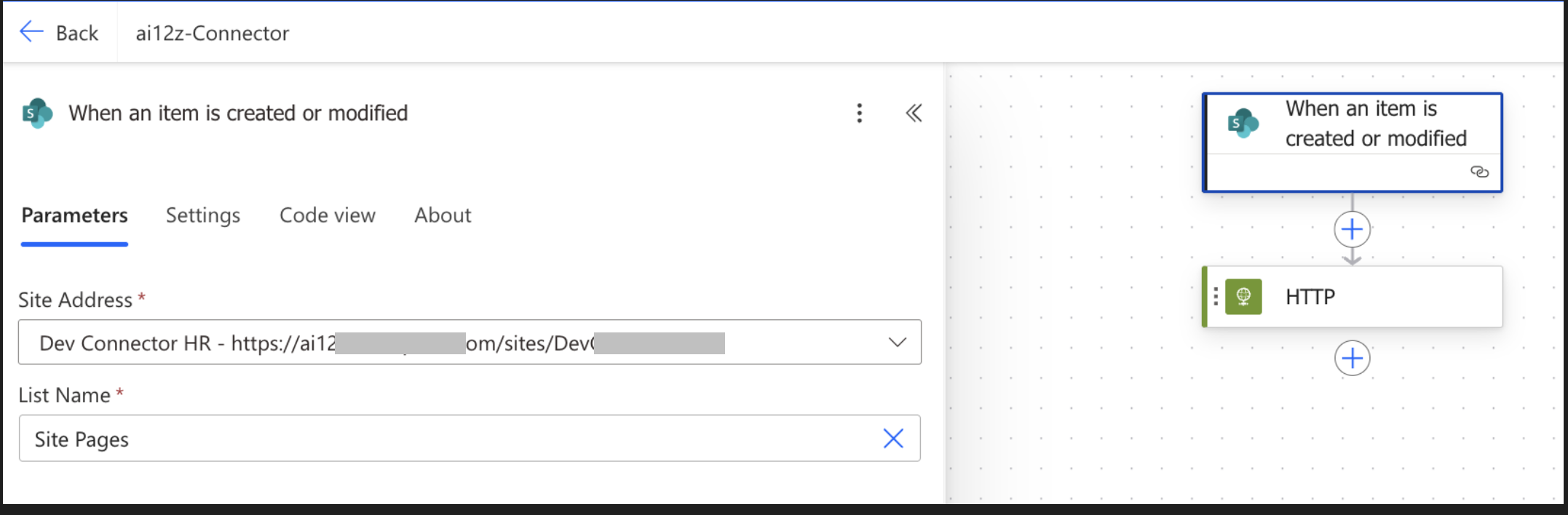
-
select http event and check/verify all parameters
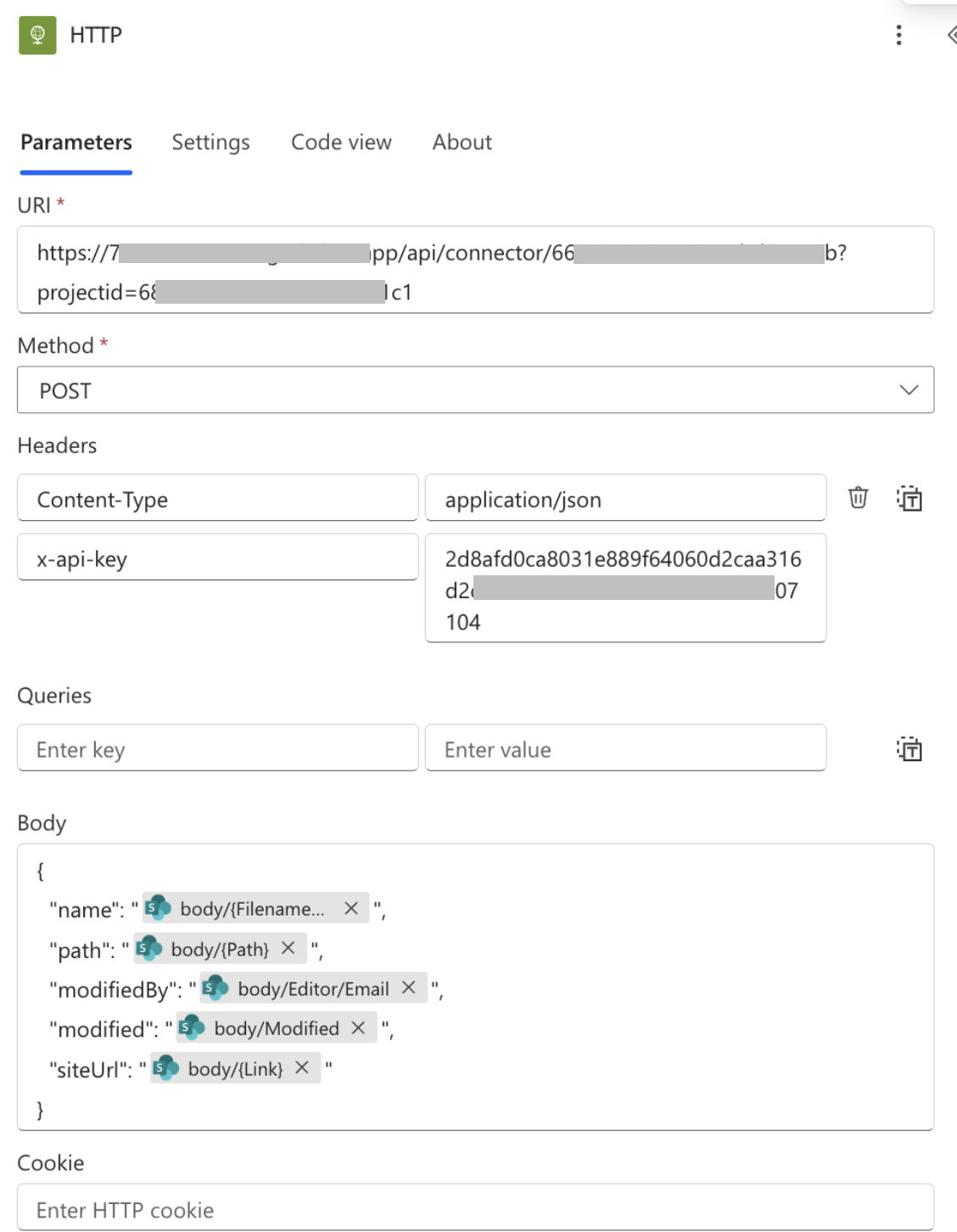
-
Repeat the same steps for other hook i.e. Page Delete Event Integration, Document Upload Integration and Doc Delete Webhook