Umbraco
ai12z Umbraco Package Installation and Setup Guide
The ai12z Umbraco package is a single NuGet (Ai12z.Umbraco.Widgets) that ships both content sync (real-time and bulk) and a set of Block List widgets for the chatbot and search controls. Once installed, the package runs entirely from inside Umbraco — configuration lives in the backoffice under Settings → Ai12z Settings, and content is kept in sync with ai12z automatically on publish/unpublish/delete.
Prerequisites
- Umbraco CMS 13 LTS
- .NET 8
- Admin access to both the ai12z portal and the Umbraco backoffice
Umbraco 14/15 (Bellissima) support ships in a separate package, Ai12z.Umbraco.Widgets.V15, planned for a future release. The package on this page targets Umbraco 13 LTS only.
Step 1: Add Connector
-
Log in to the ai12z portal.
-
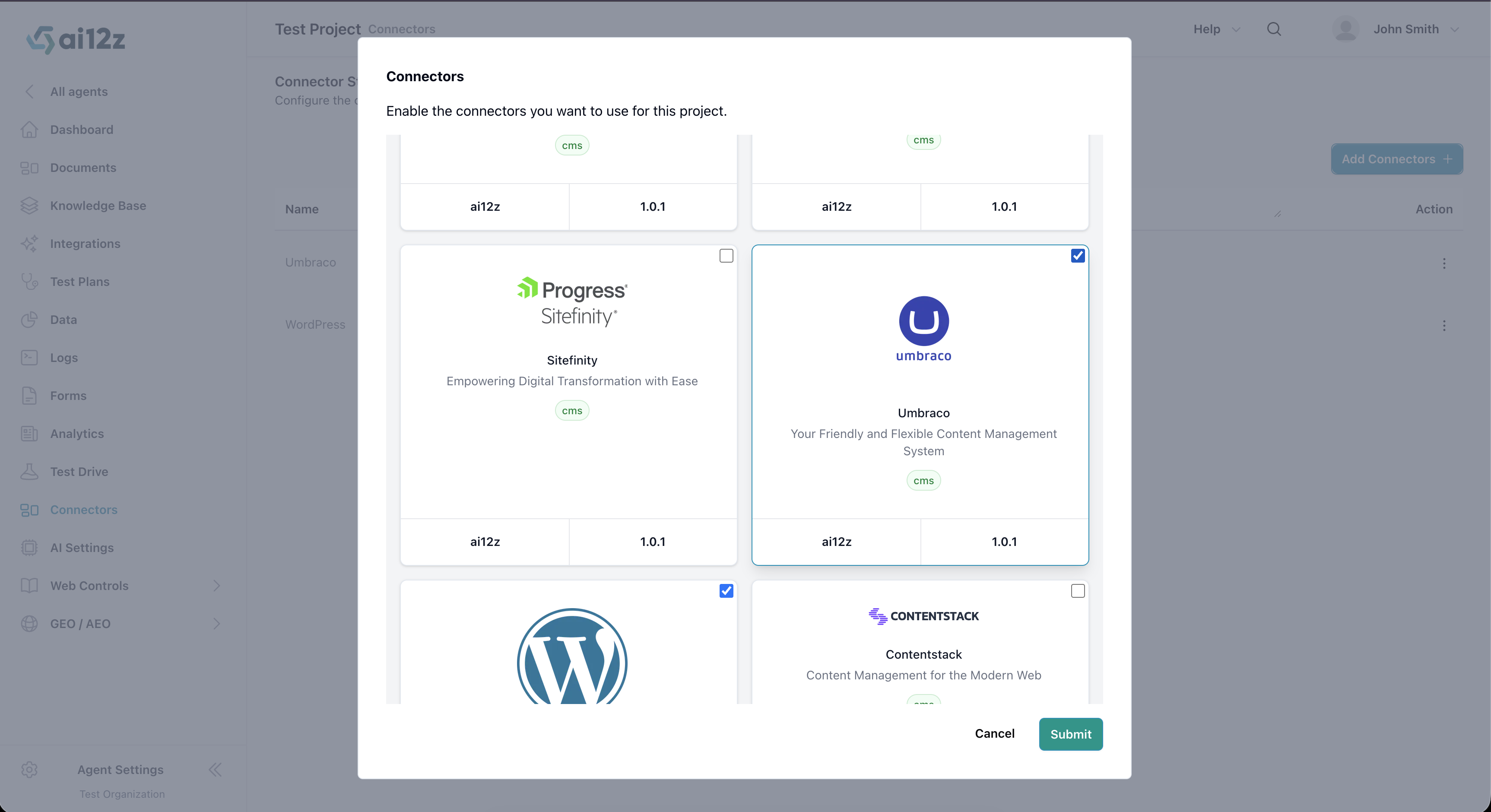
Open Connectors from the left navigation and click Add Connectors.
-
Select Umbraco and submit.
Step 2: Configure Connector
-
Open Connectors and click the row action on Umbraco to edit.
-
Fill out the following fields:
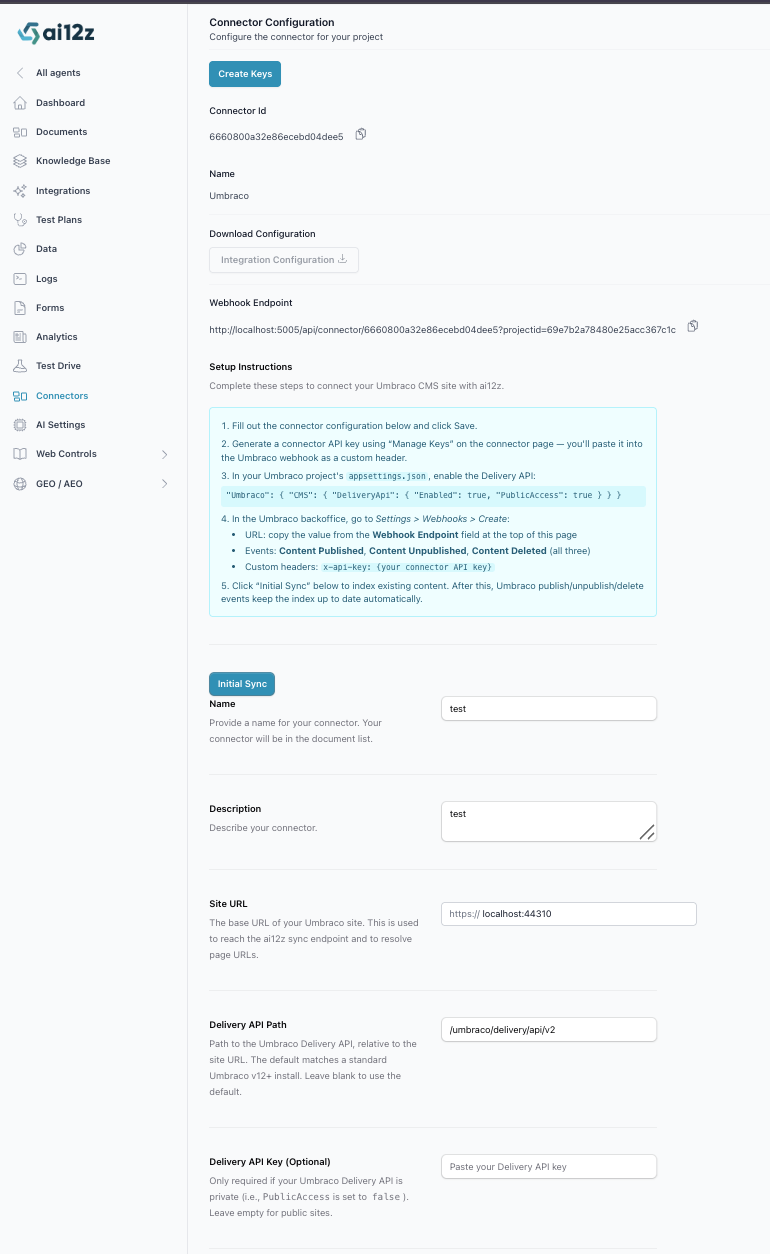
- Name: Display name for the connector (e.g., "My Umbraco Site").
- Description: Describe the connector (e.g., "Marketing website").
- Site URL: Public Umbraco site URL (e.g.,
https://example.com). - Delivery API Path (optional): Defaults to
/umbraco/delivery/api/v2. Only change this if you've remapped Umbraco's Delivery API. - Delivery API Key (optional): Only required if your Delivery API is set to Private. Leave blank for public Delivery APIs.
- URL Filtering (optional):
- Include URL Patterns: Patterns to include URLs for indexing (e.g.,
*/blog/*). Supports wildcards (*). Comma-separated. - Exclude URL Patterns: Patterns to exclude URLs from indexing (e.g.,
*/admin/*). Supports wildcards (*). Comma-separated.
- Include URL Patterns: Patterns to include URLs for indexing (e.g.,
- Include Cultures (optional): Comma-separated culture codes to limit which language variants are synced (e.g.,
en-US, fr-FR). Leave blank to sync all cultures. - Include Content Types (optional): Comma-separated content type aliases to limit which content types are synced (e.g.,
article, product). Leave blank to sync all content types.
-
Copy the Webhook Endpoint URL shown at the top of the page — you'll paste it into the Umbraco backoffice in Step 4.
-
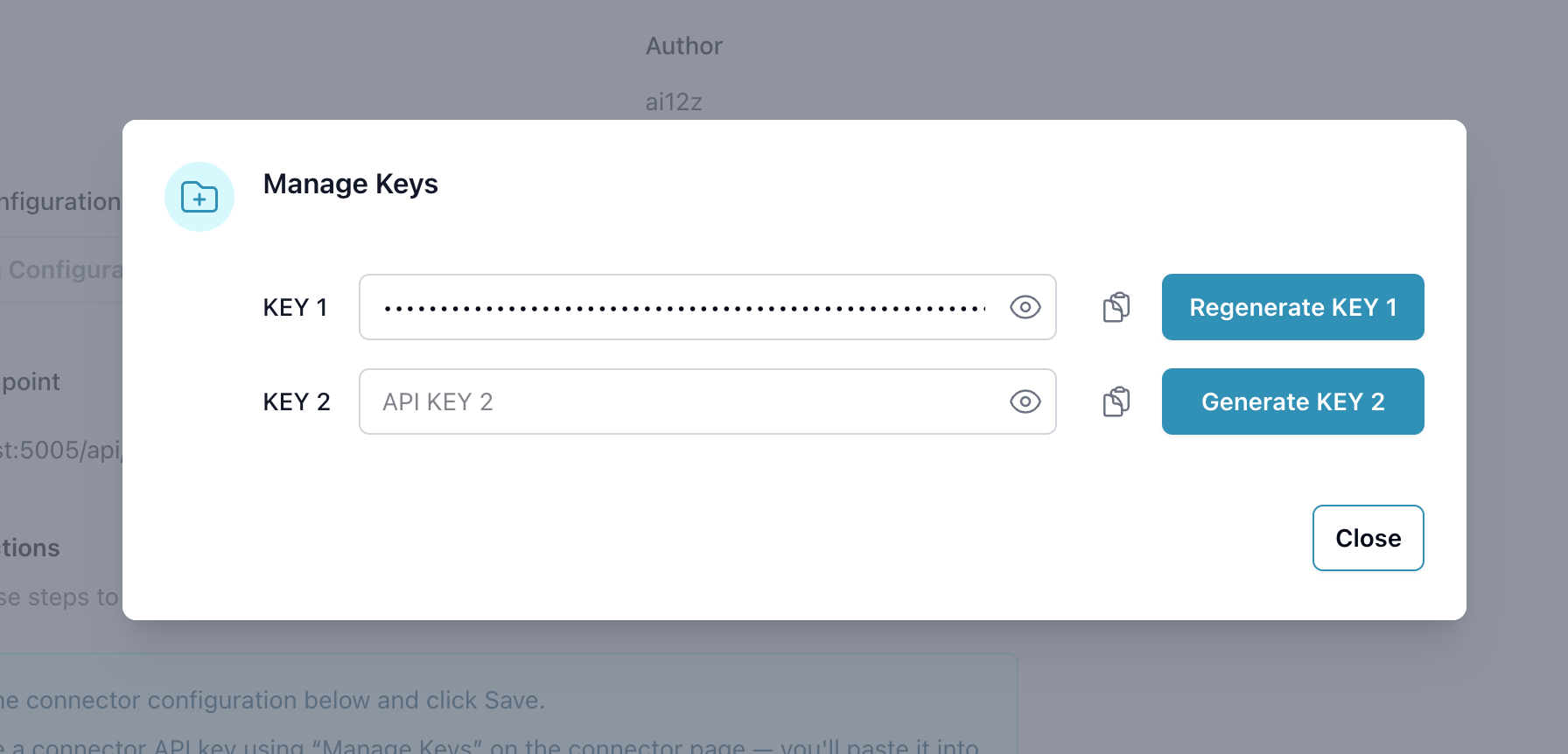
Click Manage Keys and generate a connector API key. Copy the key — you'll need it in Step 4.
-
Click Save.
Step 3: Install NuGet Package
Install the ai12z NuGet package in your Umbraco project:
dotnet add package Ai12z.Umbraco.Widgets
The package auto-registers its services via Umbraco's composer pattern — your existing AddComposers() call discovers the connector automatically. The only required Program.cs change is one line inside the WithEndpoints lambda to publish the bulk-sync route:
app.UseUmbraco()
    .WithMiddleware(u =>
    {
        u.UseBackOffice();
        u.UseWebsite();
    })
    .WithEndpoints(u =>
    {
        u.UseAi12z();   // ← add this line

        u.UseInstallerEndpoints();
        u.UseBackOfficeEndpoints();
        u.UseWebsiteEndpoints();
    });
UseAi12z() MUST be placed inside the WithEndpoints lambda and before UseWebsiteEndpoints(). Umbraco's website endpoints register a dynamic content-route handler that will otherwise intercept /ai12z/sync and return Umbraco's "Page Not Found" HTML.
No other code changes are needed. No layout edits, no _ViewImports.cshtml changes, no Tag Helpers.
Step 4: Configure in Umbraco Backoffice
-
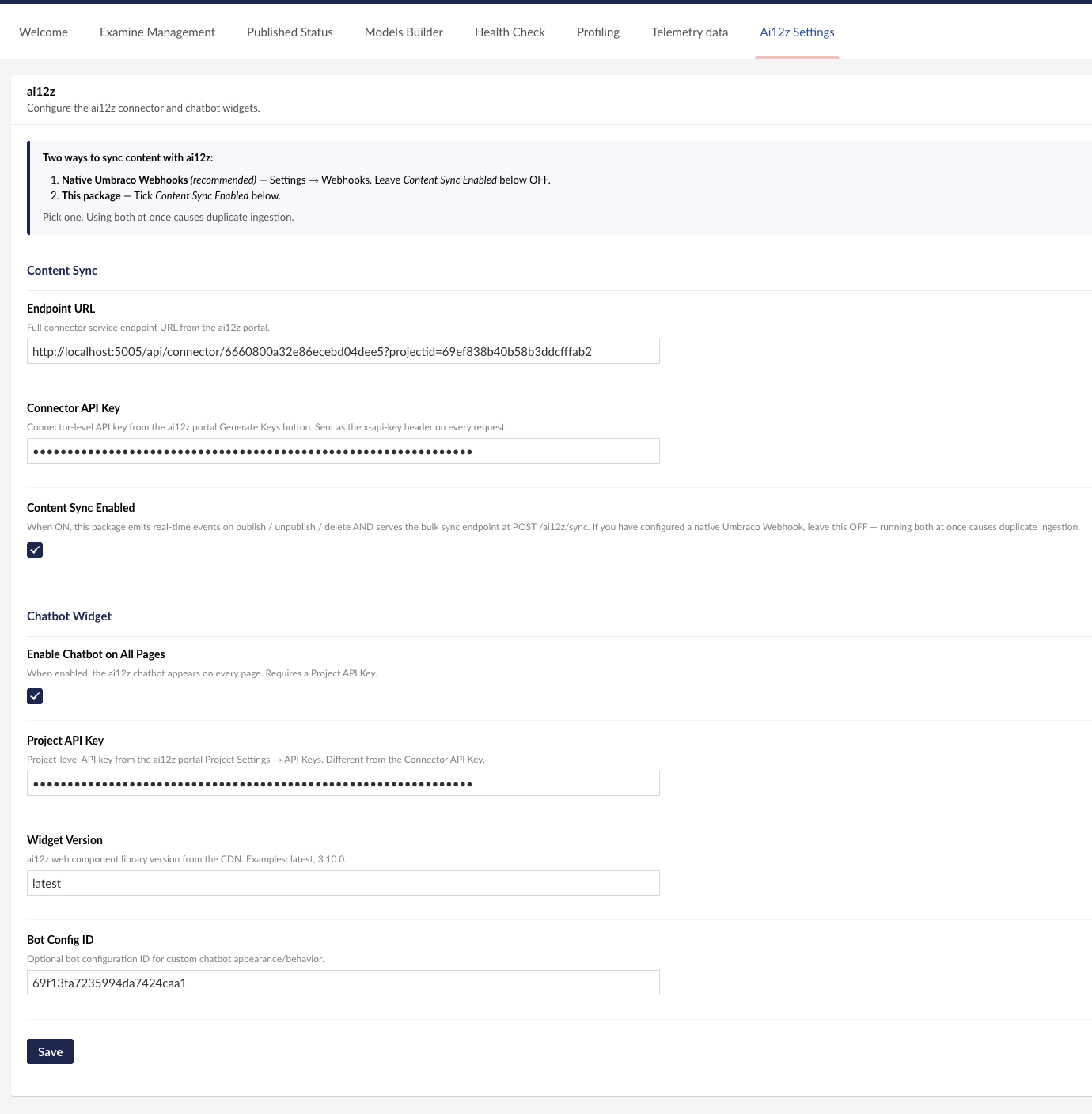
Open the Umbraco backoffice and navigate to the Settings section. Click the Ai12z Settings tab in the dashboard tab strip across the top.
-
Fill out the configuration form:
Content Sync
- Endpoint URL: Paste the Webhook Endpoint URL copied from the ai12z portal in Step 2.
- Connector API Key: The key generated in Step 2.
- Content Sync Enabled: Check to enable real-time content sync from this package.
Chatbot Widget
- Enable Chatbot on All Pages: Toggle to show the ai12z chatbot on every page site-wide. Requires a Project API Key.
- Project API Key: Found in the ai12z portal under Project Settings → API Keys. Different from the Connector API Key — only needed if using web controls.
- Widget Version: CDN version for the ai12z web component library (default:
latest). - Bot Config ID: Optional. Custom bot configuration ID from the ai12z portal.
-
Click Save.
All settings changes — content sync and chatbot widget — take effect immediately on the next page load or publish event. No application restart needed.
Umbraco offers two ways to send content to ai12z:
- Native Umbraco Webhooks (recommended) — Configure a webhook in Settings → Webhooks pointing at the same Endpoint URL with the
x-api-keycustom header. Leave Content Sync Enabled in Ai12z Settings OFF. - Package-driven sync — Tick Content Sync Enabled in Ai12z Settings.
Running both at once causes every publish to be ingested twice. Pick one.
Step 5: Initial Content Sync
After configuration, sync all existing content to ai12z so the bot has content to answer from.
-
In the ai12z portal, open the Umbraco connector page.
-
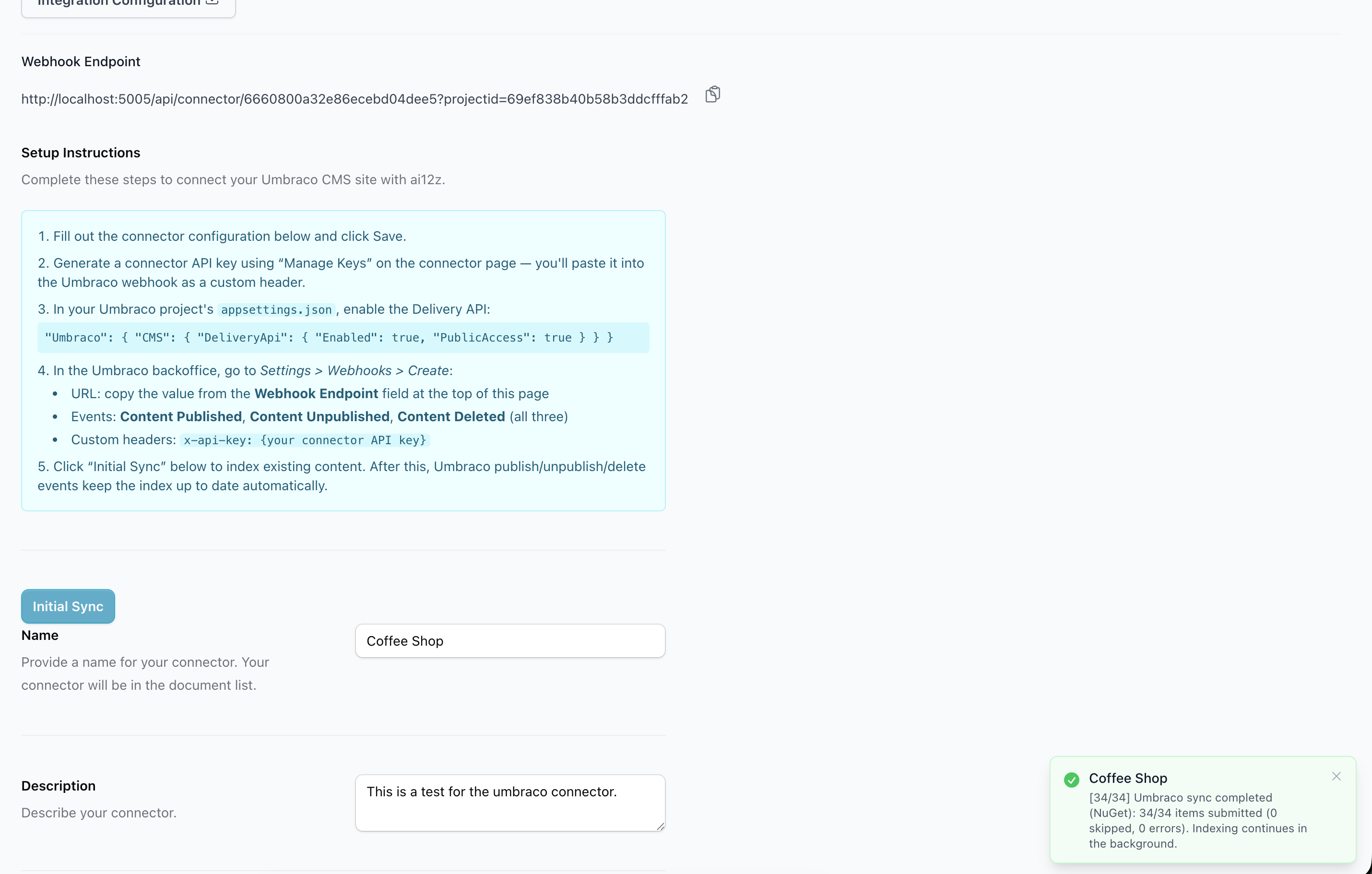
Click the Initial Sync button.
-
A toast notification appears in the bottom-right corner showing sync progress. This notification persists across page navigation — you can continue working in the portal while the sync runs.
Initial sync deletes all existing indexed content for this connector before re-indexing. This ensures a clean slate with no orphaned entries.
Alternatively, you can trigger the sync via the API:
curl -X POST https://your-umbraco-site.com/ai12z/sync \
  -H "x-api-key: YOUR_CONNECTOR_API_KEY"
The response shows the sync result:
{
  "totalItems": 42,
  "succeeded": 42,
  "failed": 0,
  "skipped": 0,
  "errors": []
}
After the initial sync, content is synced automatically whenever pages are published, unpublished, or deleted.
Step 6: Web Controls (Optional)
The NuGet package ships ai12z widgets in three flavors so you can pick the workflow that fits your team. All three require a Project API Key configured in Step 4.
Option 1: Site-wide Chatbot (zero config)
Toggle "Enable Chatbot on All Pages" in the backoffice settings. The chatbot automatically injects on every page — no layout changes, no per-page placement. The package's Tag Helper Component places the <ai12z-bot> tag immediately before </body> on every rendered page.
Option 2: Add ai12z widgets to your existing Block List or Block Grid (recommended for content editors)
The package registers the six ai12z widgets as Umbraco element types at first boot. To make them available on pages, add them to the Allowed Blocks list of whatever Block List or Block Grid your templates already render — the same one your editors use today for headlines, images, rich text, etc.
Why this approach: your existing Block List/Grid is already wired into your page templates via @Html.GetBlockListHtml(...) or @Html.GetBlockGridHtml(...). Adding the ai12z widgets to its allowed-blocks list means they slot right into the workflow your editors already know, AND they render on the live page automatically — no template changes required. The package ships matching Razor partials at Views/Partials/blocklist/Components/ai12z*.cshtml and Views/Partials/blockgrid/Components/ai12z*.cshtml which Umbraco picks up by convention.
The flow is split across two backoffice sections — Settings (allow the ai12z widgets in your Block List/Grid) and Content (drop them onto a page).
Stage 1 — Allow the ai12z widgets in your Block List/Grid
One-time setup per document type. After this, every content node based on that document type can use the widgets.
Step 1. Backoffice → Settings → Document Types → open the document type that has the Block List or Block Grid your templates render (often a Home or Content Page type — typically a property called bodyText, content, or similar). Click the Block List / Block Grid property — a Property settings pane opens on the right. Click Edit on the data type entry.

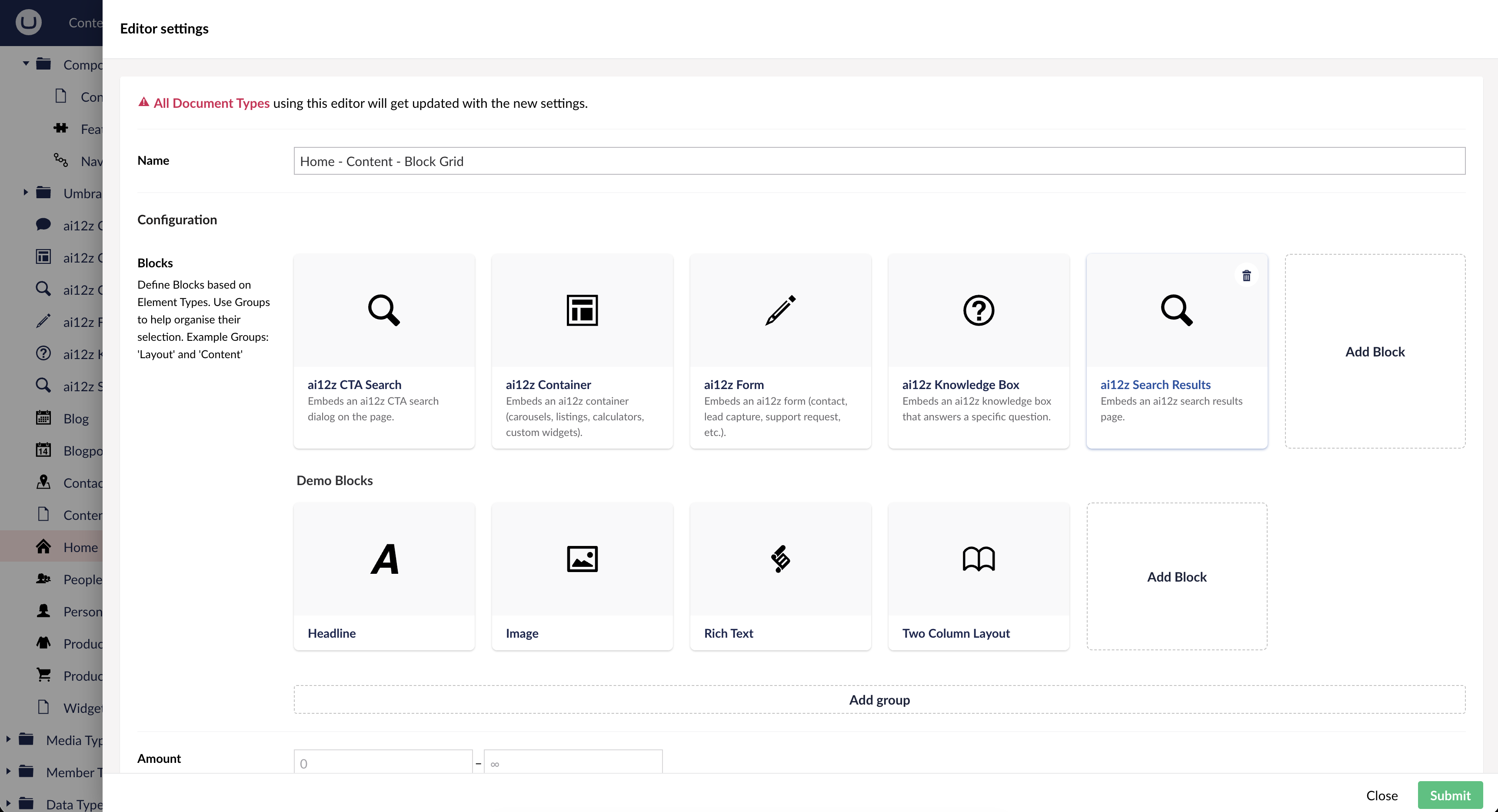
Step 2. The data type's Editor settings dialog opens. Scroll to the Blocks / Configuration section to see the element types currently allowed. Click the Add Block tile.
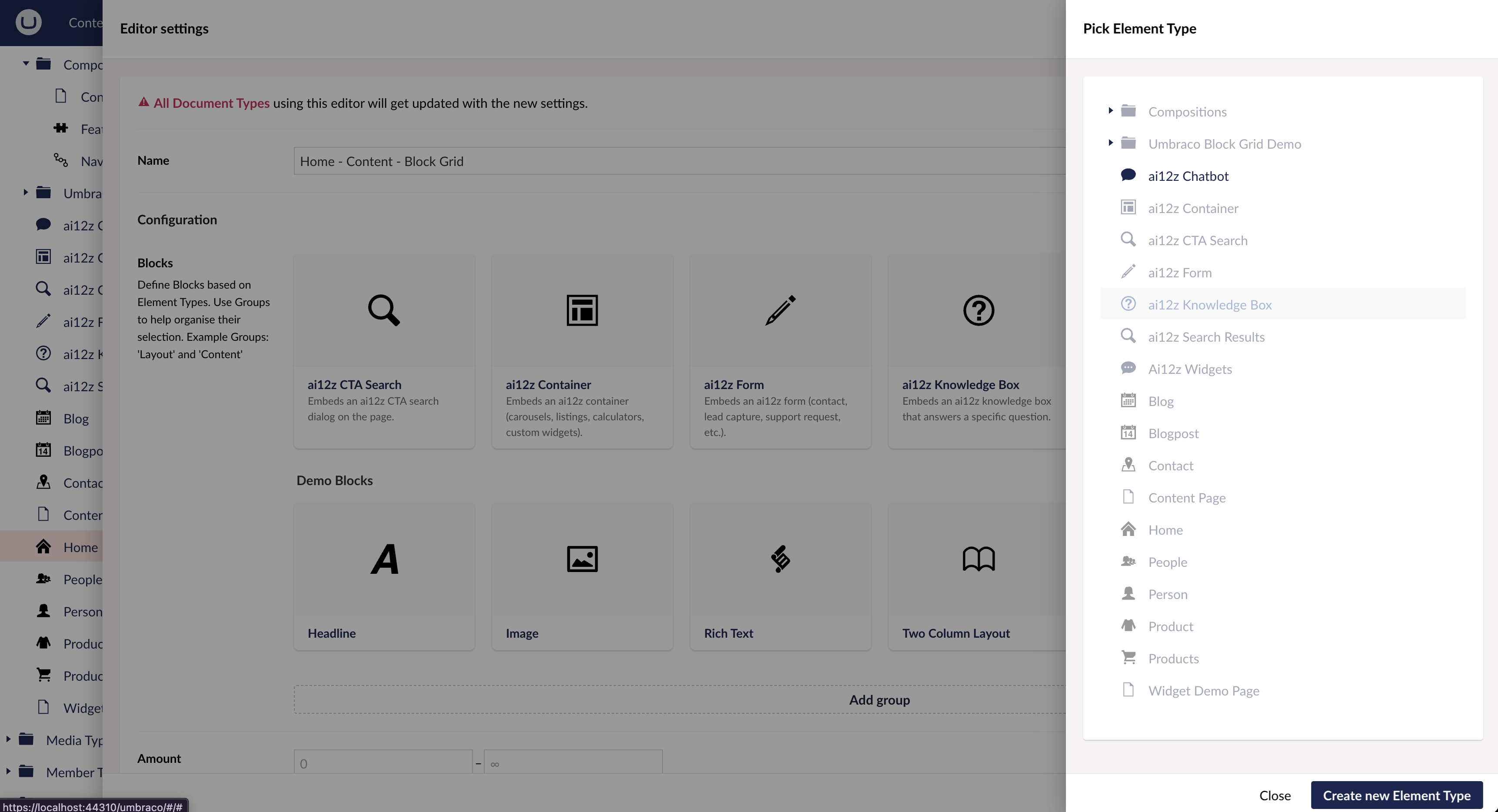
Step 3. A Pick Element Type pane opens. Click each ai12z element type — ai12z Chatbot, ai12z Container, ai12z CTA Search, ai12z Form, ai12z Knowledge Box, ai12z Search Results — to add it to the allowed blocks list. When done, Submit in the editor settings dialog, then Save at the top of the doc type editor.
Stage 2 — Drop widgets onto a page
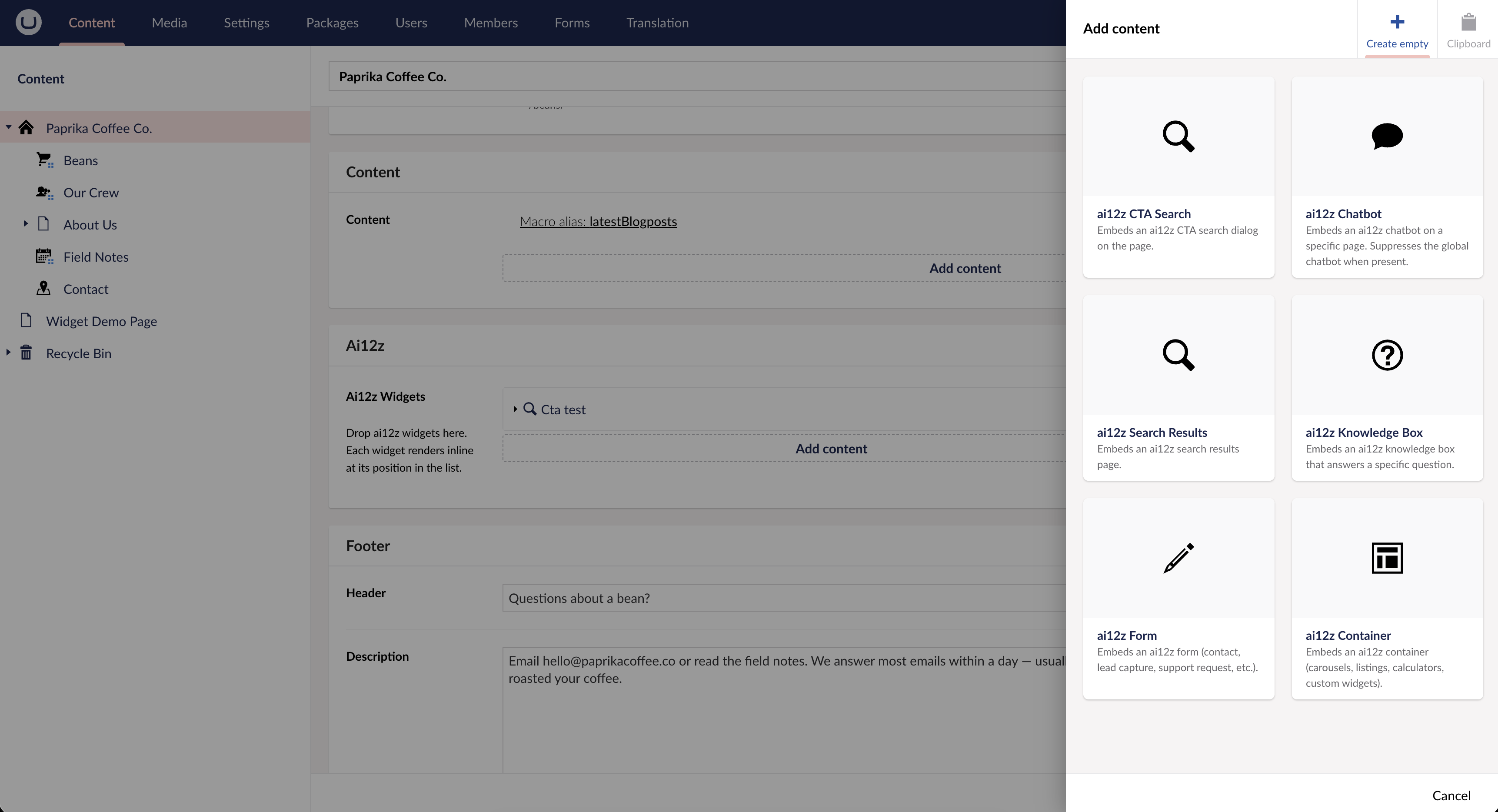
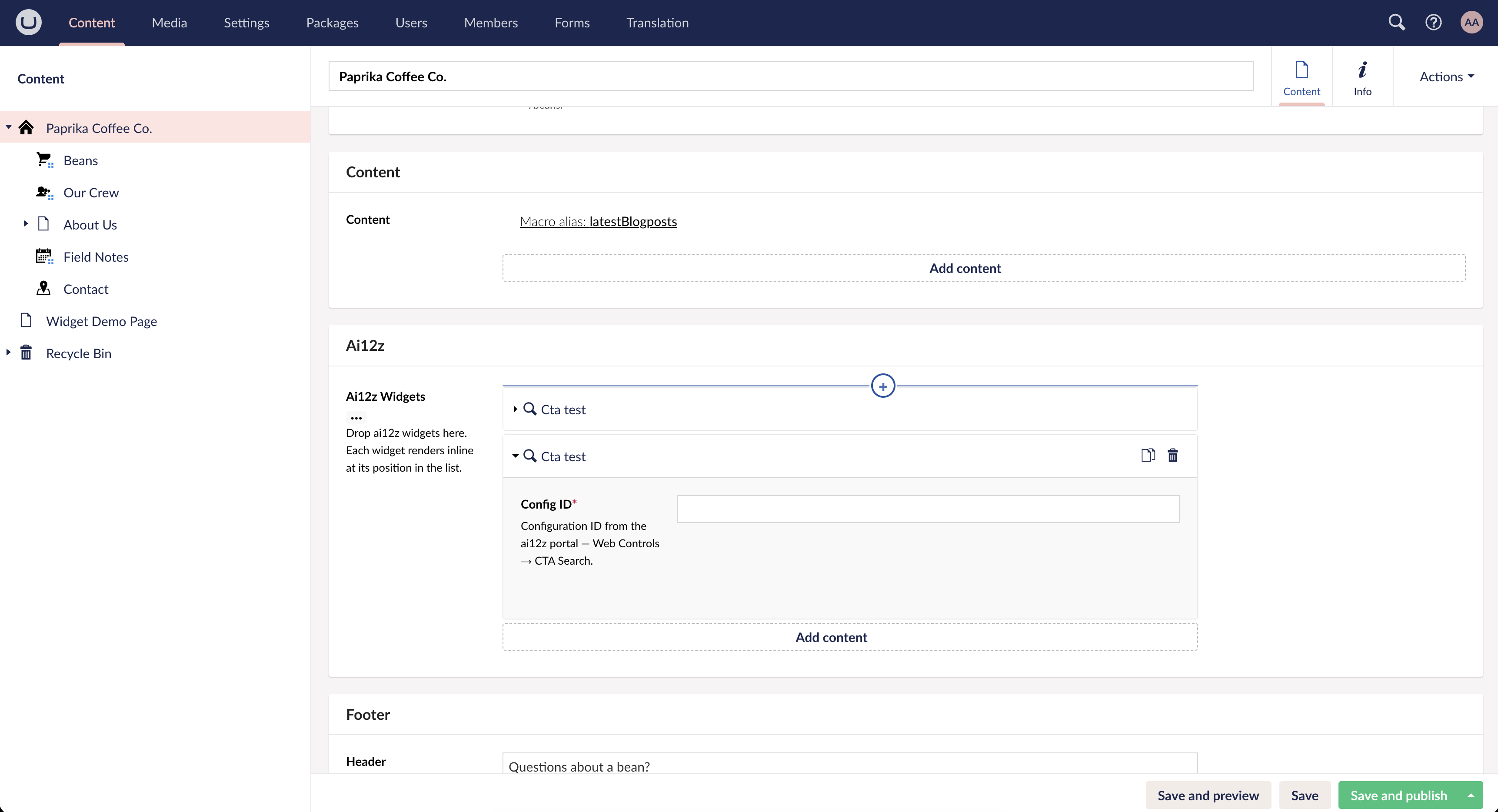
Step 1. Backoffice → Content section (NOT Settings — these are different sidebar sections). Open the content node you want to add a widget to. Click Add content in the Block List / Block Grid where your editors normally drop content. The picker now shows the six ai12z widgets alongside your existing block types — pick one.
Step 2. The widget appears in the Block List with its configuration fields ready to fill in. Enter the required value:
| Widget | Required field(s) | Optional field(s) |
|---|---|---|
| ai12z Chatbot | — | Bot Config ID |
| ai12z CTA Search | Config ID | — |
| ai12z Knowledge Box | Config ID | Question |
| ai12z Search Results | Config ID | — |
| ai12z Form | Key Name | — |
| ai12z Container | Key Name | Instance ID, Parameters |
Config IDs and Key Names are created in the ai12z portal under Web Controls. When done, click Save and publish at the top of the page edit form. The widget renders on the live page at its position in the Block List/Grid.
Option 3: Tag Helpers in your Razor templates (for developers)
If you'd rather drop widgets directly into a .cshtml template or partial view, the package ships Tag Helpers that wrap each widget. Add this once to Views/_ViewImports.cshtml:
@addTagHelper *, Ai12z.Umbraco.Widgets
Then use any of these tags anywhere in your Razor markup:
<ai12z-bot />
<ai12z-bot config-id="support" />

<ai12z-cta-search config-id="header-search" />
<ai12z-knowledge-box config-id="faq-shipping" />
<ai12z-search-results config-id="site-search" />

<ai12z-form key-name="contact-us" />
<ai12z-container key-name="featured-products" />
The Tag Helpers automatically inject the ai12z web component library, your Project API Key, and the configured mode/version — your template only specifies the per-instance Config ID or Key Name.
Step 7: Verify
- Publish a page in Umbraco and check Documents in the ai12z portal. The page should appear with status "Ingested successfully".
- If the chatbot is enabled, visit any page on the site — the bot should appear.
- Open Test Drive in the ai12z portal and ask a question about your content.
Sync Error Responses
The sync endpoint returns detailed error information when items fail:
Partial failure — some items succeeded, some failed:
{
  "totalItems": 50,
  "succeeded": 47,
  "failed": 3,
  "skipped": 0,
  "errors": [
    "ArticlePage Id=12: Connection refused",
    "BlogPost Id=34: Request timeout after 10s"
  ]
}
Authentication failure — HTTP 401:
Unauthorized. The connector API key does not match the value configured in your Umbraco backoffice.
Endpoint not configured — HTTP 404:
ai12z sync endpoint is not configured. Set the Endpoint URL and Connector API Key in Settings → Ai12z Settings.
Integration disabled — HTTP 400: Returned when Content Sync Enabled is unchecked in the Ai12z Settings backoffice page.
URL filtering — items that don't match include patterns or match exclude patterns are counted in skipped, not failed:
{
  "totalItems": 100,
  "succeeded": 60,
  "failed": 0,
  "skipped": 40,
  "errors": []
}
Troubleshooting
| Issue | Cause | Fix |
|---|---|---|
/ai12z/sync returns Umbraco's "Page Not Found" HTML 404 | UseAi12z() missing or registered after UseWebsiteEndpoints() | Verify Step 3 — u.UseAi12z() must be inside the WithEndpoints lambda before u.UseWebsiteEndpoints() |
| Initial sync returns 401 Unauthorized | Connector API key mismatch between portal and Umbraco backoffice | Re-generate the key in the portal (Step 2) and update it in Settings → Ai12z Settings (Step 4) |
| Documents appear twice for every publish | Native webhook AND package sync are both active | Pick one — uncheck Content Sync Enabled in Ai12z Settings, OR delete the native webhook in Settings → Webhooks |
| Backoffice Ai12z Settings tab doesn't appear | NuGet package below 0.1.1, or stale build cache | Upgrade to Ai12z.Umbraco.Widgets 0.1.1+ and restart the host. If still missing, browse to /_content/Ai12z.Umbraco.Widgets/App_Plugins/Ai12z/views/settings.html directly — a 200 confirms the static asset is reachable |
Tab title shows as [ai12z.settings] instead of "Ai12z Settings" | NuGet package below 0.1.1 | Upgrade to Ai12z.Umbraco.Widgets 0.1.1+ and restart |
| Publish events not syncing | Content sync not enabled or config missing | Check that Content Sync Enabled is checked in Ai12z Settings AND the Endpoint URL and Connector API Key are set |
| Move-to-Recycle-Bin doesn't remove from index (native webhook path) | Native webhook only subscribed to Content Deleted | Edit the webhook in Settings → Webhooks and also subscribe to Content Unpublished |
| Content appears empty in ai12z | All properties on the content type are non-text (numbers, dates, pickers) | The package extracts text from string properties and recursively from BlockList/BlockGrid. Confirm the content type has at least one text property |
| Chatbot not appearing after enabling | Config cached from before the change, or layout missing </body> | Web control changes take effect on the next page load. If still not showing, verify the Project API Key is set and your master template closes </body> |
| Chatbot appears but shows no results | Initial sync not run, or content not indexed | Run the initial sync from the portal (Step 5). Check Documents in the portal to verify content is indexed |
| Widgets not available in Block List | NuGet package not booted yet, or cached element types | Restart the Umbraco host. The package provisions element types on first boot via UmbracoApplicationStartedNotification |
Multi-Language Support
The Umbraco connector automatically handles multi-language (multi-culture) content. Each culture variant of a content node is published as a separate event with a Culture field on the payload, and indexed in ai12z with that culture as the document's language. Both initial sync and real-time publish events process all culture variants.
To restrict which cultures are indexed, set Include Cultures in the connector configuration (Step 2) to a comma-separated list of culture codes.