Google Analytics 4 Integration
Connect Google Analytics 4 to your GEO Bot so it can answer questions that combine your GEO report data with live site performance: traffic sources, landing page engagement, AI referral trends, conversions, and more.
Multi panel Bot
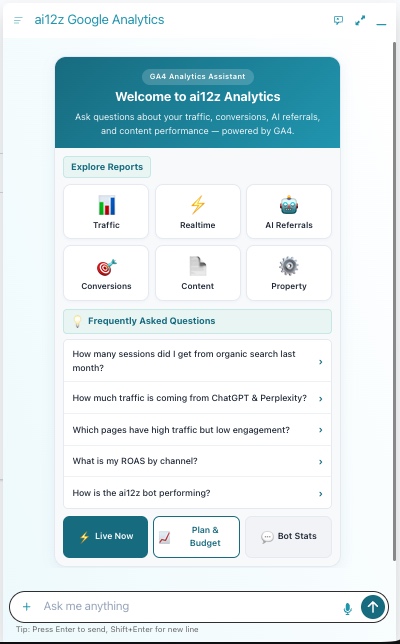
Traffic analytics
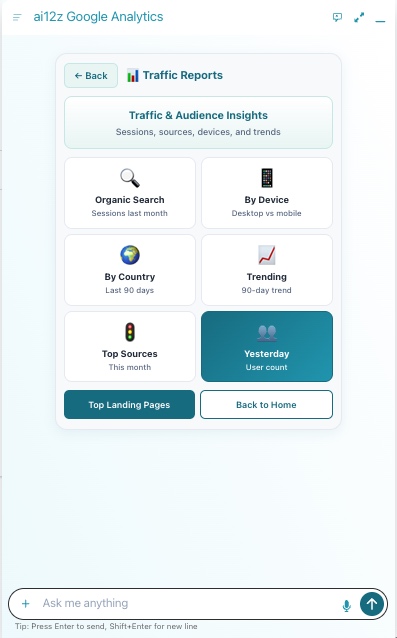
What It Does
Once connected, the GEO Bot can cross-reference your GEO reports with live GA4 data to answer questions like:
- "Which pages have high GEO scores but low traffic?"
- "What pages are getting AI referral traffic but not converting?"
- "Did traffic to my pricing page change after I updated it?"
- "How much of my traffic is coming from ChatGPT, Perplexity, and Gemini?"
- "Which pages have high organic traffic but low engagement, my best GEO targets?"
Part 1: Set Up in Google Cloud Console
This is a one-time step done by ai12z to configure the shared OAuth application. If you are a client connecting your own GA4 property, skip to Part 2.
1a. Create a Google Cloud Project
- Go to console.cloud.google.com
- Click the project dropdown (top left) → New Project
- Name it
ai12z-google-analytics-mcp
1b. Enable Required APIs
- Left menu → APIs & Services → Enable APIs and Services
- Search for and enable:
- Google Analytics Data API
- Google Analytics Admin API
1c. Configure the OAuth Consent Screen
- Left menu → APIs & Services → OAuth consent screen
- User type: External (so any client Google account can authorize)
- Fill in app name (
ai12z), support email, and developer email - Add scopes:
https://www.googleapis.com/auth/analytics.readonlyhttps://www.googleapis.com/auth/analytics.edit
- Submit for verification if needed (required for production use with external users)
1d. Create the OAuth 2.0 Credential
- Left menu → APIs & Services → Credentials → Create Credentials → OAuth client ID
- Application type: Web application
- Name:
ai12z Portal - Under Authorized redirect URIs: add the portal integration page URL (see Part 2 for the correct format)
- Click Create and copy the
client_idandclient_secret
The
client_idandclient_secretbelong to ai12z's shared OAuth app. Every organization that connects GA4 uses this same OAuth application but authenticates with their own Google account and grants access to their own GA4 property.
Part 2: Connect GA4 in ai12z
The GA4 integration is made up of 12 individual integrations, one per tool. Each is created separately in the portal under Custom Integrations.
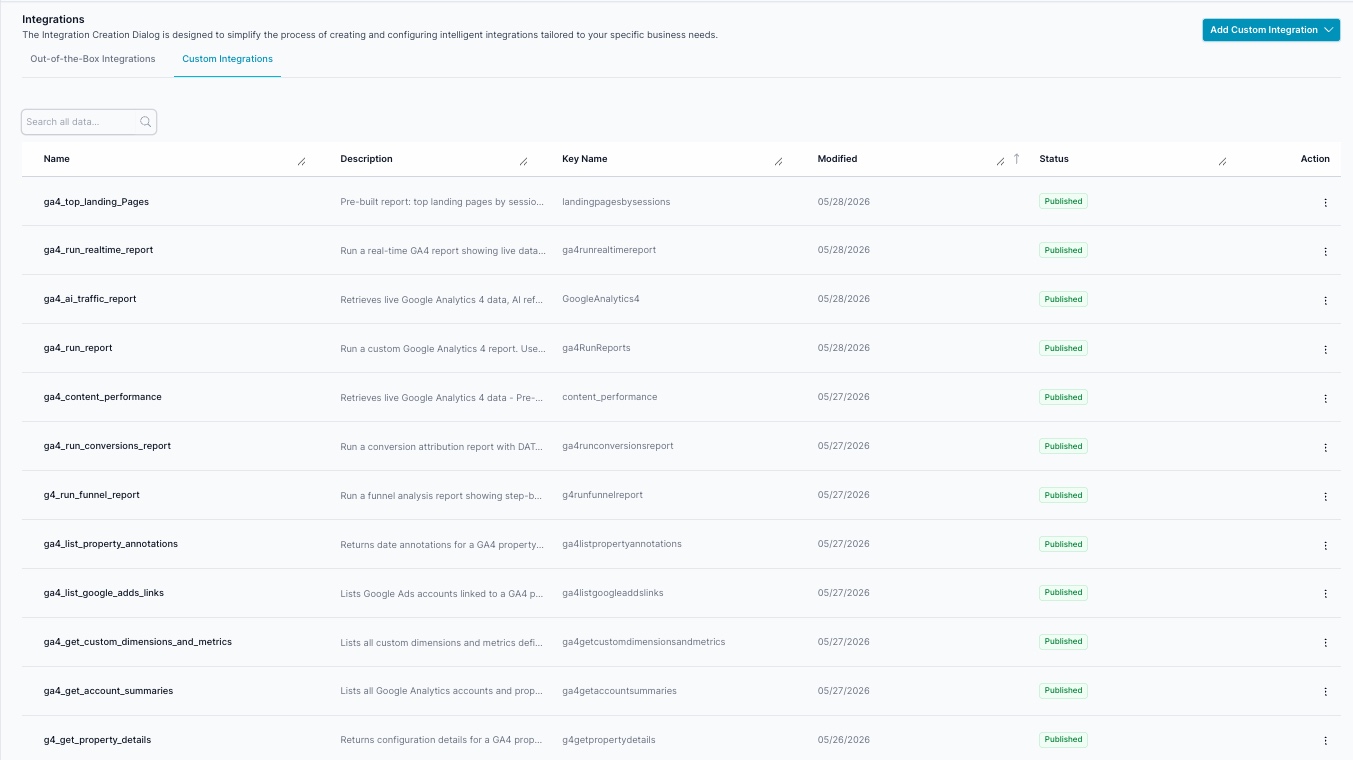
The 12 GA4 Integration Tools
| Integration Name | Description |
|---|---|
ga4_run_report | Run any GA4 report: traffic, sessions, users, conversions, landing pages. Supports filters, ordering, and pagination. |
ga4_run_realtime_report | Live data from the last 30 minutes: active users, current page activity, live traffic sources. |
ga4_run_funnel_report | Step-by-step funnel analysis with drop-off rates. |
ga4_run_conversions_report | Conversion attribution report: ROAS, ad spend, revenue by channel. |
ga4_ai_traffic_report | AI referral traffic by source (ChatGPT, Perplexity, Gemini, Claude, Copilot) with month-over-month trend. |
ga4_top_landing_Pages | Top landing pages by sessions, optionally filtered by traffic source. |
ga4_content_performance | Pageviews, engagement time, and bounce rate per URL: identifies high-traffic, low-engagement pages. |
ga4_get_account_summaries | Lists all GA4 accounts and properties the authorized user has access to. Run this first to find your property ID. |
ga4_get_property_details | Returns configuration for a GA4 property: timezone, currency, data retention period, creation date. |
ga4_get_custom_dimensions_and_metrics | Lists all custom dimensions and metrics for a property. |
ga4_list_property_annotations | Returns date annotations (campaign launches, outages, site changes) for explaining traffic spikes or drops. |
ga4_list_google_adds_links | Lists Google Ads accounts linked to a GA4 property. |
Creating Each Integration
Repeat the following steps for each of the 12 tools.
Step 1: Create the Integration Properties
Click Add Custom Integration and fill in the properties:
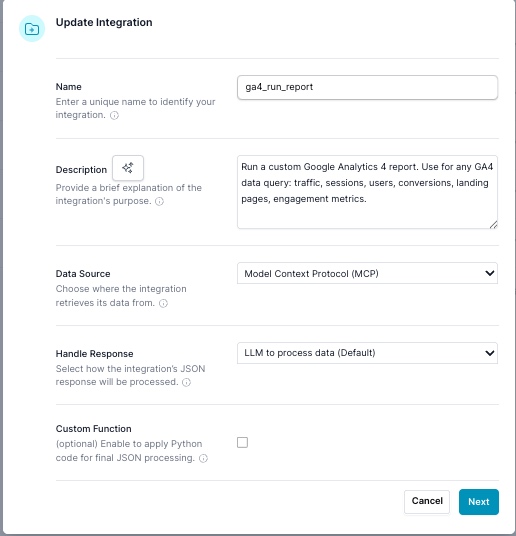
| Field | Value |
|---|---|
| Name | The tool name (e.g. ga4_run_report) |
| Description | A brief description of what this tool does |
| Data Source | Model Context Protocol (MCP) |
| Handle Response | LLM to process data (Default) |
Click Next.
Step 2: Configure the MCP Tab
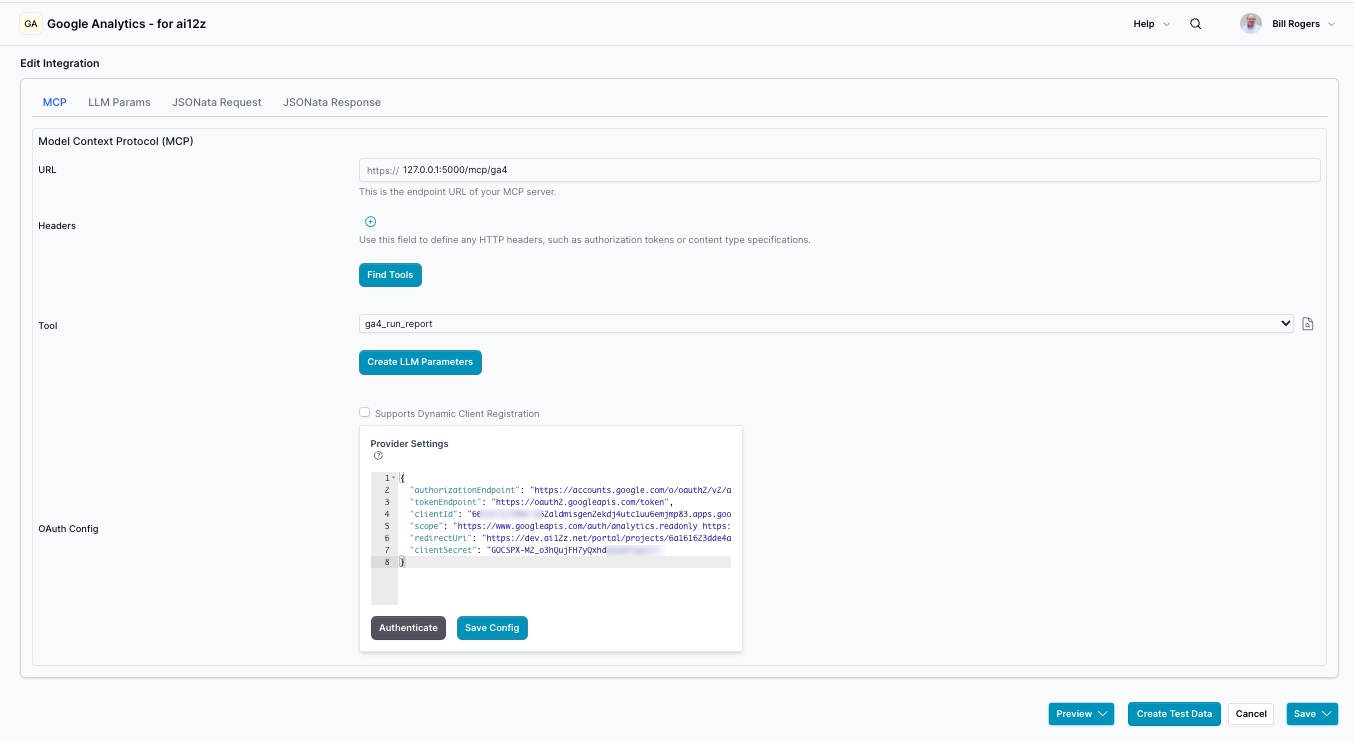
- URL:
https://127.0.0.1:5000/mcp/ga4
The MCP endpoint is an internal server: it is not accessible from outside the ai12z server.
- Click Find Tools to load the available GA4 tools from the server.
- Select the matching tool from the Tool dropdown.
- Click Create LLM Parameters: the portal automatically populates all required parameters for that tool.
Step 3: Verify LLM Parameters
Click the LLM Params tab to confirm the parameters were created correctly.
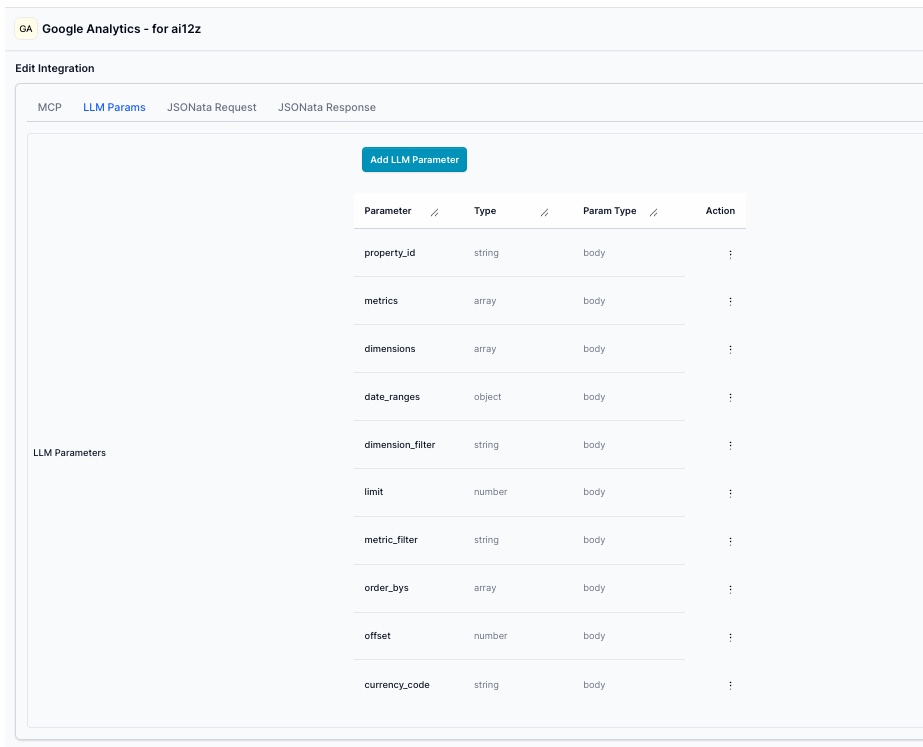
For ga4_run_report, the auto-generated parameters are:
| Parameter | Type | Param Type |
|---|---|---|
property_id | string | body |
metrics | array | body |
dimensions | array | body |
date_ranges | object | body |
dimension_filter | string | body |
limit | number | body |
metric_filter | string | body |
order_bys | array | body |
offset | number | body |
currency_code | string | body |
Other tools will have their own parameter sets created automatically.
Step 4: Configure OAuth (first integration only)
In the MCP tab, scroll down to the OAuth Config (Provider Settings) section and paste the following JSON:
{
  "authorizationEndpoint": "https://accounts.google.com/o/oauth2/v2/auth",
  "tokenEndpoint": "https://oauth2.googleapis.com/token",
  "clientId": "OAUTH_CLIENT_ID",
  "clientSecret": "OAUTH_CLIENT_SECRET",
  "scope": "https://www.googleapis.com/auth/analytics.readonly https://www.googleapis.com/auth/analytics.edit",
  "redirectUri": "https://app.ai12z.net/portal/projects/[PROJECT_ID]/agents/[AGENT_ID]"
}
Setting the redirectUri:
The redirectUri must be the exact portal page URL for this integration, copy it from your browser's address bar after saving. It should look like:
https://app.ai12z.net/portal/projects/abc123/agents/xyz789
- No trailing slash
- No query parameters
- This same URL must be registered as an Authorized redirect URI in Google Cloud Console (Step 1d)
The portal uses this URL for both the authorization redirect and the token exchange. You must be on this exact page when you click Authenticate.
Click Save Config, then click Authenticate. You will be redirected to Google to authorize access to your GA4 property. Once authorized, ai12z injects the access token into every MCP call automatically.
Available GA4 Data
Once connected, the GEO Bot has access to the following data from your GA4 property.
AI Referral Traffic
GA4 natively tracks AI platforms as referral sources. The bot can filter and report on traffic from:
chatgpt.comperplexity.aigemini.google.comclaude.aicopilot.microsoft.com
Traffic & Users
- Sessions, users, new users by date range
- Traffic source breakdown (organic, direct, referral, paid, social, email)
- Channel grouping
- Landing page by traffic source
Content Performance
- Pageviews per URL
- Average engagement time per page
- Bounce rate and engagement rate
Conversions & Revenue
- Conversion events (any event marked as a conversion in GA4)
- Revenue by page, by traffic source
- Funnel analysis with drop-off rates
Real-Time Data
- Active users right now
- Pages being viewed at this moment
- Live traffic by source (last 30 minutes)
Property & Account Info
- All GA4 accounts and properties the authorized Google account can access
- Property configuration (timezone, currency, data retention)
- Custom dimensions and metrics
- Date annotations (campaign launches, site changes, outages)
- Linked Google Ads accounts
Example Questions
AI Traffic
How much of my traffic is coming from AI sources like ChatGPT and Perplexity?
Which AI platform sends me the most traffic?
Is my AI referral traffic growing or shrinking compared to last month?
Which pages get the most traffic from AI referrals?
GEO + Analytics Cross-Reference
Which pages have high GEO scores but low traffic?
Did traffic to my pricing page increase after I updated it?
Which pages are getting organic traffic but not holding user attention?
What should I publish next based on my GEO content gaps and current traffic data?
Content Performance
Which pages have the highest traffic but the lowest engagement time?
Which blog posts drove the most traffic last quarter?
Which pages are users bouncing from the fastest?
Conversions
Which pages are getting traffic but not converting?
What are my top converting traffic sources?
What is my conversion rate by channel?
General Traffic
How many users did I have last month?
What are my top traffic sources this month?
How is my organic search traffic trending over the last 90 days?
What is my traffic breakdown by device, desktop vs. mobile?
Known Limitations
| Limitation | Detail |
|---|---|
| Historical data | GA4 data is only available from when the GA4 property was created. Universal Analytics data is not accessible. |
| Sampled data | Very large date ranges or high-cardinality dimension combinations may return sampled results. GA4 360 reduces sampling. |
| Search Console | Requires the client to have linked Google Search Console to their GA4 property. |
| Real-time scope | The real-time endpoint only covers the last 30 minutes and supports limited dimensions. |
| Conversion events | Must be configured in GA4 before they appear in reports. |
| OAuth revocation | If access is revoked via Google Account settings, the portal will surface a "Reconnect" prompt. |
| Property access loss | If the Google account used to authorize loses access to the GA4 property, the portal will prompt re-authorization. |
Related Documentation
- MCP Setup: How to configure MCP integrations and OAuth in the portal
- AI Visibility Suite Overview: Full AI Visibility Suite documentation
- Site-Wide Sweep: Find weak pages across your site
- URL Analysis: Page-level GEO optimization