Zendesk
ai12z Zendesk Connector Setup Guide
The ai12z Zendesk connector indexes content from your Zendesk Guide Help Center, Community, and support tickets into ai12z so the chatbot and search can answer from it. Configuration is entirely portal-side — no Zendesk app to install, no code changes. On save, ai12z creates the webhook on Zendesk's side automatically, so ongoing publishes, edits, unpublishes, replies, and deletes flow into the index in real time.
What gets synced
| Source | Real-time sync | Initial sync |
|---|---|---|
| Help Center articles | ✓ | ✓ |
| Help Center article comments | ✓ | ✓ |
| Community posts | ✓ | ✓ |
| Community post comments | ✓ | ✓ |
| Support tickets | ✓ | ✓ |
Each content source is opt-in via a checkbox on the configuration page. You can enable or disable any combination.
Support tickets are supported, but off by default. Ticket content includes customer PII (names, email addresses, the conversation), so tickets are opt-in and ship with redaction on by default. Internal/private agent notes are never indexed. Review the Support Ticket Filters in Step 3 before enabling.
Prerequisites
- A Zendesk account. Zendesk Guide (the Help Center product) is required only if you sync Help Center or Community sources — the connector reads from
/api/v2/help_center/...for those, and an account without Guide fails at save/sync time with a clear error. Support tickets do not require Guide. - For support tickets, a Zendesk Suite plan — ticket-event webhook subscriptions are a Suite feature.
- An admin or agent user in Zendesk. End-user tokens cannot read drafts, restricted articles, tickets, or manage webhooks — the connector refuses them at save time.
- Admin access to your ai12z portal.
Step 1: Enable API Token Access in Zendesk
Zendesk requires a separate toggle to allow API-token authentication, even after you've created a token. Both are needed.
-
In Zendesk, open the Admin Center.
-
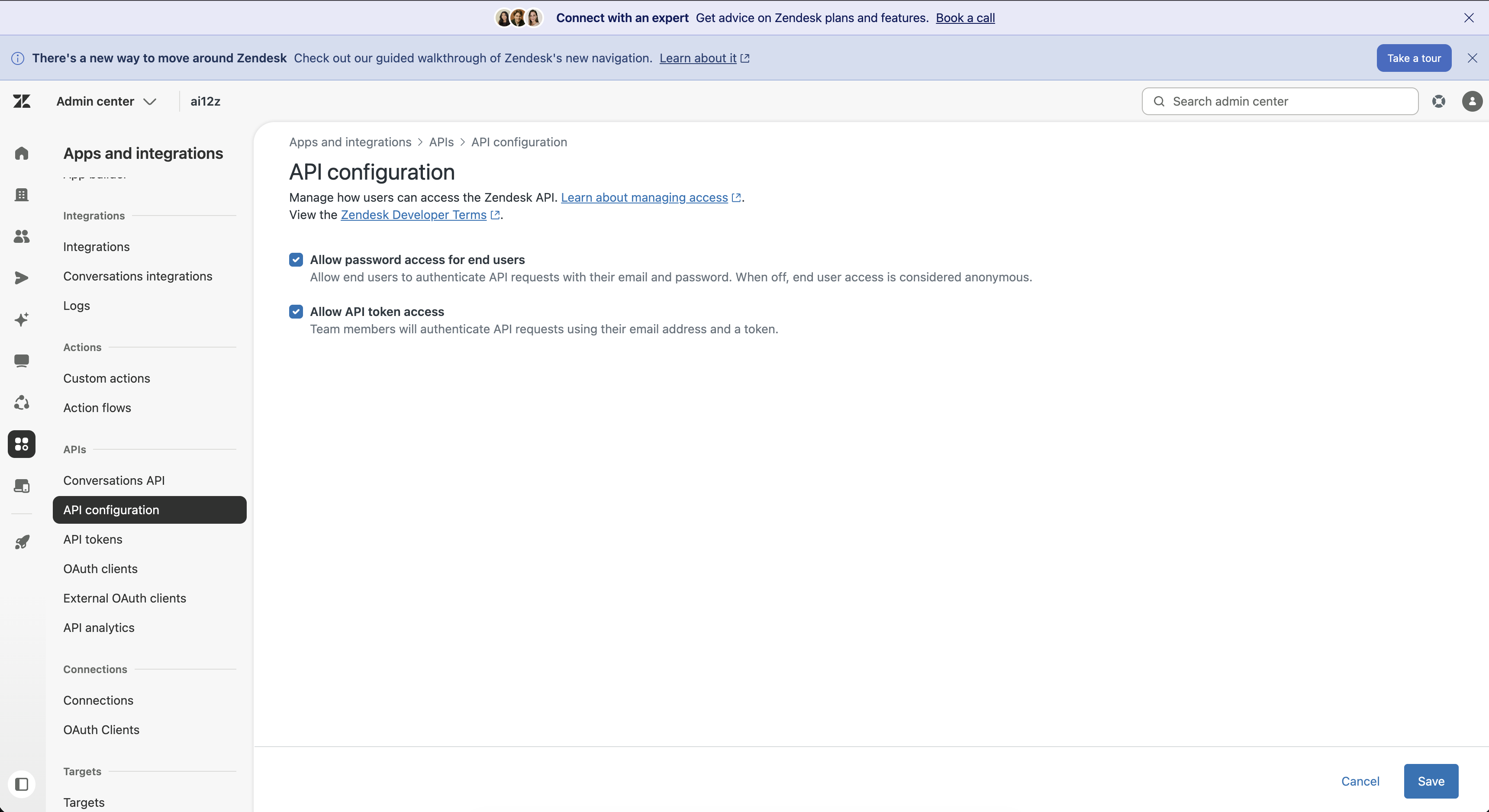
Navigate to Apps and integrations → APIs → API Configuration.
-
Make sure the Token access toggle is on.
-
Click Add API token. Give it a label like
ai12zand copy the token immediately — Zendesk displays the token only once. If you close the dialog without copying, you'll have to delete the token and create a new one.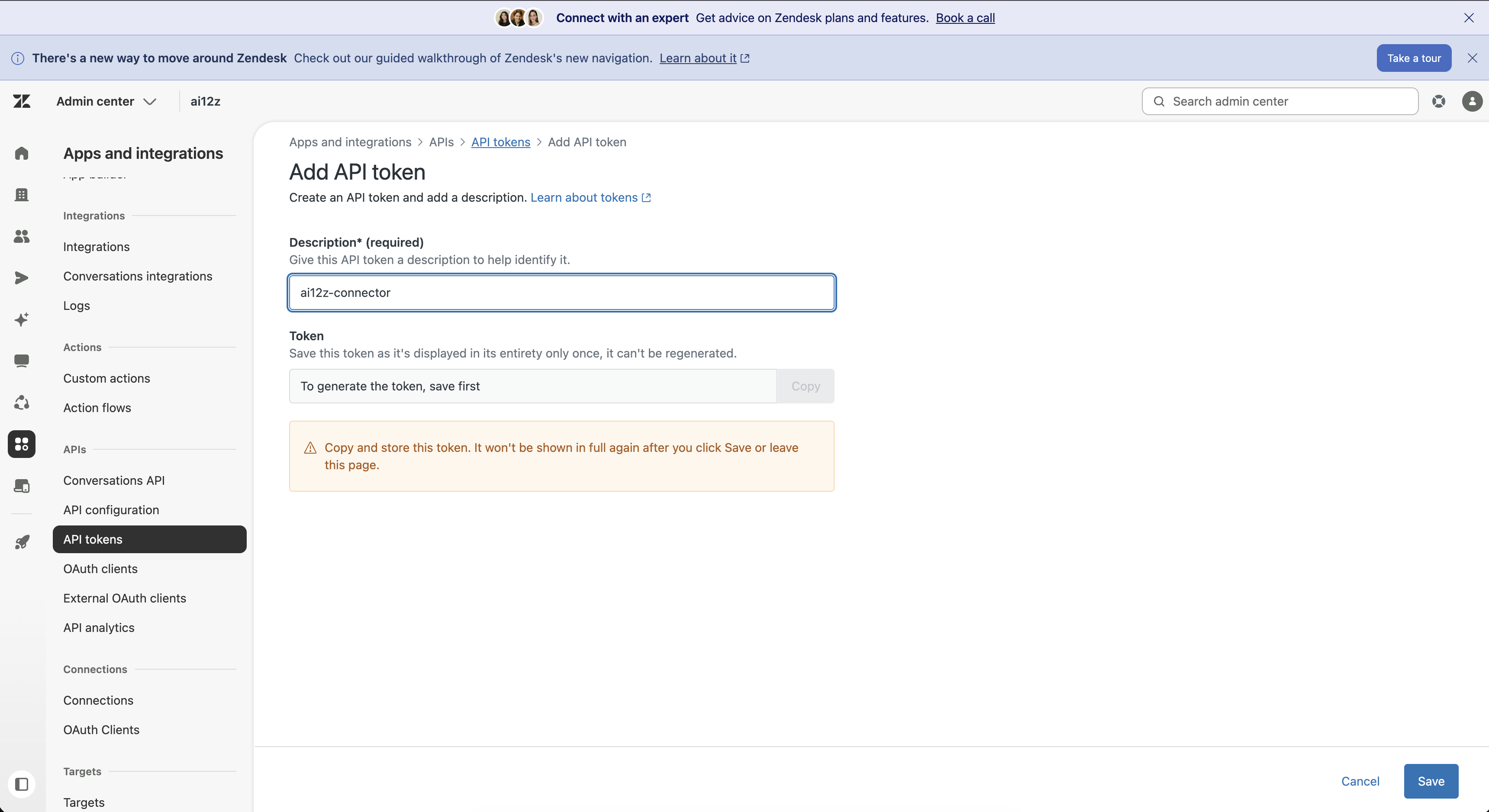
The token label (e.g., ai12z) is not the token value. The token value is the long random string that appears only after clicking Add. Paste that string — not the label — into the ai12z portal in Step 3.
Step 2: Add the Connector in ai12z
-
Log in to the ai12z portal.
-
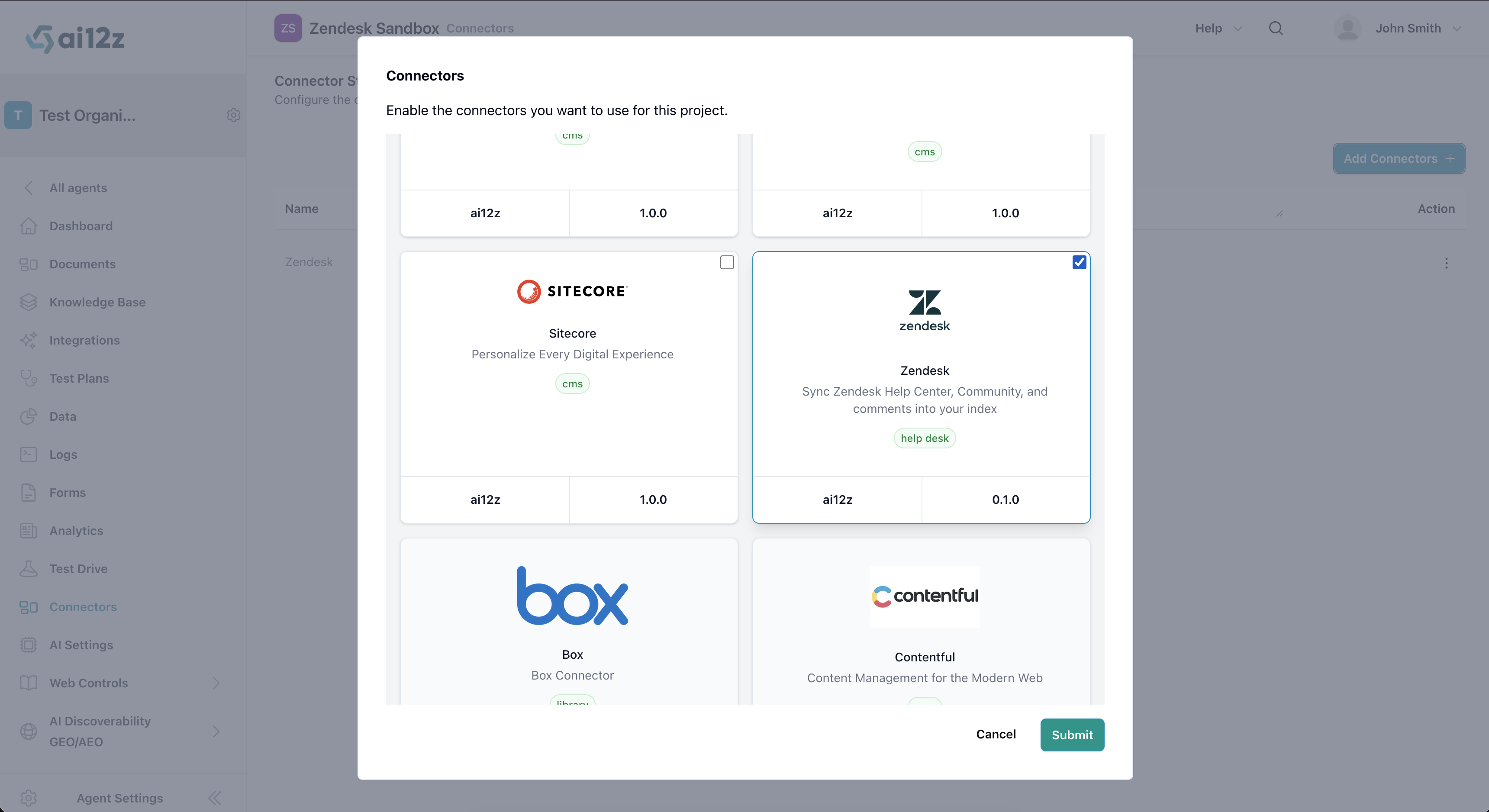
Open Connectors from the left navigation and click Add Connectors.
-
Select Zendesk and submit.
Step 3: Configure the Connector
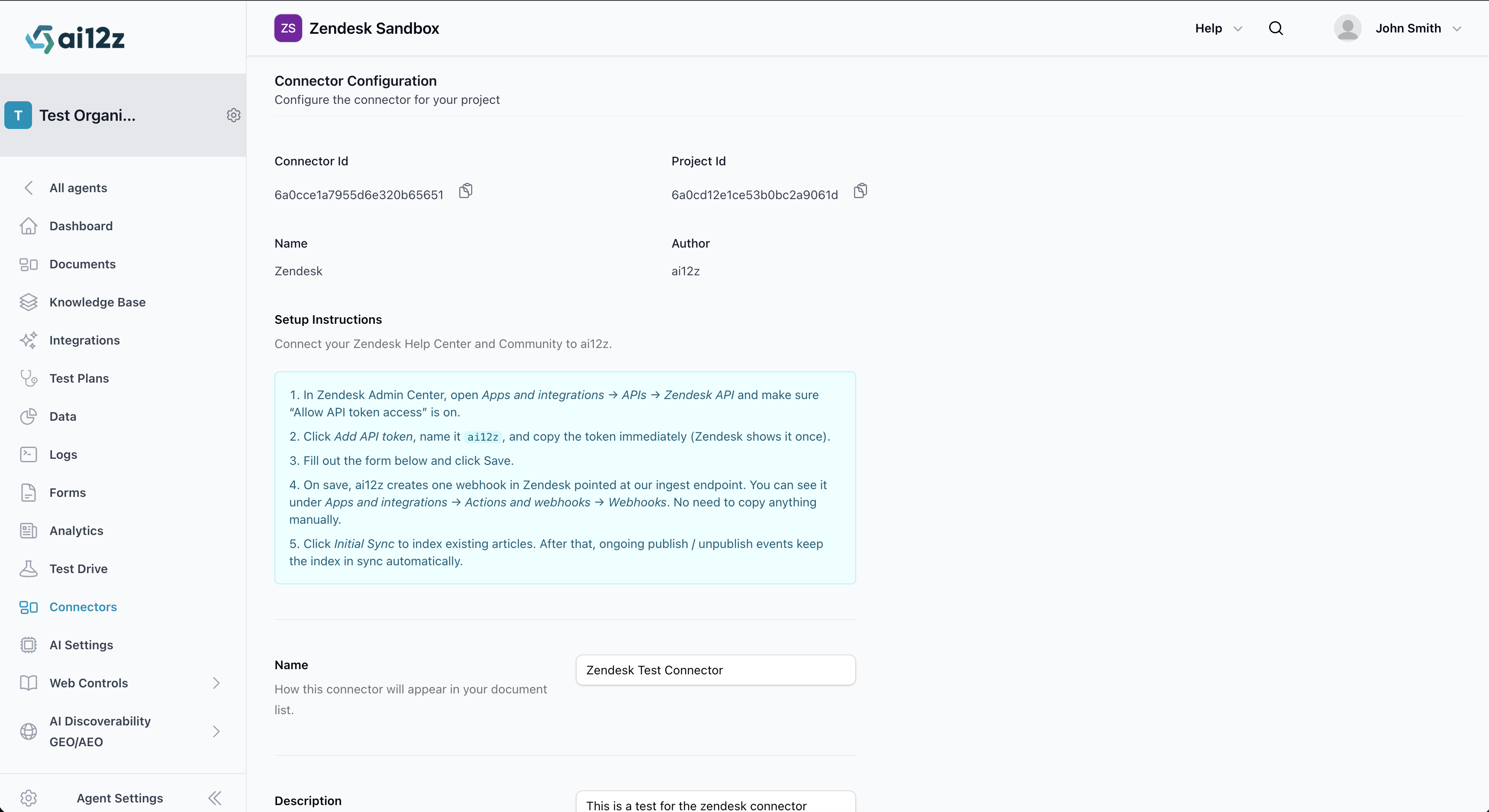
Open the Zendesk connector page and fill out the configuration form.
Connection
- Name: Display name for the connector (e.g., "ACME Support Help Center"). Appears in your document list.
- Description (optional): Free-text description of what this connector indexes.
- Zendesk Subdomain: The part of your Zendesk URL before
.zendesk.com. If your account isacme.zendesk.com, enteracme. Letters, numbers, and hyphens only. - Admin Email: The email of the Zendesk admin or agent user the API token belongs to. Must match the token's owner — Zendesk's Basic auth format is
email/token:apiToken, and the email side of that pair has to be a real user on your Zendesk instance. - API Token: The token value copied in Step 1. Not the label.
Content Sources
Pick at least one. The connector won't save with all four unchecked.
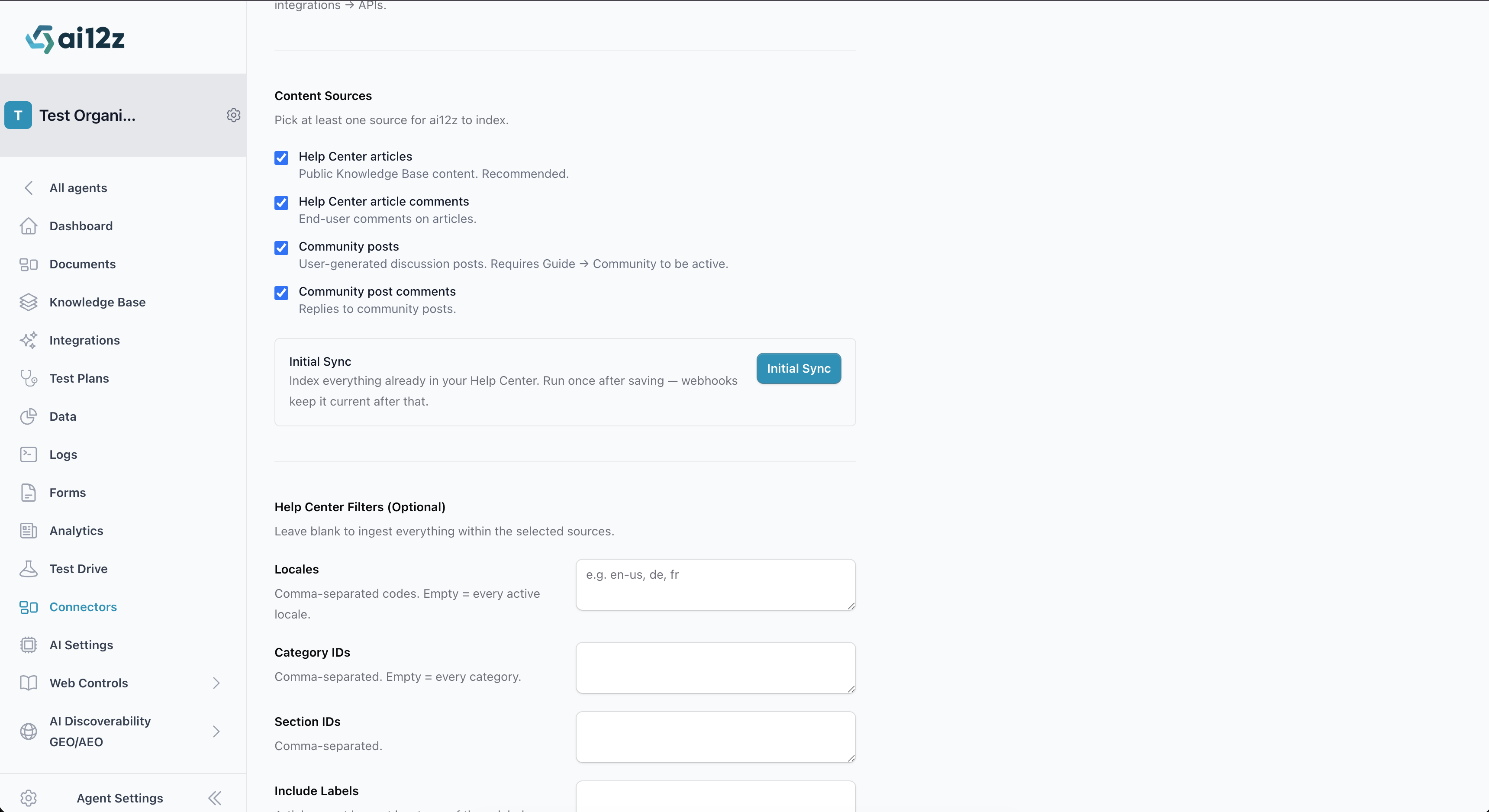
- Help Center articles — recommended. Public Knowledge Base content.
- Help Center article comments — end-user comments on articles, indexed as individual documents.
- Community posts — requires Zendesk Guide → Community to be active.
- Community post comments — replies to community posts.
- Support tickets — the subject, description, and public replies of support tickets, plus the requester's identity. Off by default — contains customer PII. Configure scope and redaction under Support Ticket Filters below.
Help Center Filters (optional)
Leave blank to ingest everything within the selected sources. Filters apply to Help Center articles only (not community content).
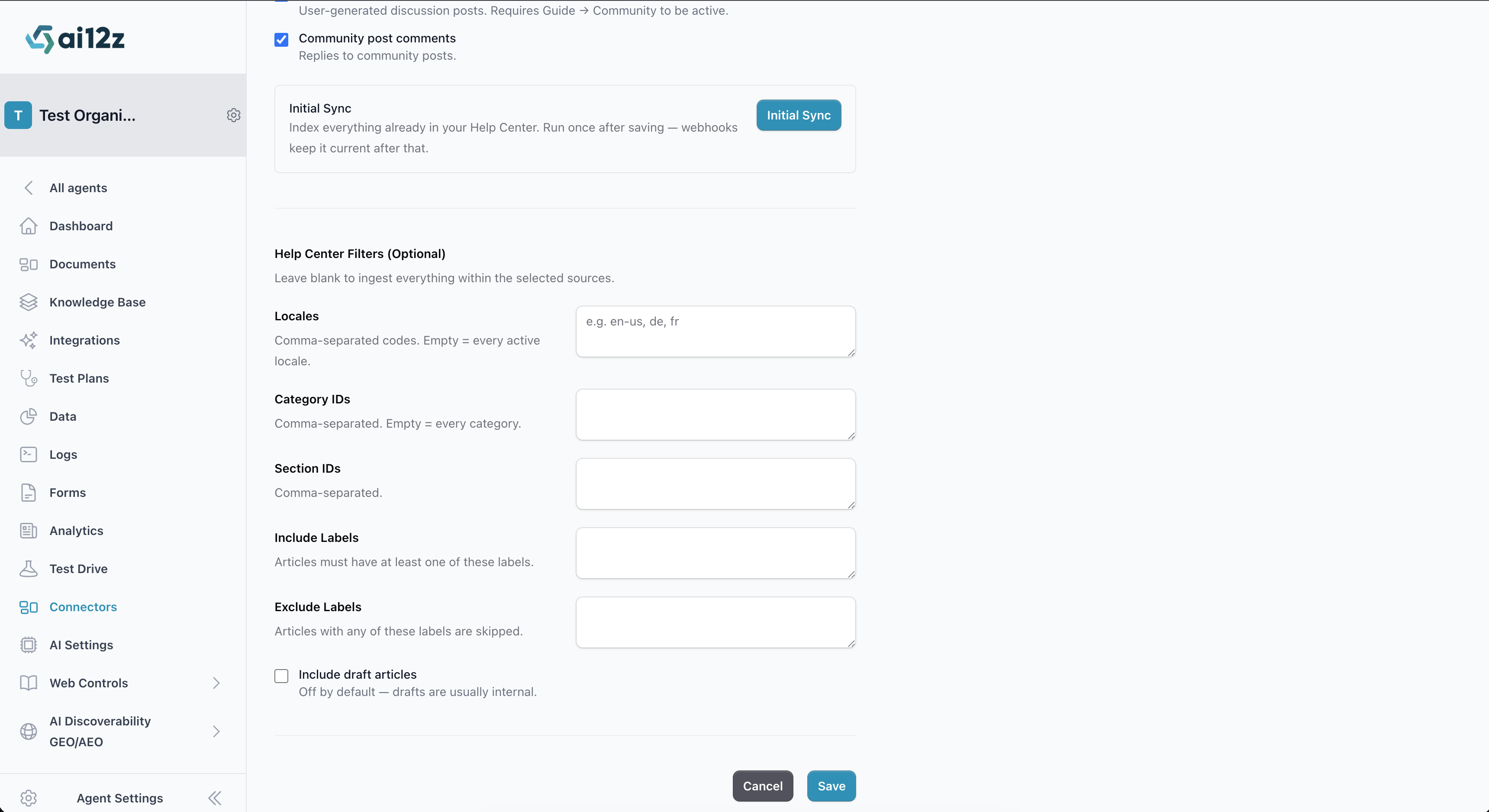
- Locales: Comma-separated locale codes (e.g.,
en-us, de, fr). Leave blank to sync every locale active on your Zendesk Guide. Locales not active on Guide are ignored. - Category IDs: Comma-separated Help Center category IDs. Find these in Zendesk under Guide → Manage articles — the ID is in the URL when you open a category.
- Section IDs: Comma-separated Help Center section IDs. Same approach to find them.
- Include Labels: Articles must carry at least one of these labels to be indexed. Leave blank to ignore labels.
- Exclude Labels: Articles carrying any of these labels are skipped. Useful for marking internal-only articles with a label like
internaland excluding it. - Include draft articles: Off by default. When on, draft articles (not yet published) are indexed too. Most customers want this off.
Filters apply consistently to both initial sync and ongoing webhook events. Publishing a new article in an excluded category will not land in the index, regardless of how it was published.
Support Ticket Filters (optional)
These apply only when Support tickets is selected. Tickets are off by default — enable them deliberately, because ticket content includes customer PII.
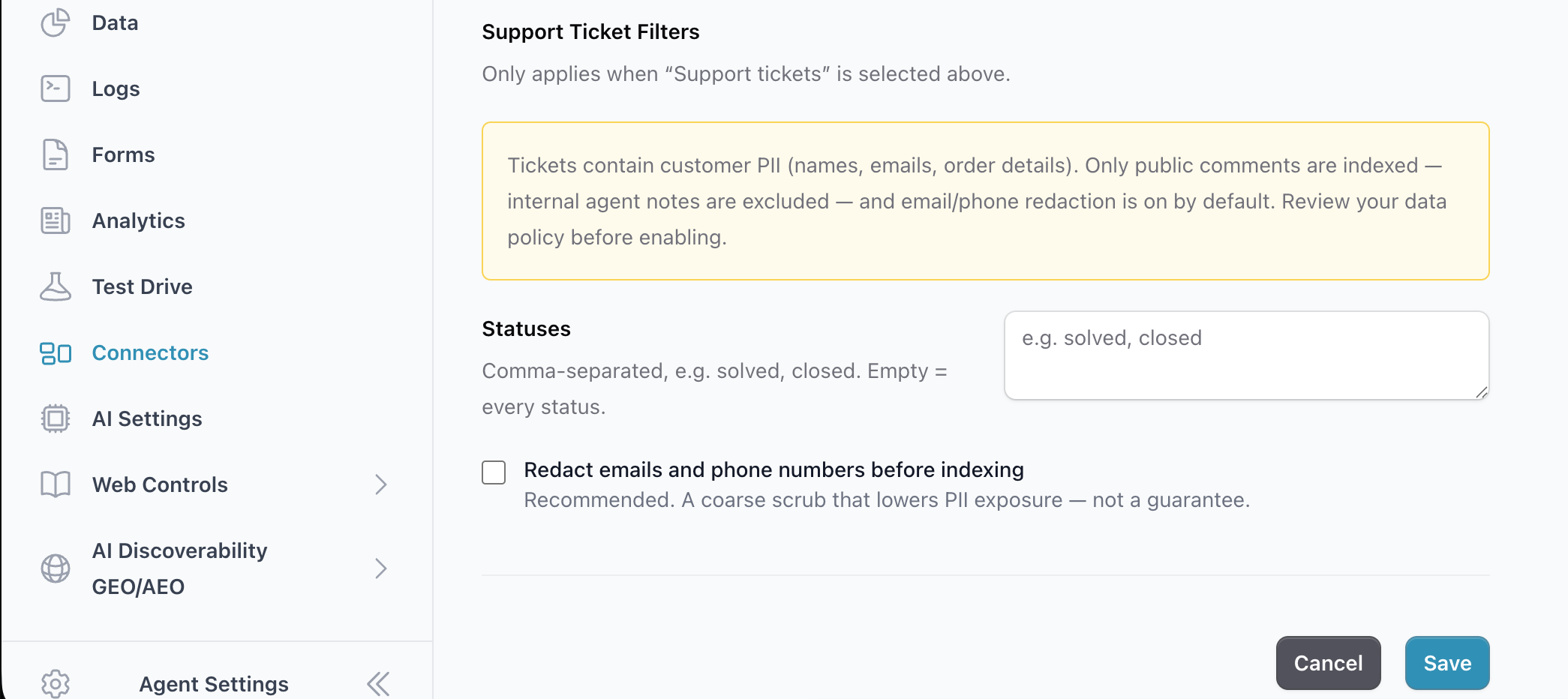
- Statuses: Comma-separated ticket statuses to index (e.g.,
solved, closed). Leave blank to index every status. Scoping to resolved tickets is a good way to capture useful, settled cases while ignoring noisy in-progress threads. - Redact emails and phone numbers: On by default. When on, ai12z scrubs email addresses, phone numbers, and the requester's name from indexed ticket text before storing it. Turn it off only if you explicitly want that data searchable.
What gets indexed from a ticket: the subject, the description, all public comments, and the requester's identity (name, email, phone). Internal/private agent notes are never indexed. With redaction on, the requester's name, email, and phone are replaced with [redacted-…] placeholders.
Redaction is a surface-reducer, not a guarantee. It removes emails, phone numbers, and the requester's name, but other PII typed into a ticket body (mailing addresses, account or order numbers, third-party names) can still be indexed. Review your data-retention and privacy policy before enabling tickets — especially with redaction off.
Click Save. On save, ai12z does four things automatically:
- Validates your credentials against the Zendesk Support API.
- Creates (or updates) one webhook in your Zendesk instance pointed at our ingest endpoint, subscribed only to the event types matching your selected content sources.
- Fetches the webhook's signing secret for HMAC verification.
- Generates an internal API key the webhook uses to authenticate inbound requests to ai12z.
You don't need to copy or paste anything into Zendesk's webhook UI. To verify the webhook exists, open Zendesk's Admin Center → Apps and integrations → Actions and webhooks → Webhooks — you'll see an entry called ai12z Help Center sync.
Step 4: Run Initial Sync
After save, the Initial Sync button appears below the Content Sources section. Click it to index all existing content matching your filters.
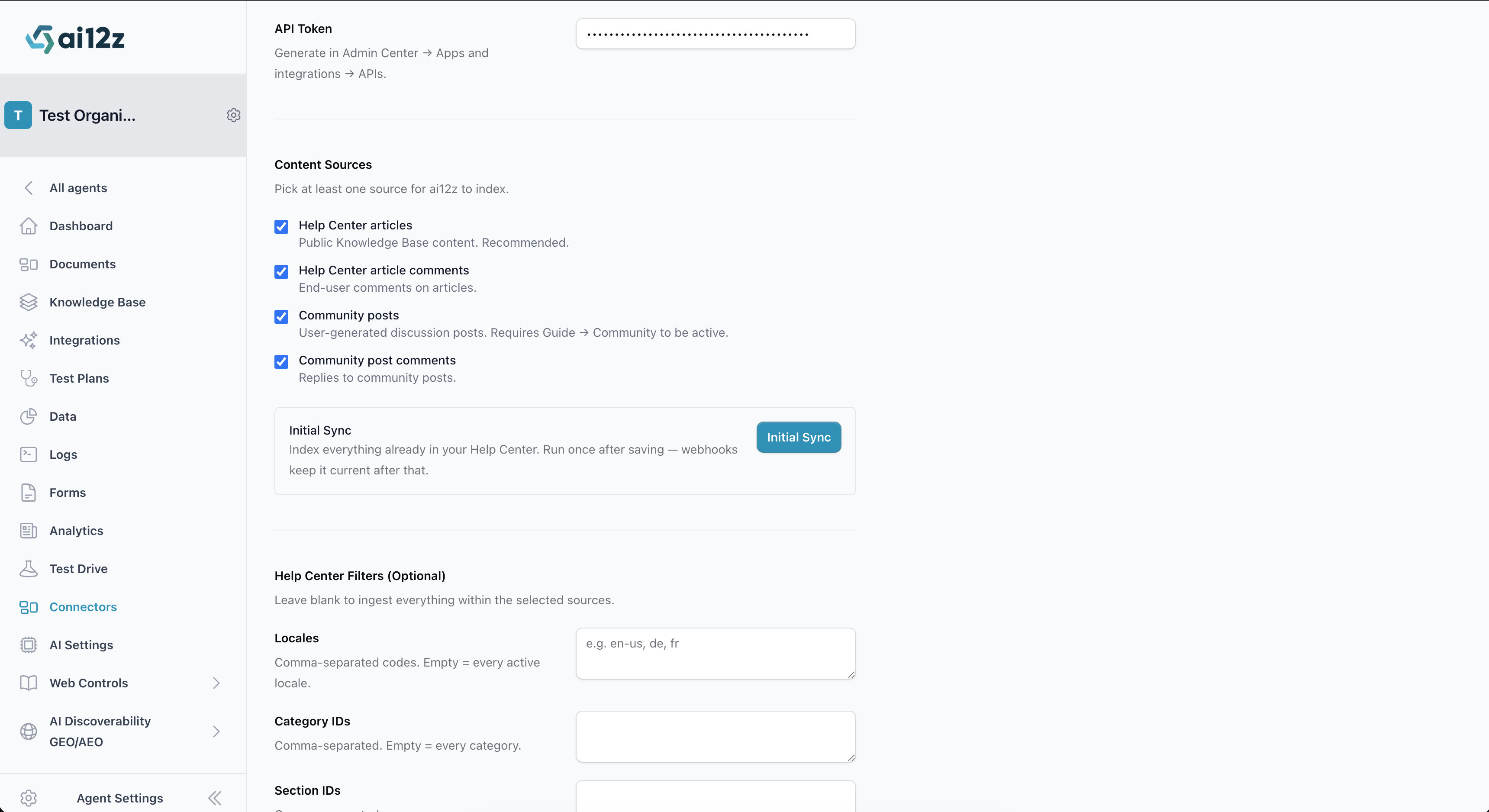
A toast notification appears in the bottom-right corner with progress. The notification persists across page navigation — you can continue working in the portal while the sync runs.
Initial sync re-indexes from scratch each time it runs. If you have already-indexed content and run it again, the existing entries are replaced. For ongoing updates, rely on the webhook — it processes publish/unpublish/comment events automatically.
After the initial sync completes, day-to-day content stays in sync via the webhook. Publishing an article, editing it, unpublishing it, posting or moderating comments — all of these flow into the index without any further action.
Step 5: Verify
- Publish a test article in your Zendesk Guide.
- Open Documents in the ai12z portal. The article should appear within a few seconds with status "Ingested successfully".
- Open Test Drive in the ai12z portal and ask a question that the article would answer.
Updating the Configuration
Re-saving the connector at any time:
- Refreshes the credentials check.
- Updates the Zendesk webhook in place — adds or removes event subscriptions to match the new Content Sources, and points the endpoint at the current ai12z URL.
- Re-syncs the signing secret if needed.
No need to delete and recreate. To pick up changed filter settings against existing content, you'll typically also want to run Initial Sync again.
Deleting the Connector
Removing the connector from the ai12z portal also calls DELETE /api/v2/webhooks/{id} on Zendesk, so the webhook is cleaned up on Zendesk's side automatically — no orphaned webhooks pointing at our ingest endpoint.
If the local delete succeeds but the Zendesk-side delete fails (rare — usually means the webhook was already removed manually), the ai12z entry is still removed; you can verify the Zendesk side under Admin Center → Apps and integrations → Actions and webhooks → Webhooks.
Troubleshooting
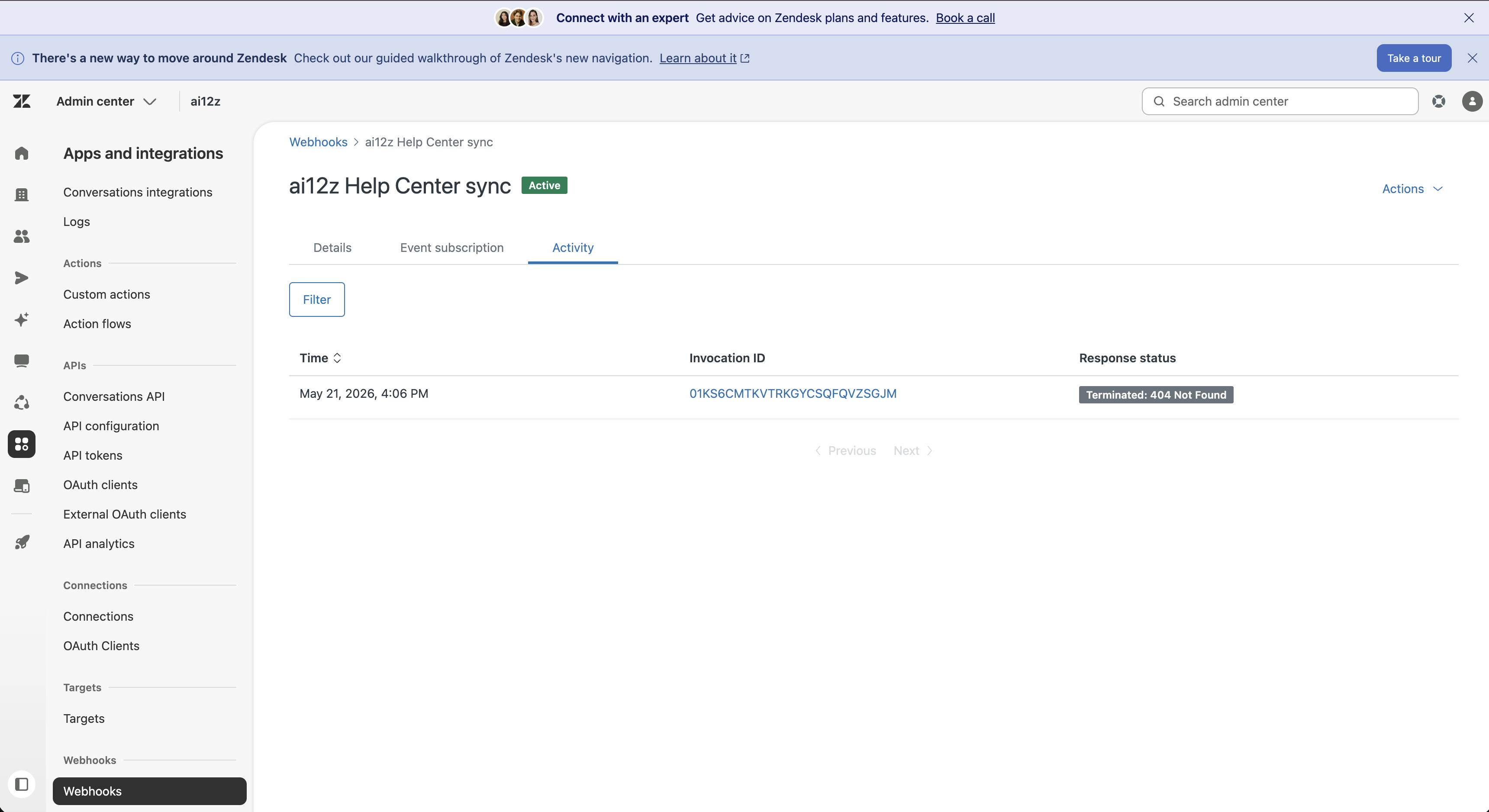
The fastest way to diagnose a problem is Zendesk's webhook activity log. Open Admin Center → Apps and integrations → Actions and webhooks → Webhooks, click the ai12z Help Center sync webhook, then the Activity tab.
| Issue | Likely Cause | Fix |
|---|---|---|
| Save fails with "Zendesk rejected the credentials" | Wrong admin email, wrong token, or Token access toggle is off | Re-check Step 1's toggle. Confirm the email matches the user who created the token. Confirm you pasted the token value, not the label |
| Initial sync seems to work but no documents in the portal | Filter excludes everything | Check Locales / Category IDs / Section IDs / Include Labels in Step 3. An overly narrow filter silently rejects everything |
Activity tab shows 404 Not Found | The ai12z ingest URL changed since you last saved | Re-save the connector. The save updates the Zendesk webhook endpoint to the current URL |
Activity tab shows 401 or 403 | Signing secret mismatch — usually means the Zendesk webhook was deleted and recreated outside of ai12z | Re-save the connector to re-provision the webhook and fetch a fresh signing secret |
| Activity tab shows no entries at all after publishing | Webhook not subscribed to that event type | Re-save the connector with the relevant Content Sources checkbox enabled. The save rebuilds the subscription list |
| New article doesn't appear, but other articles do | Article is still in draft, OR article doesn't match your category/section/label filters | Confirm the article is published, and re-check the filters in Step 3 |
| New article comment doesn't appear | "Help Center article comments" checkbox was off at last save, OR Help Center comment moderation is on and the comment is pending | Tick the checkbox and re-save. If comments are moderated, the webhook fires only after approval |
| Sync "succeeds" with bad credentials | Public Help Center API serves anonymously even with wrong auth | The save action's credential check (/users/me) is the real validation. If save passes, credentials are fine |
| Replying to a ticket doesn't update its document | The webhook isn't subscribed to ticket comment events — usually because it was provisioned before tickets were enabled | Re-save the connector. The save rebuilds the subscription list to include ticket comment events |
| Requester email/name missing from a ticket | Redaction is on (the default), or the ticket was indexed before you changed the setting | Uncheck Redact emails and phone numbers, Save, then re-ingest the ticket (reply to it, or re-run Initial Sync) |
| A ticket isn't indexed | Its status is excluded by the Statuses filter, or Support tickets wasn't enabled at last save | Check the Statuses filter in Step 3; confirm the Support tickets checkbox is ticked and re-save |
Multi-Language Support
The connector handles multi-locale Help Centers natively. Each locale variant of an article is published with its own document and the article's locale on the language field. Both initial sync and real-time webhook events handle every active locale on your Guide.
To restrict which locales are indexed, set Locales in the configuration (Step 3) to a comma-separated list of locale codes. Locales you list that aren't active on your Guide are silently ignored.
Deletions
Help Center & Community: Zendesk emits article.unpublished when an article is taken down, and the connector removes it from the index immediately. Zendesk does not emit a separate event for hard-deleting an article from the Admin UI — articles deleted that way won't be removed from the index in real time. If you need real-time hard-delete handling, contact support; otherwise, periodic Initial Sync runs will catch and clean up any orphaned entries.
Support tickets: Unlike articles, tickets have native delete events. When a ticket is soft-deleted or permanently deleted in Zendesk, the connector removes it from the index in real time — no Initial Sync needed.