Run All GEO Reports
Complete the setup once. We'll use it to generate every GEO report.
Instead of opening Citation Monitor, Keyword Visibility, AI Footprint, and every other report one at a time to configure a brand, a market, a keyword list, and a competitor set each time, the Run All GEO Reports wizard asks for all of that once, in a single five-step flow, and then runs the whole AI Visibility Suite against it in one batch. Click Run All Reports from the GEO Suite Dashboard to launch it.
What It Does
- Walks through five steps (Company → Markets → Keywords & Citations → Competitors → Review & Run), each with its own tab across the top and a progress bar ("Setup 20% complete" and up) tracking how much is done
- Pre-populates every field automatically from your existing ai12z organization and brand settings, so most of the wizard is reviewing and confirming rather than typing from scratch
- Reuses whatever Keyword Lists and Citation Lists you've already built, or has AI generate starter lists for you if you don't have any yet, the same list systems documented in Keyword Visibility and Citation Monitor
- Pre-loads a Competitors table with an AI-suggested set based on your brand and market, which you can edit before running
- Marks each step Configured once it has valid data, so you can see at a glance which steps still need your attention
- Lets you Save & Exit partway through and come back later, or Discard & Close to abandon the setup entirely
- On the final step, runs every report in the Suite against the configuration you just built, instead of configuring and launching each one individually
Step 1: Company
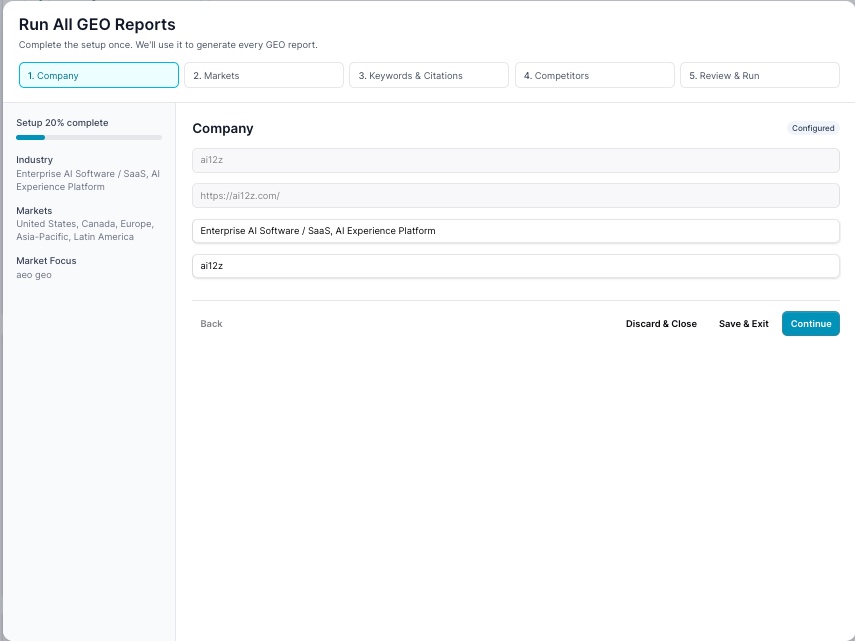
Confirms the basics every other report needs: your company/brand name, website URL, and a short industry description. These are pre-filled from your organization settings, the same Brand Name, Brand Domain, and Industry fields you'd otherwise fill in separately inside Citation Monitor's own configuration dialog.
Step 2: Markets
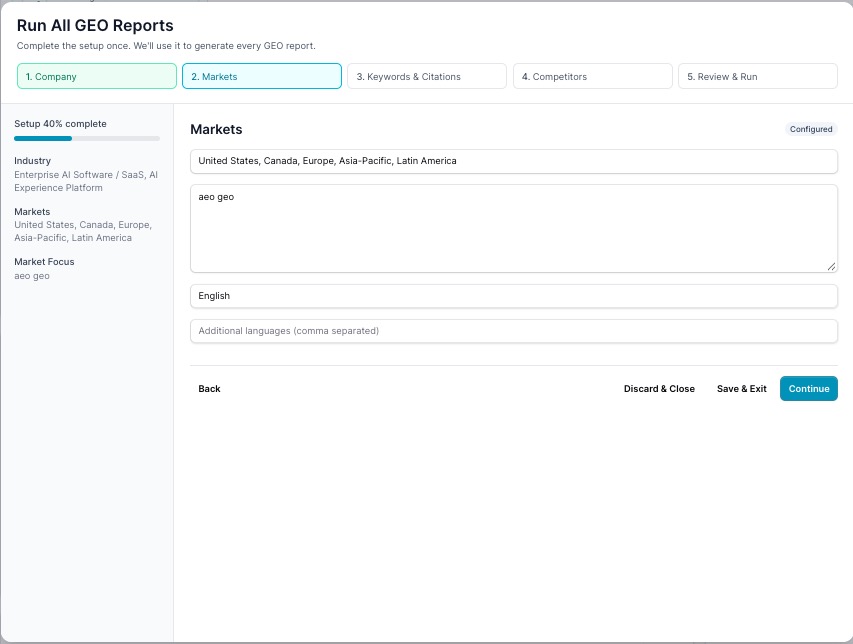
Sets the geographic and linguistic context for every report:
| Field | What It's For |
|---|---|
| Markets | The regions you compete in (e.g. United States, Canada, Europe, Asia-Pacific, Latin America) |
| Market Focus | Free-text context for this run, the same Market Focus field Citation Monitor asks for on its own |
| Primary Language | The main language your content and reports are evaluated in |
| Additional Languages | Comma-separated extra languages to evaluate, if your site serves more than one market language |
Step 3: Keywords & Citations
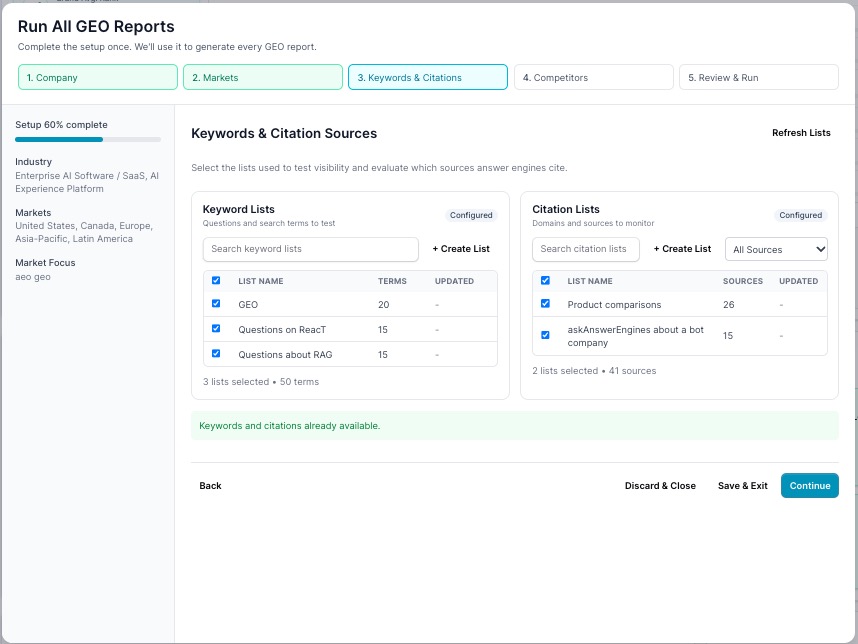
Picks which saved Keyword Lists and Citation Lists feed every report that needs tracked queries. If you already have lists, as in the example above (three keyword lists totaling 50 terms, two citation lists totaling 41 sources), they're shown pre-selected and the page confirms it with a "Keywords and citations already available" message. If you don't have any yet, AI generates starter lists automatically so the wizard isn't blocked waiting on you to build one from scratch.
You're not limited to what's pre-selected:
- Check or uncheck individual lists to control exactly which ones this run uses
- Use Search keyword lists / Search citation lists to find a specific list by name
- Click + Create List to open the same manual list creator described in Keyword Lists or Citation Lists, build a list right here without leaving the wizard
- Click Refresh Lists if you've just created or edited a list elsewhere and want this step to pick it up
Step 4: Competitors
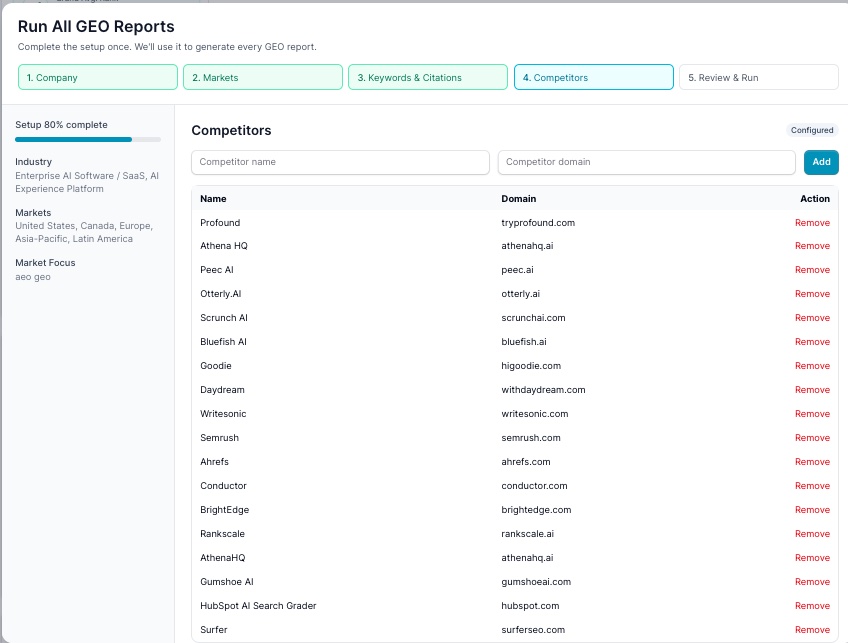
Sets the competitor watchlist every citation and share-of-voice comparison runs against, the same Competitors table Citation Monitor uses. It arrives pre-loaded with an AI-suggested set based on your brand and market context, add more with the Competitor name / Competitor domain fields and Add, or Remove any entry you don't want tracked.
AI-generated suggestions can include near-duplicates, the example above lists both "Athena HQ" and "AthenaHQ" pointing at the same athenahq.ai domain. Scan the table and remove duplicates or irrelevant entries before moving on, since every tracked competitor adds to what Citation Monitor and related reports evaluate.
Step 5: Review & Run
The final tab summarizes everything configured in the previous four steps and starts the batch run: every report in the AI Visibility Suite executes against the Company, Markets, Keywords & Citations, and Competitors setup you just confirmed, instead of you opening and configuring each report one at a time.
Wizard Controls
Every step shares the same navigation bar:
| Control | What It Does |
|---|---|
| Back | Return to the previous step without losing progress |
| Save & Exit | Keep what's configured so far and leave the wizard; resume later from where you left off |
| Discard & Close | Abandon the setup entirely |
| Continue | Move to the next step |
The left-hand sidebar keeps a running summary of what's been configured (Industry, Markets, Market Focus, and so on) alongside the overall Setup X% complete progress bar, so you always know how much is left before Review & Run.
Perfect For
- Setting up a brand-new project without opening five separate configuration dialogs
- Agencies onboarding a new client, this is the fastest path from zero to a full first assessment
- Periodically refreshing every report at once (new competitors, a new market, an updated keyword list) instead of re-running each report individually
- Anyone who wants the AI-prefilled defaults reviewed once, not re-entered into every report's own config dialog
A new sub-organization can run this wizard once without a subscription, a free, full-data follow-up to a Prospect Snapshot once a prospect shows real interest, giving a partner the prospect's actual GEO Score and action plan to consult from before asking for a paid subscription.
Related Documentation
- GEO Suite Dashboard: Where the Run All Reports button lives
- Keyword Visibility: Full reference for the Keyword Lists this wizard reuses or creates
- Citation Monitor: Full reference for the Citation Lists and Competitors table this wizard reuses or creates
- AI Footprint: One of the reports run in the batch, using the same brand and competitor context
- AI Visibility Suite Overview: How this wizard fits alongside the rest of the AI Visibility Suite